Background
Music Setting
You
can set the background music.
Press tllp • or
...
hutto:,
to
select "Background Music Setting". then press tile
ENTER
G'
button
If
you
turn off
tile'
Background MusIc". even if tile "Background Music
Settings" Ilave been set up, the background music will not
be
played
Music files
mUSl
be
loaded and playing
to
change the BGM mode.
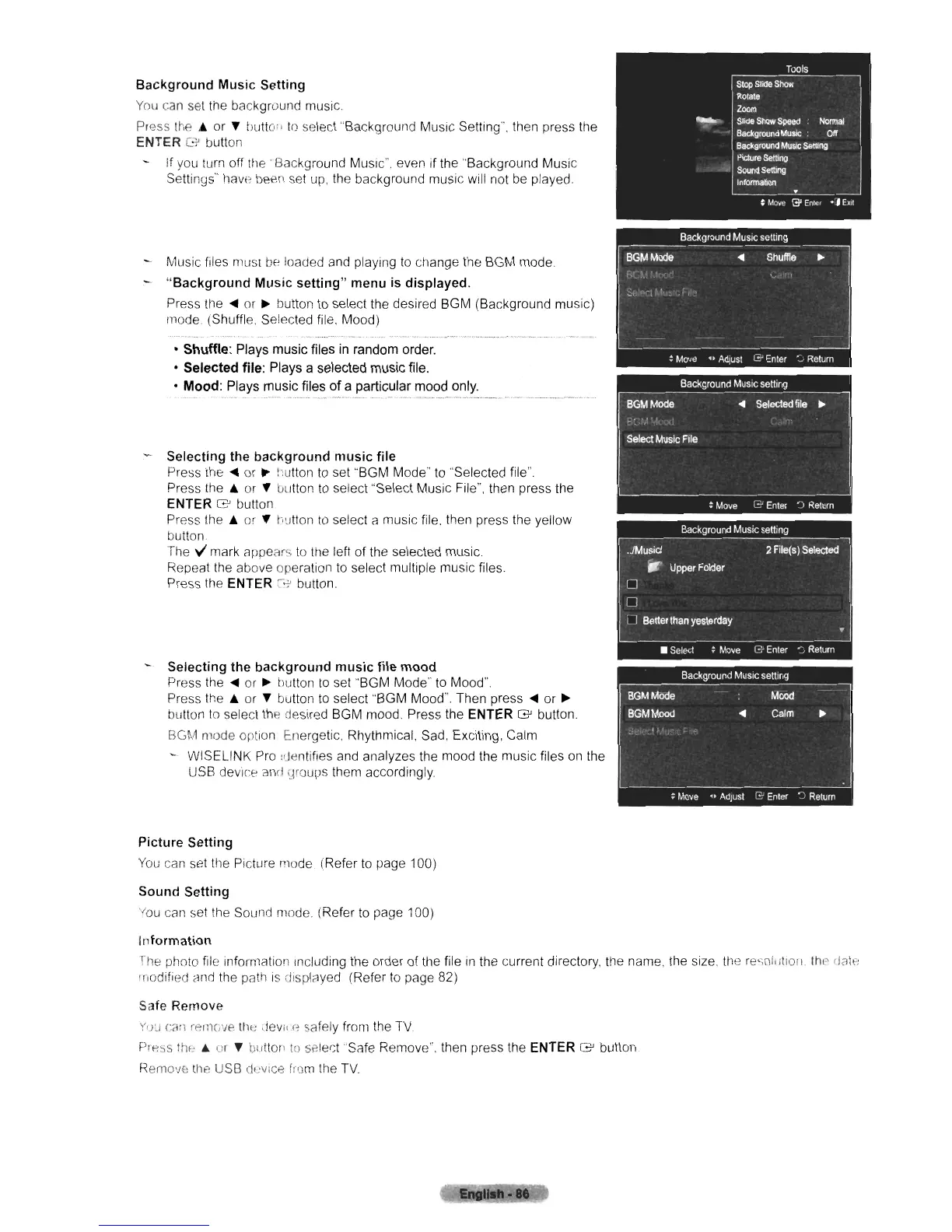
"Background
Music
setting"
menu is displayed.
Press llle
~
or
~
button
to
select tile desired BGM (Background music)
mode (Shuffle, Selected file. Mood)
• Shuffle: Plays music files
in
random order.
• Selected file: Plays a selected music file.
• Mood: Plays music files
of
a particular mood only.
Selecting the
background
music
file
Press tile
~
or
~
!lutton
to
set "BGM Mode"
to
"Selected file".
Press tile • or
...
button
to
select "Select Music File". then press the
ENTER
8'
button
Press
the.
or
...
r)~ltton
to
select
Cl
music file, then press the yellow
button
Tile
v'
mark appears
to
the left of the selected music
Repeat the above operation
to
select multiple music files.
Press the ENTER
~.."
button.
Selecting the
background
music
file
mood
Press the
~
or
~
button
to
set "BGM Mode"
to
Mood".
Press the • or
...
button
to
select "BGM Mood". Then press
~
or
~
button
to
select
th
desired BGM mood. Press the ENTER
8'
button.
BGM mode option t.llergetic. Rhythmical, Sad, Exciting, Calm
WISELINK Pro
,cJentifies
and analyzes the mood the music files
on
the
USB device and
~roups
them accordingly
Picture Setting
You
can set the Picture mode (Refer
to
page 100)
Sound Setting
You
CCln
set tile Sound mode. (Refer
to
page 100)
Information
The photo file information Including the order of the file
in
the current directory, the name, the size. the resohilioll Ihl'
dCltP.
rrlodified and the
p"th
is
displClyed
(Refer
to
page 82)
Safe Remove
VU~
(:Cl:l
rPllle",e lIle
,lev;1
(;
safely from the
TV.
Prp.ss
thfe
• or
...
butto!'
to
seler:t "88fe Remove", then press the ENTER
8'
button
Remo'lE:
lIle USB deVice from lI'le
TV.












 To Next Page