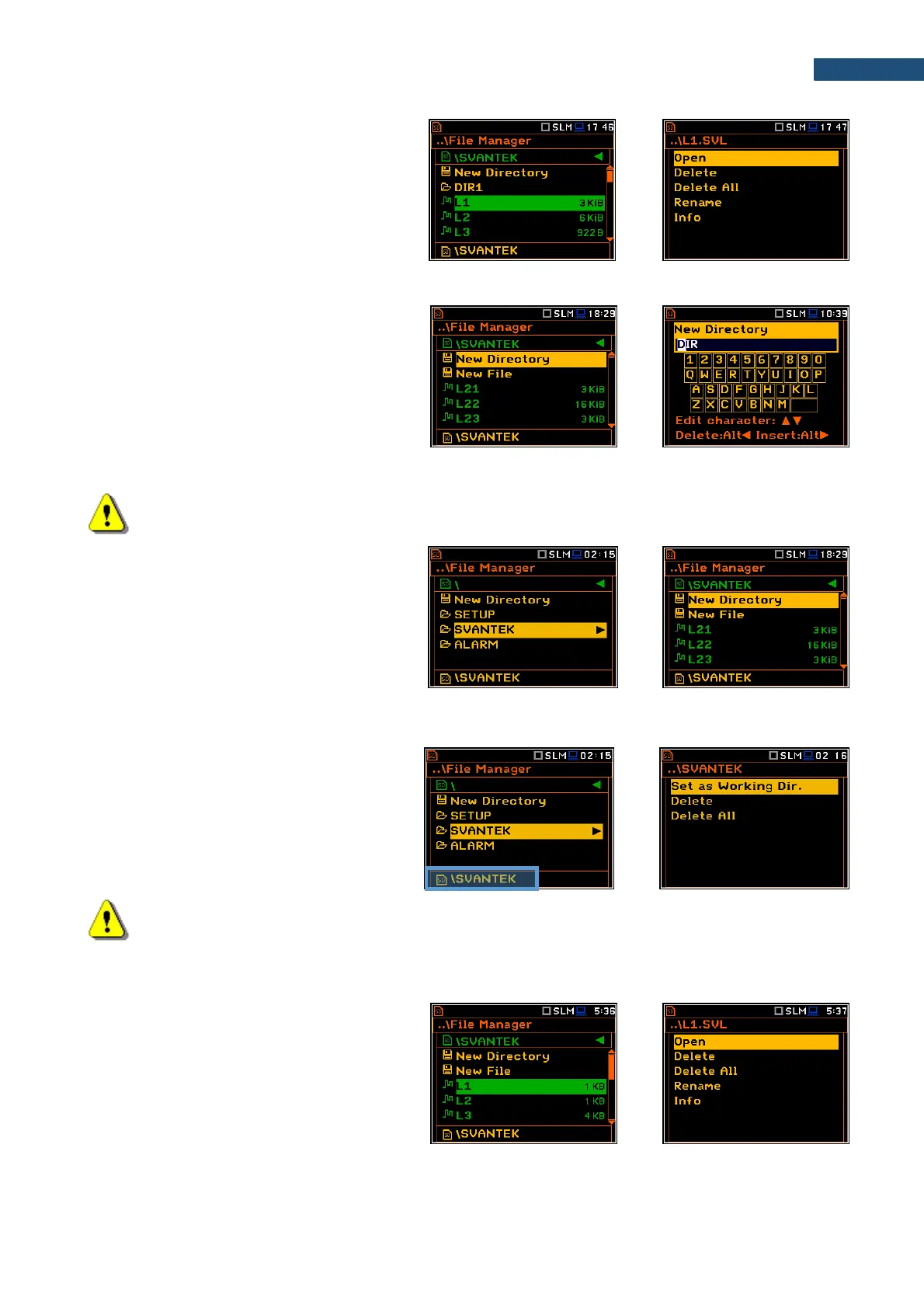
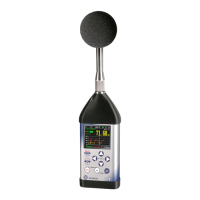
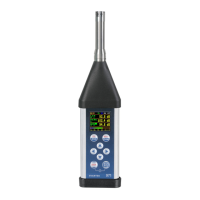
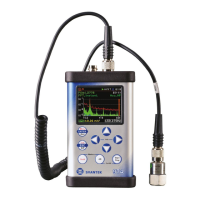
In the File Manager screen, you can check
the memory content, create new directories
and files, select directory for automatic data
files saving, rename and delete files and
directories.
All these operations can be done on the
selected file or directory by means of the
command list which is opened with the
<ENTER> key.
Creating new directory or file
The first two positions of the File Manager list
are New Directory and New File, which
serve for creation of the new directory or file.
To do this, enter the directory in which the new
element will be created, press <ENTER> at
the New Directory or New File position and
edit the new directory or file name in the text
editor screen.
Note: The New File position appears if the measurement was performed.
Changing directories
The marked directory can be opened with the
► key.
To return to the upper directory press the ◄
key.
7.1.1 Assigning directory for data files saving – Set as Working Dir.
You can assign a directory for automatic
saving of data files. To do this, choose the
required directory and press <ENTER>. After
opening the command list, select
Set as Working Dir. and press <ENTER>.
Starting from this moment all files will be
saved in this directory.
Note: The working directory name is displayed in the bottom line of the display.
7.1.2 Opening files/directories – Open
You can open a directory or a logger file. To
do this, select the file/directory and press
<ENTER>. After opening the command list,
select the Open position and press
<ENTER>.
The effect of such operation on a directory is
similar to the effect of the ► key.


 To Next Page