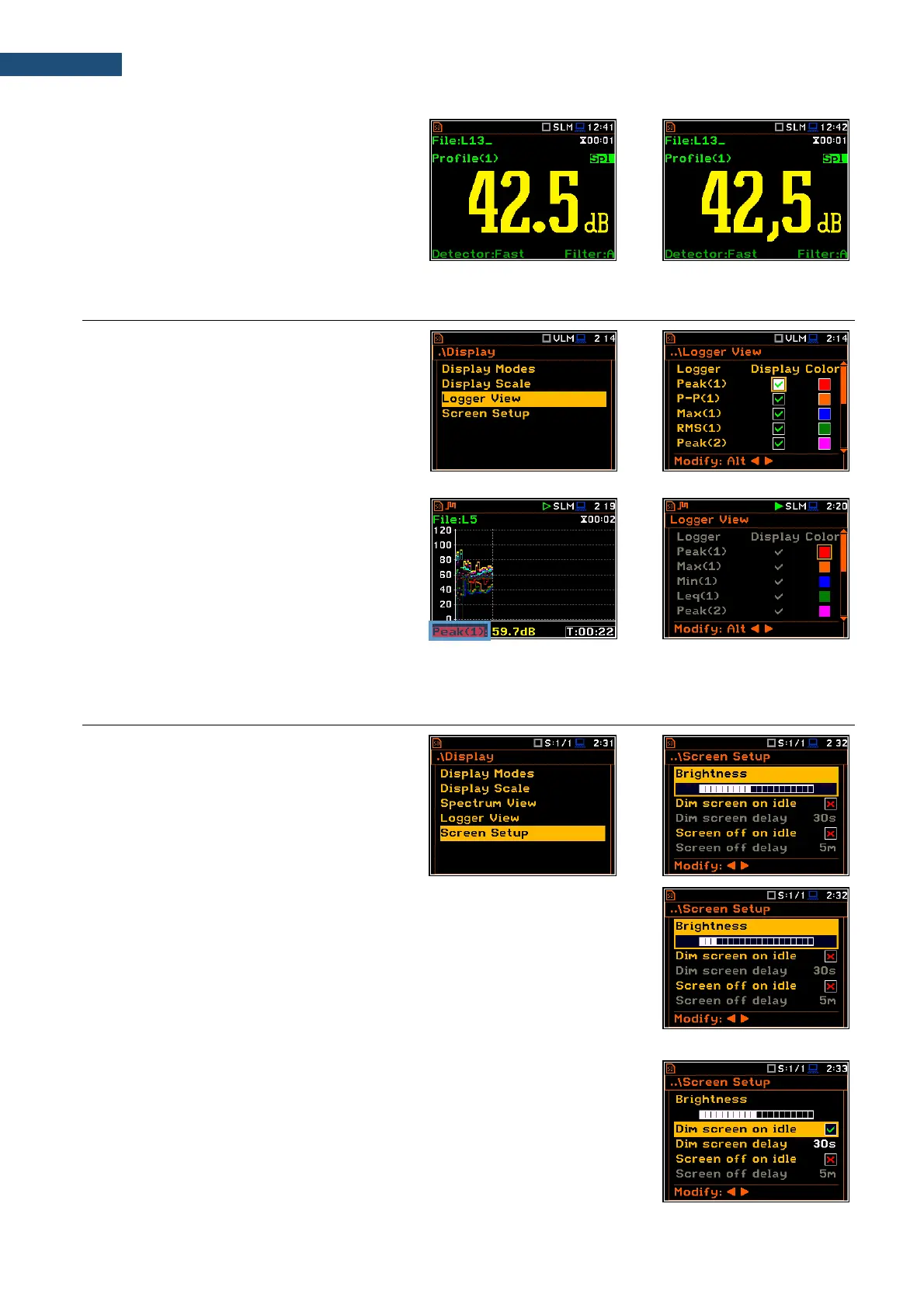
Decimal Mark
The Decimal Mark position allows to select
which decimal mark (point or comma) will be
used for data presentation in all presentation
modes.
6.3 ADJUSTING THE LOGGER VIEW - LOGGER VIEW
The Logger View screen allows to adjust the
Logger view by choosing logged results to be
displayed and colours of their curves.
Every logger curve shows the history of one
result measured in a profile, like Peak(1). In
the Logger View screen, you can include or
exclude the curve from the logger plot and
define the colour of this curve.
The view of the logger screen can be adjusted
quickly without stopping the measurement.
Highlight the function label in the bottom left
hand corner then press <ENTER>. The
Logger View list will be displayed in which
you can make necessary adjustments and
return to the Logger view after confirmation of
the performed changes with the <ENTER>
key.
6.4 SETTING THE DISPLAY BRIGHTNESS AND POWER SAVER - SCREEN SETUP
The Screen Setup screen allows to set up the
brightness of the display and to toggle the
power saver.
Brightness of the display
The Brightness position allows to set the proper brightness of the display with
the ◄ / ► key. You can select 20 different values of this parameter. The new
value of brightness level is confirmed after each press of the ◄ / ► key.
Power saver function
The saving of the internal source of the instrument’s power can be achieved by
reducing the brightness of the screen when possible.
There are two options for the power saver function. The screen may be
switched off (Screen off on idle) and/or dimmed (Dim screen on idle). When
either of these options are set, after a delay from pressing any key, defined by
the parameters Dim screen delay or Screen off delay, the screen is dimmed
or switched off. If it has happened, the first press of any key will cause the
screen to switch back on again.


 To Next Page