93
DISPLAYING THE MEASUREMENT RESULT
OCULAR R/L MAP
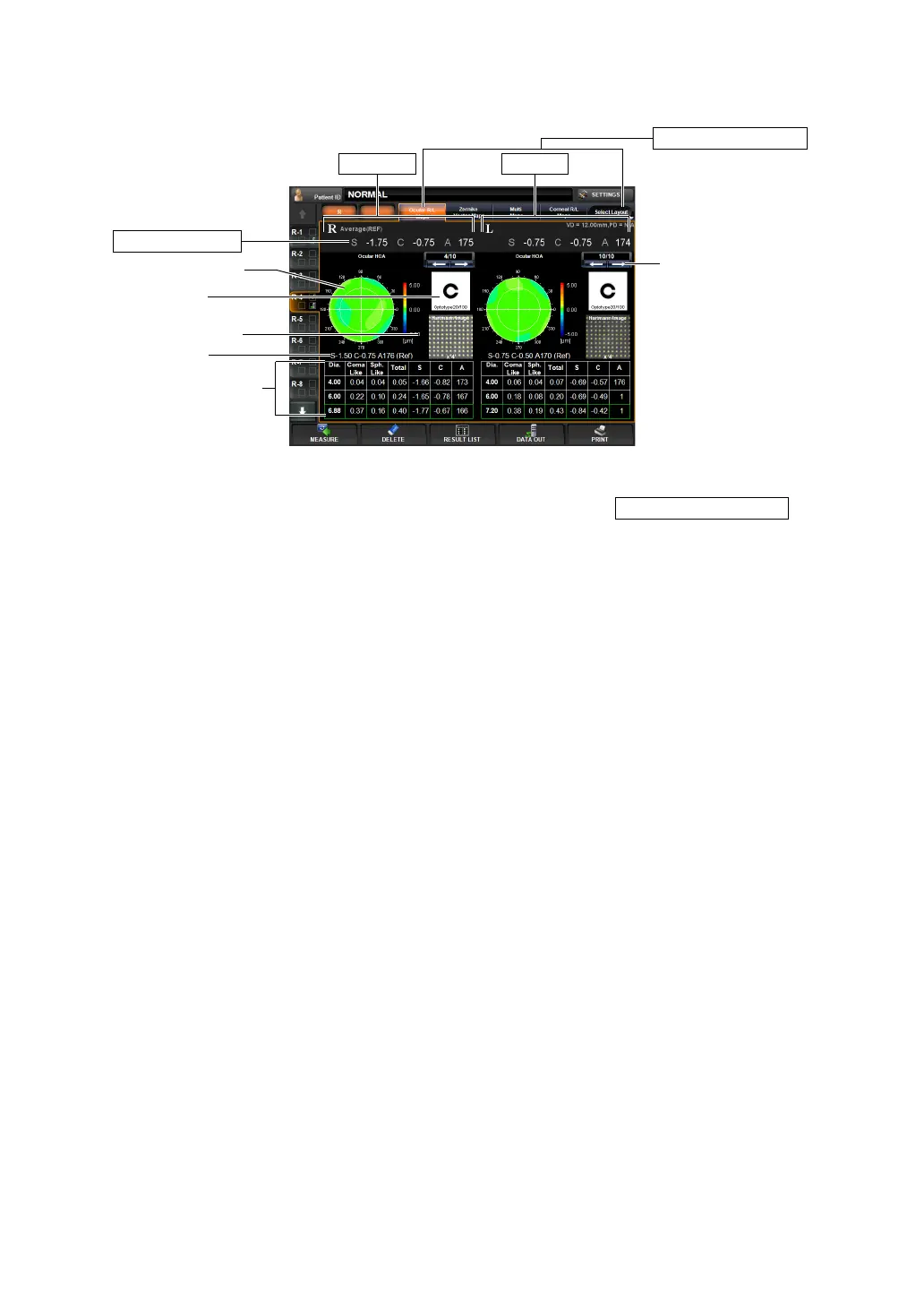
The Ocular R/L map can be displayed.
To change display: Tap the Layout Select button, the rightmost button of layout
change buttons, and tap the
button
of the displayed pull-down menu.
To change display to other map: Tap the Layout Change button.
(1) Data Feed button Moves to the analysis result to the next data, or returns to the previ-
ous data.
(2) Ocular HOA map (See "Ocular HOA map" on page 86.)
(3) REF Value REF Value of current displayed data.
(4) Simulation (See "Simulation" on page 82.)
(5) Hartmann image (See "Hartmann image" on page 79.)
Operation: • When tapped, the image is enlarged. (See "ENLARGEMENT DIS-
PLAY" on page 94.)
• The map display step can be changed. (See "SETTING THE HIGH
ORDER ABERRATION ASTIGMA MAP DISPLAY STEP" on page
147.)
Operation: • When tapped, the image is enlarged. (See "ENLARGEMENT DIS-
PLAY" on page 94.)
• The orientation of the optotypes can be changed.
(See "SETTING OPTOTYPE DIRECTION" on page 152.)
• The vision of each chart can be changed. (See "SETTING OPTO-
TYPE SIMULATION 1 (UPPER)" on page 151.)
• To normalize the brightness or not can be changed. (See "SET-
TING THE NORMALIZATION OF BRIGHTNESS OF SIMULATION
(NORMALIZE DESTINY OF SIMULATIONS)" on page 152.
Operation: • When tapped, the image is enlarged. (See "ENLARGEMENT DIS-
PLAY" on page 94.)
• When dragged in the right direction, the overlay can be changed.
(See page
98.)
Layout Change button
(4) Simulation
(3) REF value
(1) Data Feed button
Typical REF value
(6) Measurement value
(2) Ocular HOA map
(5) Hartmann image
Right eye
Left eye
OCULAR R/L MAPS


 To Next Page