892 J006 MNAH | PGC5000 G EN 2 | 35
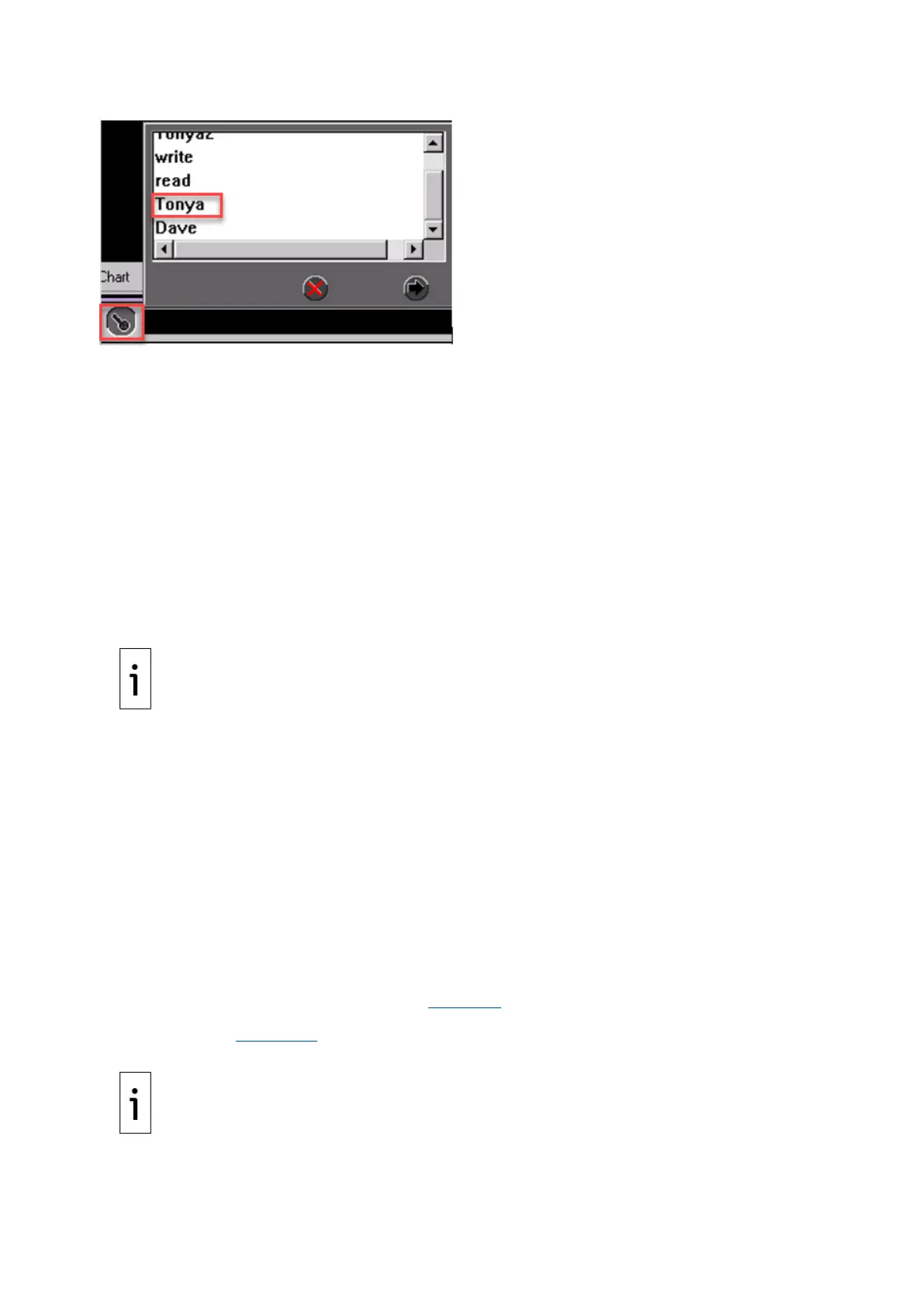
Figure 3-16: Select a user name
2. Enter your password and press Accept.
3. The information bar at the bottom of the screen displays your access level.
4. The Log In button becomes a Log Out button upon login. To log out, press the Log Out button.
3.8.2 Access levels (optional)
Access levels are set with the user interface, STAR Client, or optional VistaNET Name Service
Application (VNSA) interface. The user name and password information is maintained in a distributed
Access Control List (ACL).
The ACL also stores the access level for each user of the analyzer and STAR Data Management
System (STAR DMS). Refer to the STAR Data Management System (DMS) Operating Instructions for a
detailed description of ACL. There are three levels of access:
⎯ Supervisor: Can modify the ACL
⎯ Read/Write (Normal): Can modify all tables, with the exception of the ACL.
⎯ Read Only (Limited): Can view, but not modify, any table of any device.
Supervisors can determine each user's required access level and enter the information into the ACL.
IMPORTANT NOTE: If the Information Bar states: “Login access Unsecured”, then all users have
full access (Supervisor level).
3.8.3 Subscriber list
The Subscriber Tab allows analysis results, status change, and analyzer events reporting to the
Reporter, the OPC, and the STAR Server. Their addresses must be entered in the Subscriber List.
Instructions for adding new or editing existing subscribers are covered in the Operations section under
the Subscriber Tab.
3.8.4 RUI
To connect remotely from a laptop:
1. Install the STAR core software on a laptop attached to the same network as the analyzer.
2. Launch the RUI from the STAR Client.
To connect from an RUI shortcut:
1. Launch the RUI from a shortcut.
2. Press the Network Connect button (see Figure 3-9).
3. When the Network dialog box appears, enter the IP address of the analyzer to observe or
control (see Figure 3-11).
4. Press Accept to continue or press Abort to close the network box.



 To Next Page