62 | PGC5000 GEN 2 | 892 J006 MNAH
minutes to complete depending on system configuration. The user restore directory is NOT
saved to the Recovery drive.
To restore the system from an unrecoverable lockup or after replacing the Single Board
Computer, install the USB flash drive and apply power to the system. The SBC formats the
flash memory and copies all of the files from the USB flash drive to the system’s flash
memory. Wait for the “Upgrade Complete” message to appear. Select the USB Eject icon and
wait for the “Eject Complete” message to appear. Remove the USB drive and cycle power to
reboot.
⎯ STREAM FILE: Selecting the Stream Operation icon copies all stored chromatogram files on
the system to the flash drive inserted in the SBC board. Copying the data files will take
several minutes. Wait for the “Operation Complete” message to appear. Select the USB Eject
icon, wait for the “Eject Complete” message to appear, and then remove the USB flash drive.
Selecting the Delete icon deletes all saved chromatograms and report files on the system. It
does not delete analyses saved in the Analysis Config folder or Analysis Library folder.
⎯ DIAGNOSTICS: Selecting the Diagnostic Operation icon will copy all diagnostic files to a USB
drive inserted in the SBC board. Diagnostic files are used to diagnose errors and events in
software. These files are for factory use and troubleshooting purposes. Copying the files
should take only a few minutes. Wait for the “Operation Complete” message to appear. Select
the USB Eject icon, wait for the “Eject Complete” message to appear, and then remove the
USB flash drive.
⎯ EJECT: Selecting the Eject SD Card icon allows you to safely eject the SD Card from the Single
Board Computer PCB. Wait for the “Eject Complete” message before removing the SD Card.
Report storage will automatically revert to RAM disk. When an SD Card is replaced in the SBC,
report storage will automatically return to the SD Card.
Selecting the USB Action icon performs the functions listed above. Always wait for the “Eject
Complete” message before removing a USB drive.
4.6.3 System backup, restore and recovery messages
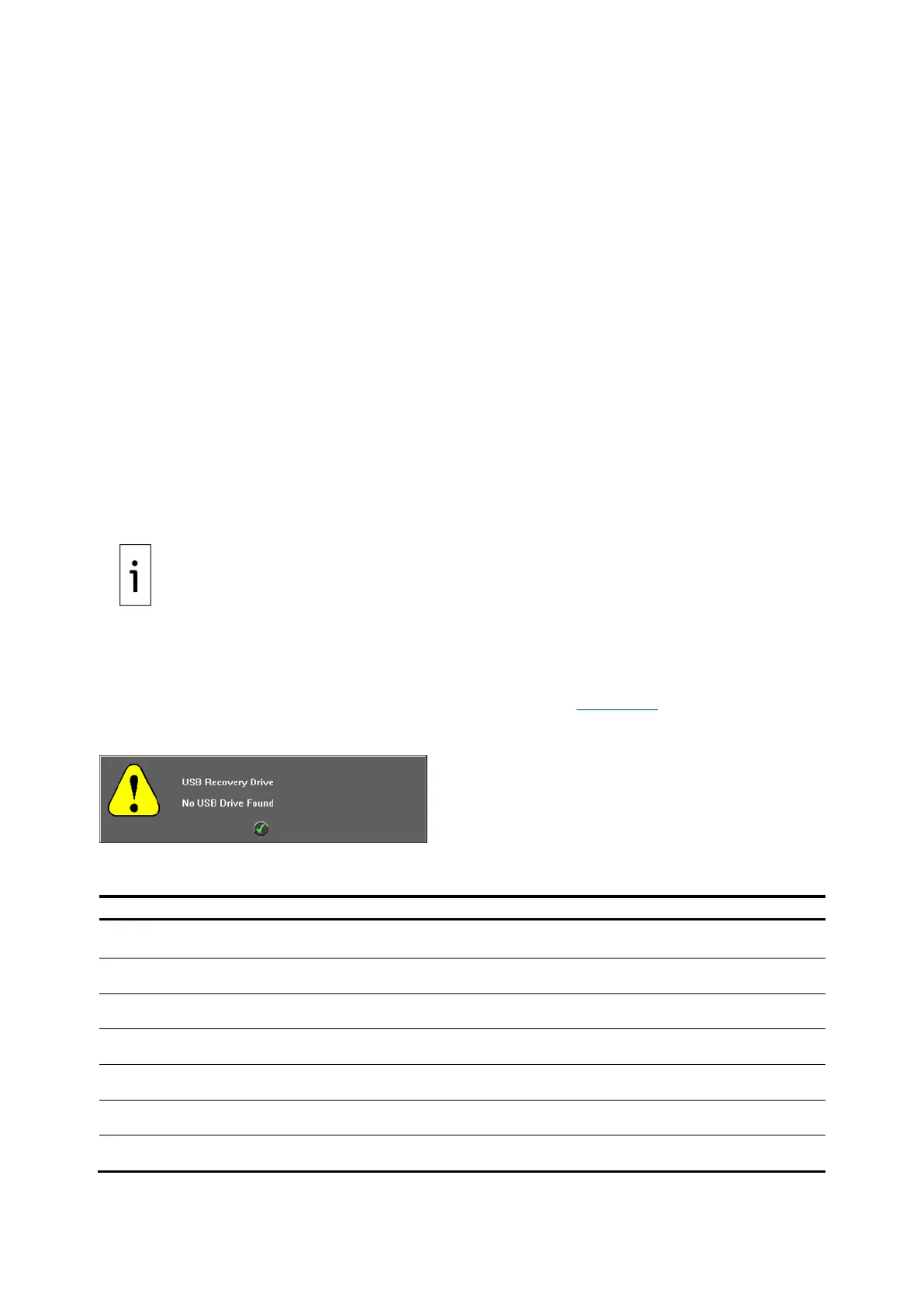
The Backup/Restore and Recover options include error diagnostics. Figure 4-26 shows a sample
message display.
Figure 4-26: Error message
The following popup messages display during restore and recovery procedures.
Table 4-2: Warning messages



 To Next Page