To retrieve an analysis from the library:
1. Select the Analysis>Chart subtab.
2. Press the Add to a Scope button. An object dialog box opens.
3. Select the Analysis Library.
4. Choose the desired analysis you want to load.
5. Press the Next button to continue.
6. Review the information listed at the top of the dialog box.
7. If the information is correct, press the Accept button to continue.
8. If the information is not correct, press the Go Back button to return to the previous dialog box,
or press the Abort button to cancel the operation.
9. Save the object to the Analysis Configuration for immediate use.
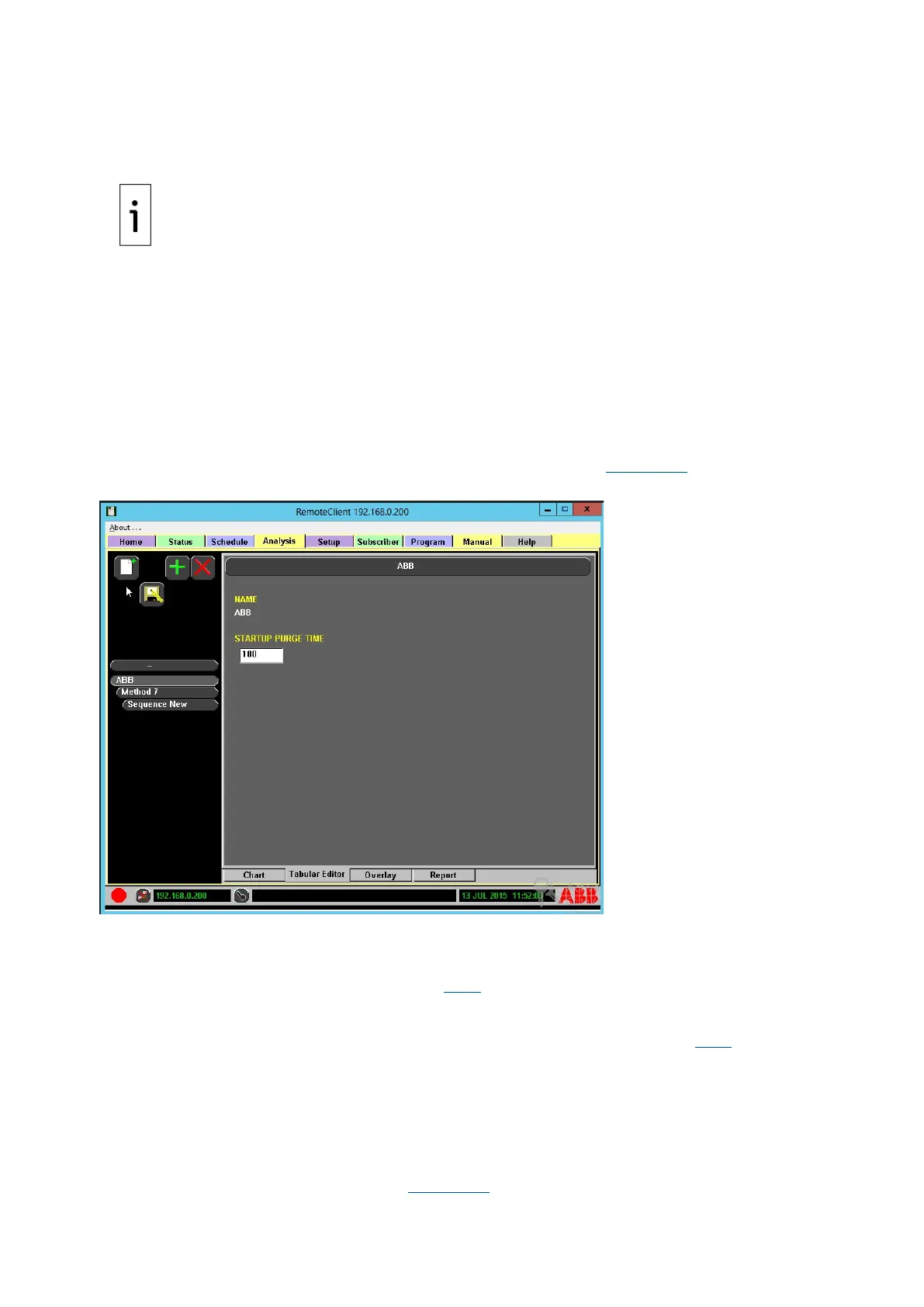
The chosen analysis appears on the left side of the screen, as shown in Figure 4-22.
Figure 4-22: Library Stored Analysis
4.5.7 Run an existing schedule
See the Schedule Tab to run a schedule, section 4.4.4.
4.5.8 Stop or pausing schedules
See the Schedule Tab for information about stopping or pausing a schedule, section 4.4.4.
4.5.9 Overlay subtab
The Analysis>Overlay function works the same as the Home>Overlay screen. Refer to the
Home>Overlay subsection in this section for more information.
4.5.10 Chromatogram reprocessing
This allows the reprocessing of integration events on a completed (saved) standard chromatogram
report without re-running the analysis (see Figure 4-23). The Active box on the left side of the display



 To Next Page