110 | PGC5000 GEN 2 | 892 J006 MNAH
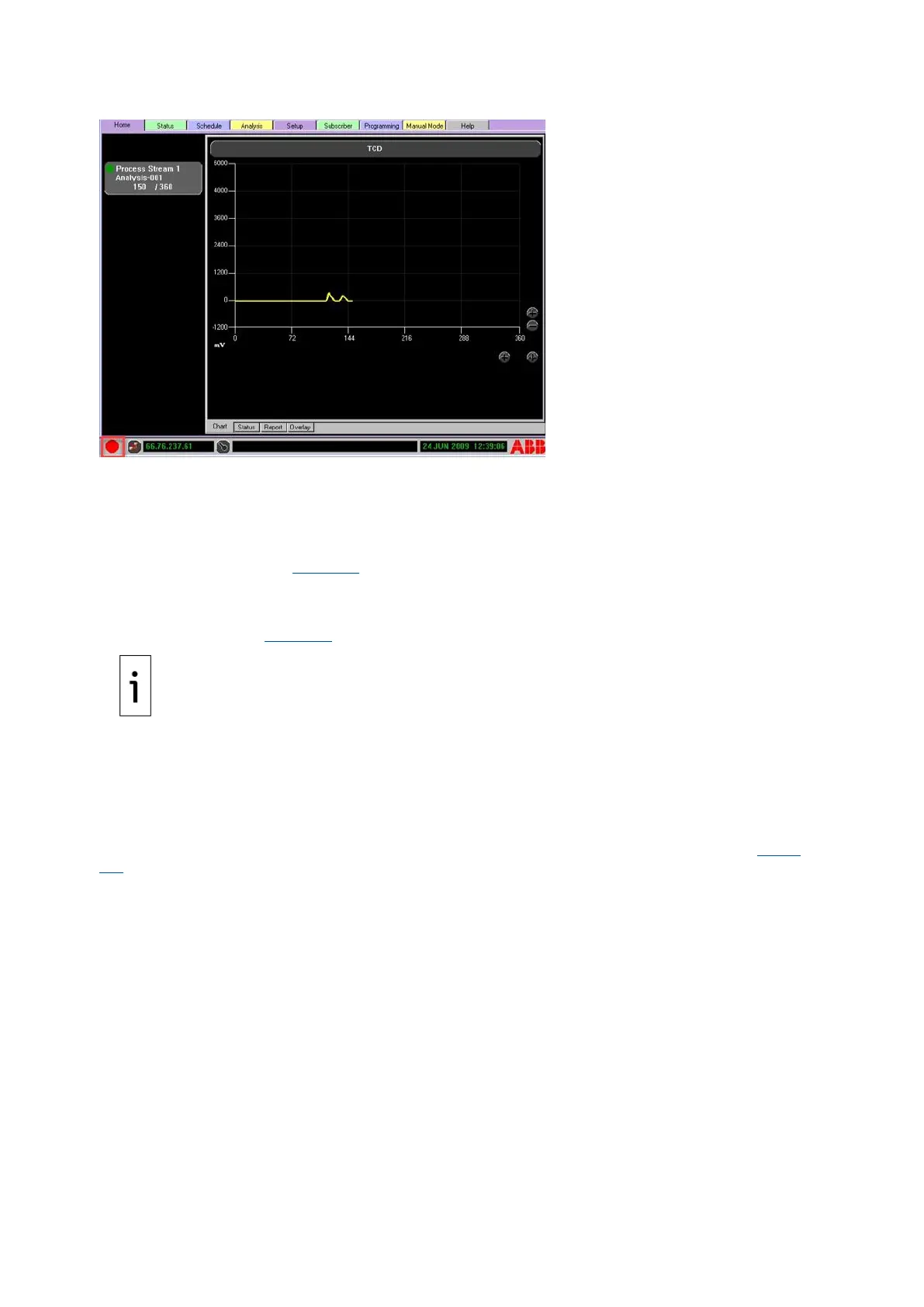
Figure 6-1: Master Rollup indicator
Use the following steps to identify and correct issues.
1. If the Master Rollup Indicator is RED, YELLOW or BLUE (triggered), select the Home Tab and
note the running analysis button.
2. If an analysis button indicator light is not GREEN, select the Analysis button, then the Status
subtab; locate the triggered indicator(s) and identify the source and correct the issue(s). See
the Status Indicator Table 6-2 for issue resolution.
3. If all analysis button indicators are GREEN, go to the Status Tab. Check the scope subtabs
(located at the top of the display) for triggered indicators.
4. Select the scope displaying the triggered indicator and locate the activated indicator(s). See the
Status Indicator Table 6-2 for issue resolution.
IMPORTANT NOTE: Some Status Scopes have multiple sub-scopes to choose from or may require
using the page down icon to view all indicators. If not assigned to a scope, triggered indicators on
the Status tab (displaying red, yellow or blue), are not reflected at the Master Rollup Status
indicator. It maintains a green (good) status.
Correct an issue by removing the condition which triggered the indicator. This includes removal and
replacement of PCBs, adjusting parameter limits or simply acknowledging the indicator by using the
reset button. If the triggering condition still exists, the indicator may not clear after pressing the Reset
button.
6.4 Status indicators
The Status indicator functions are an essential part of the user interface of the analyzer (see Figure
6-2).



 To Next Page