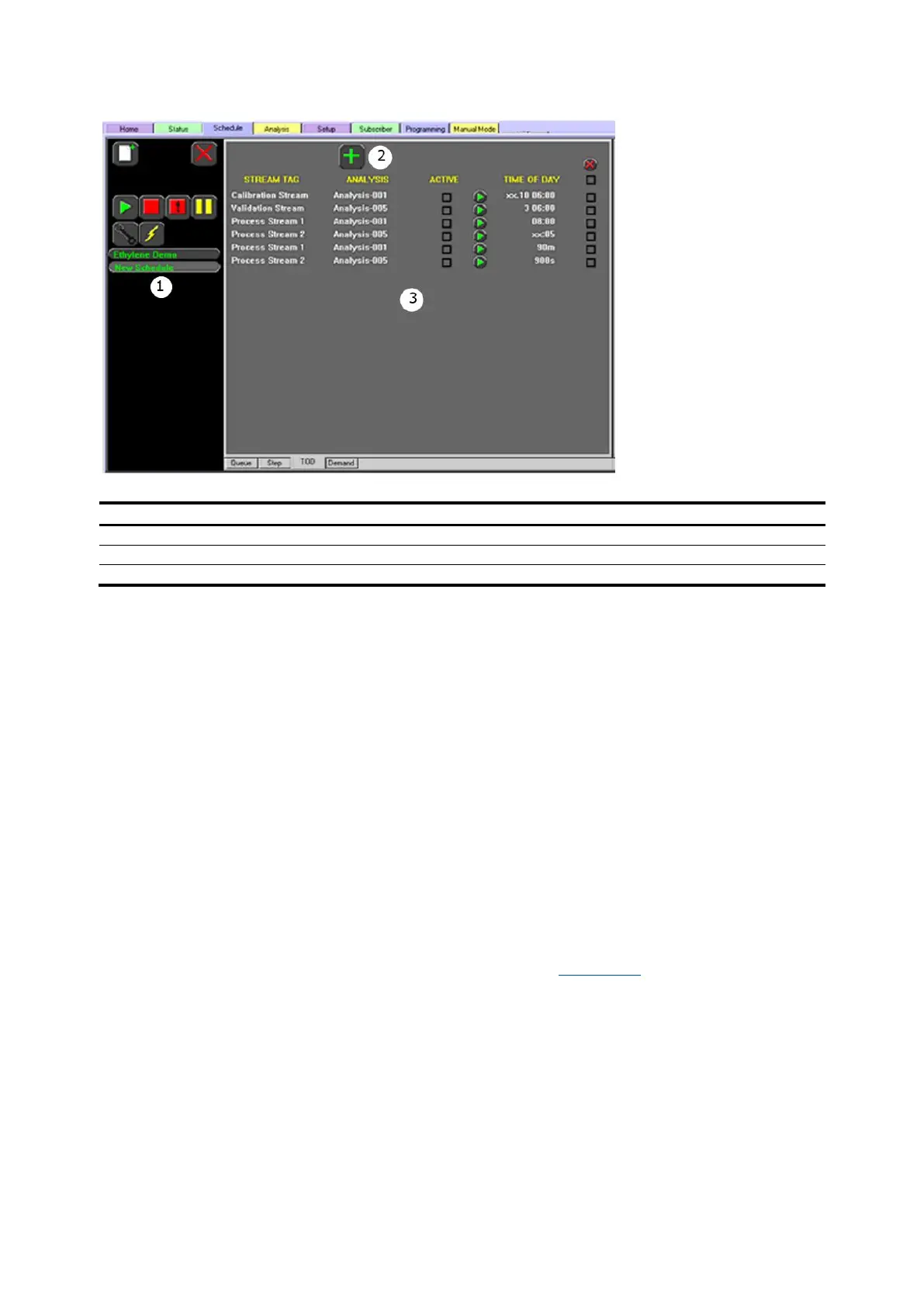
The TOD subtab sets scheduled validations, calibrations, and stream analyses.
To add a TOD analysis:
1. Press the Add button at the top of the subtab display and a selection list appears.
2. Select a stream from the list and press the Next button to continue.
3. Select the analysis from the list and press the Next button to continue. If needed, return to the
previous screen by pressing the Go Back button.
4. Select the frequency from the list and press the Next button to continue.
5. Depending on the last selection, select the day of the month or day of the week, and press the
Next button to continue.
6. Enter the time of day the analysis is added to the queue (hour and minute) and press the Next
button to continue. The clock uses a 24-hour format.
7. Review the information and press the Accept button to accept the entries or press the Abort
button to discard them. If they are accepted, the analysis will be added to the TOD schedule. If
needed, press the Go Back button to return to the previous screen to change any information.
8. Activate the analysis by selecting the Active box.
4.4.7 Demand subtab
The Schedule>Demand subtab is used to develop analyses a user wants to run at unspecified
intervals. These analyses may be used for maintenance, troubleshooting, validation, and calibration.
Press the Run button to add the analysis to the queue manually. Figure 4-16 provides an example of
the Demand Analysis Addition.



 To Next Page