MODULE 7: QUALITY CONTROL
7-20 AEROSET
®
Customer Training Guide
94858-103 — July 2003
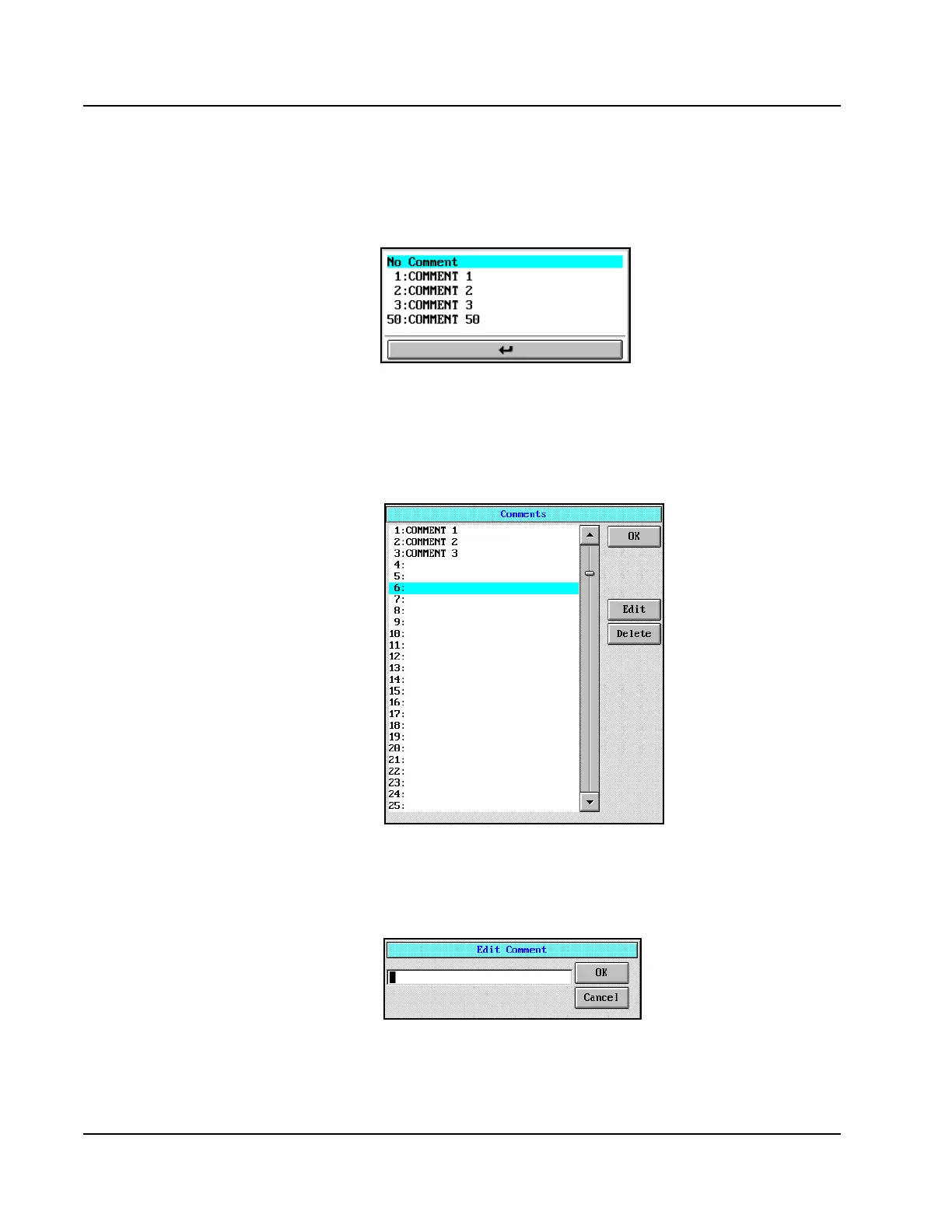
5. To add a comment, touch the drop-down list box to view the
available comments. Select the desired comment then select the
return arrow to close the list.
Figure 7.9: Comment Drop-down List Box
6. Select <OK>. The selected comment is added to the Details dialog
window.
7. To configure a new comment, select <Comment> on the Details
dialog window. The Comments dialog window displays.
Figure 7.10: Comments Dialog Window
8. Move the cursor to an empty position; up to 50 comments can be
configured. Select <Edit> in the right column of the Comments
dialog window. The Edit Comment dialog window displays.
9. Enter the new comment; up to 30 alphanumeric characters can be
entered for each comment.



 To Next Page