Reviewing QC Results
AEROSET
®
Customer Training Guide 7-21
94858-103 — July 2003
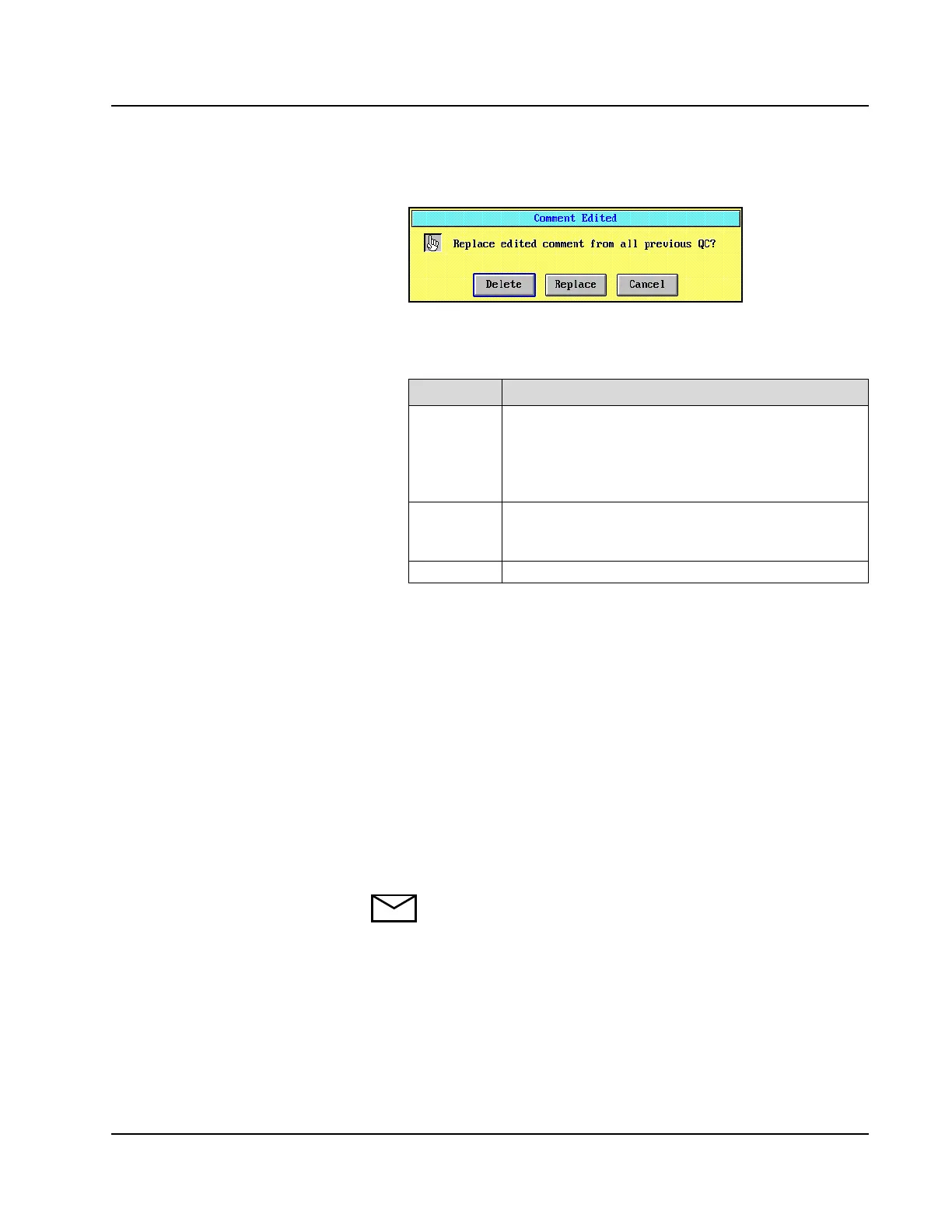
10. Select <OK>. The Comment Edited dialog window displays.
Figure 7.11: Comment Edited Dialog Window
11. Select one of the following options:
12. To delete a previous comment, select <Delete> on the Comment
Edited dialog window. A pop-up window displays the message
“Now deleting comment”. For all QC values with that assigned
comment, the deleted comment is replaced with “No Comment”.
13. Select <OK> to return to the Details dialog window.
14. To replace a previous comment, select <Replace> on the Comment
Edited dialog window. For all QC values with that assigned
comment, the previous comment is now replaced with the edited
comment.
15. Select <OK> to return to the Details dialog window.
16. If <Cancel> is selected on the Comment Edited dialog window,
the Comments dialog window displays.
NOTE: It is not possible to edit a previous QC comment and
allow the previous QC comment to remain unedited when
assigned to QC values before the edit. This feature only allows
removal of an existing comment, adding “No Comment” or
replacing a previous comment with the edited comment.
Option Description
Delete The new comment is added to the comment list. If a
previous comment was edited, this selection deletes the
previous comment, and No Comment is the default
setting in the Comment field for any QC values with this
comment.
Replace The new comment is added to the comment list. If a
previous comment was edited, this selection replaces the
previous comment for any QC values with this comment.
Cancel Returns to the Comments dialog window.



 To Next Page