Log On Password
AEROSET
®
Customer Training Guide 8-7
94858-103 — July 2003
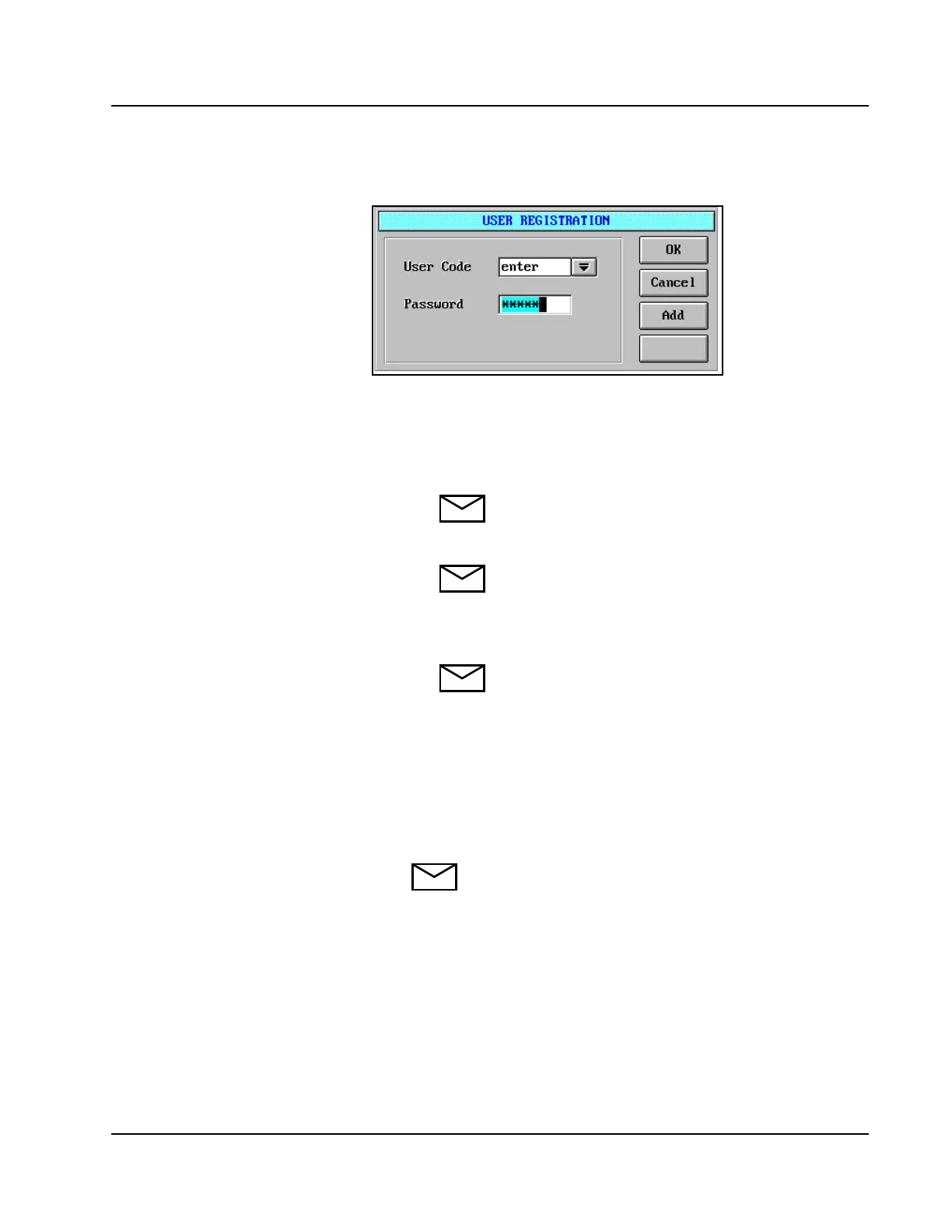
5. The USER REGISTRATION dialog window displays.
Figure 8.2: USER REGISTRATION Dialog Window
Configure the new user code and password for future use.
a. Type any character, up to 6, in the User Code field
then press [Tab] on the keyboard.
NOTE: If the code is "user" level, the System can be
initiated by entering only the user code; a new
password does not need to be created.
NOTE: Other user codes can be displayed, registered,
or deleted for only the same access level.
b. Type any character, up to 6, in the Password field then press
[Enter] on the keyboard. <Add> displays.
NOTE: An asterisk (*) displays in the Password field
for each character entered for the password.
c. Select <Add> on the USER REGISTRATION dialog
window.
d. Select <OK>. The Log On screen displays.
6. Type the user code configured in step 5 then press [Tab] on the
keyboard. Type the configured password then press [Enter]. The
Log On process is complete and the DATABASE screen displays.
NOTE: Up to 50 pairs of user codes and passwords can be
registered for the "user" and "super" levels combined.



 To Next Page