MODULE 11: COMPONENT REPLACEMENT AND TROUBLESHOOTING
11-16 AEROSET
®
Customer Training Guide
94858-103 — July 2003
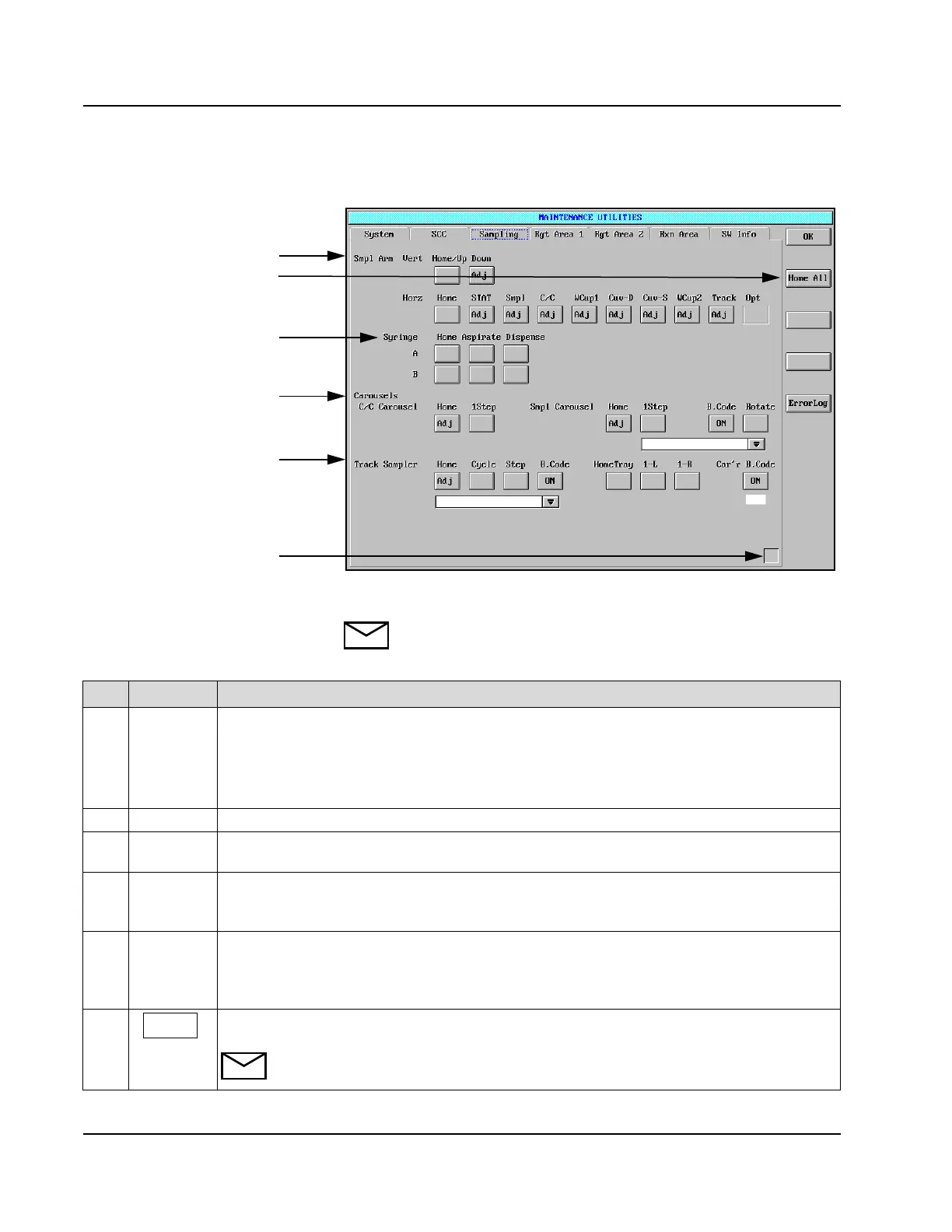
Sampling Page
Figure 11.10: MAINTENANCE UTILITIES Screen, Sampling Page
NOTE: Ensure each component is in the home position before
movement or adjustment.
Item Field Allows the Operator to…
1
Smpl
(Sample)
Arm
Move the Sample Arm horizontally or vertically. The horizontal control allows the Sample Arm to
move to the following positions:
Home, STAT, Smpl (Sample Carousel),
C/C (Calibrator/Control Carousel), Wash Cups 1 and 2, Cuv-D (diluted sample), Cuv-S
(sample), Track (FastTrack™) and Opt (External Robotics).
2
<Home All> Home all robotics.
3
Syringe Move the Sample Syringe drive. The Operator may also request the syringe drives to home,
aspirate, or dispense.
4
Carousels Move the Calibrator/Control and Sample Carousels. The Operator may also turn the Bar Code
Reader ON and rotate the Sample Carousel to read the bar code labels on the samples loaded in
the carousel.
5
Track
Sampler
Move the FastTrack Sampler. The Operator may turn ON the Sample ID Bar Code Reader and
read the bar codes on the samples loaded on the Sample Carrier using the Cycle button. The Car’r
(Carrier) Bar Code Reader may also be activated. Lastly, if a Sample Carrier Tray is loaded, the
Operator may home the tray or move it left (1-L) or right (1-R).
6
This area displays a blue triangle when the System is busy. A green square displays when the status
is READY.
NOTE: When the System is busy, no further commands are acknowledged until the
original command is completed.
• Carousels — if
doesn’t see bar
code, gets a line.
• If button has the
word “adj”, when
touched, the word
“adj” will pop-up
on the button on
the right.
•If “adj” is touched,
will get pop-up
“CW” = clockwise,
or “CCW” =
counterclockwise.
(or up and down)
1
3
4
5
6
2



 To Next Page