Software Tour
AEROSET
®
Customer Training Guide 1-37
94858-103 — July 2003
Screen Navigation
There are several ways to access and display information on the
AEROSET System screens. The buttons discussed in the previous
section allow the Operator to access information. This section shows the
other types of access and displays.
CAUTION: After entering information into a field, the
Operator has 30 seconds to move to the next field to
accept the entry (e.g., using the tab, Enter key, or the
Touchscreen). Failure to move to the next field
within 30 seconds causes the field to revert to the
previous entry.
Buttons
Pictures or text are displayed on the buttons or icons. When a button or
icon is selected, the frame of the button changes to blue or the button
changes colors.
Tabs
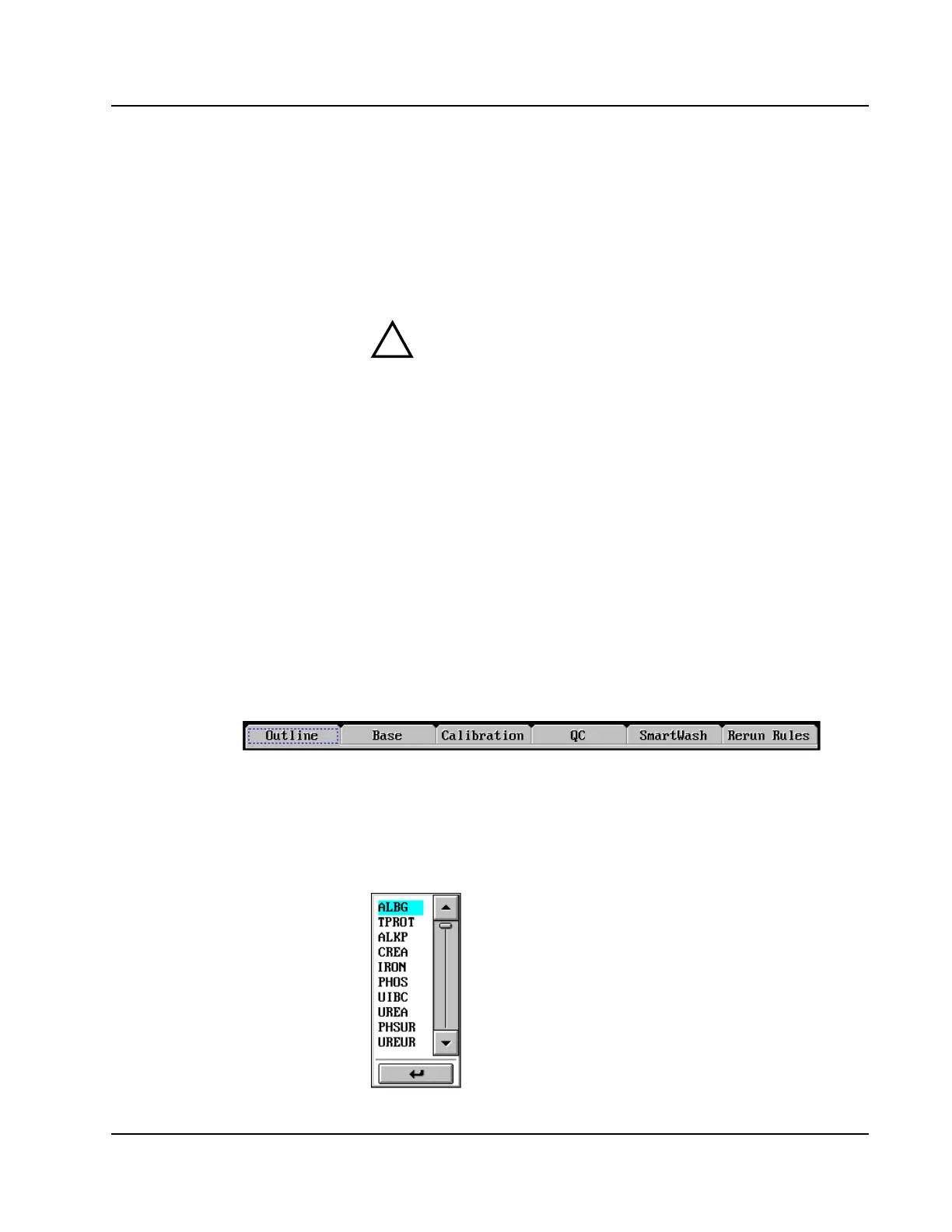
Some areas of the software contain many pages. Tabs are shown along
the top of the Display Area to access the different pages. An example of
tabs from the Assay Configuration screen is shown below.
Scroll Bar
A scroll bar appears on some screens when a list is displayed. The
Operator can touch the scroll bar or use the keyboard arrow keys to view
all the list items. An example of a scroll bar is shown below.
!
• Use Assay Configuration or
Maintenance Utilities to
demonstrate.
• Use Database or Printer/Page Setup
to demonstrate.



 To Next Page