Checking Reagent Inventory
AEROSET
®
Customer Training Guide 2-9
94858-103 — July 2003
Check Reagent Inventory
1. Select <RGT SCAN> in the Action Area of the Main Display to
update the status of the reagent inventory.
NOTE: Inventory status only updates for Abbott bar code
labeled reagents.
NOTE: If any reagent configuration is edited and saved
after the reagent scan is complete, this reagent becomes
manually configured. Refer to Load Reagents in this
section for details.
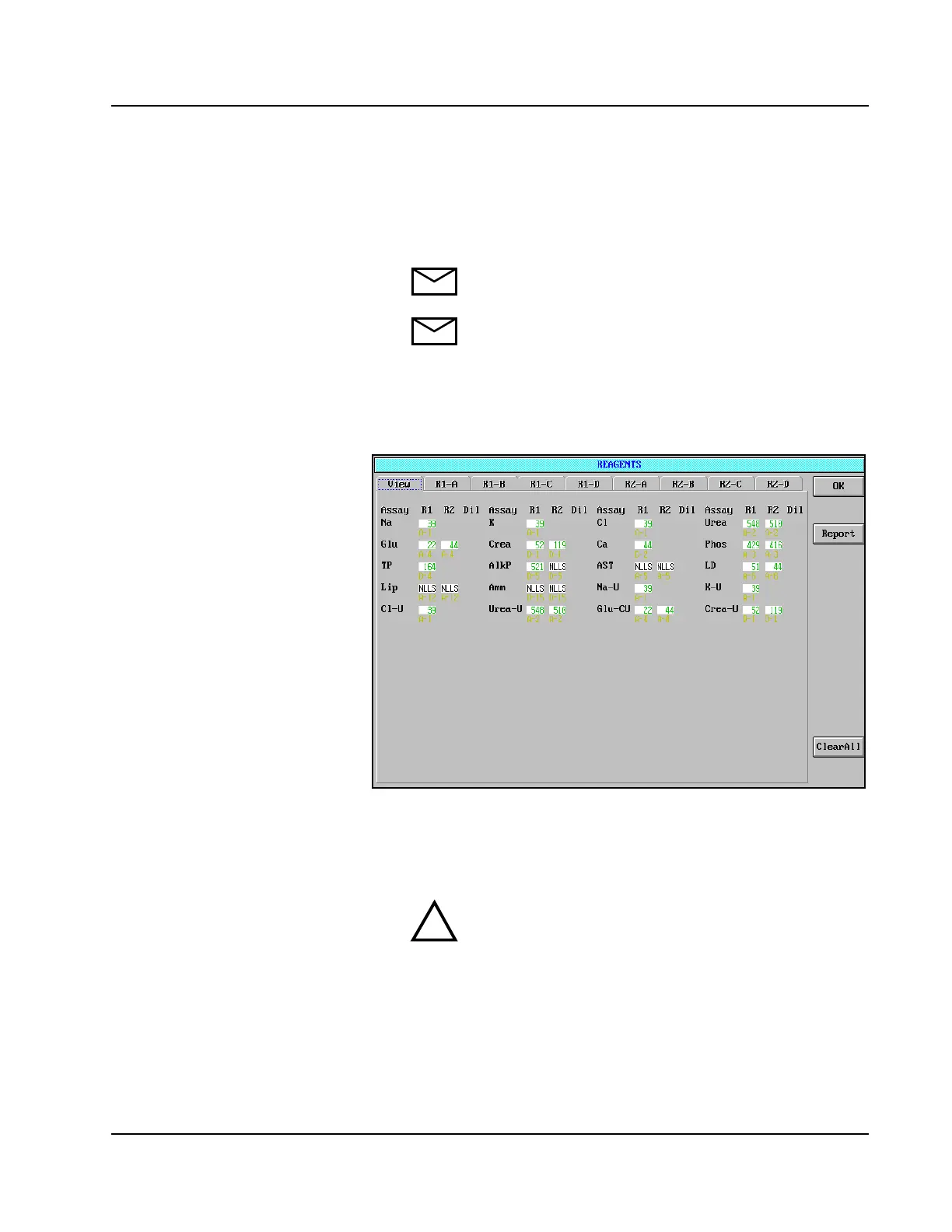
2. Select <Reagents> in the Information Access Area of the Main
Display. The REAGENTS screen displays.
Figure 2.3: REAGENTS Screen, View Page
3. Review all reagent volumes. Verify positions for the reagent
cartridges without bar code labels.
4. Replace any reagent with insufficient volume.
CAUTION: When either the R1 or R2 reagent cartridge
becomes empty, the assay button text turns pink if the
Multiple Rgt Ctgs option is OFF, and turns black if the
Multiple Rgt Ctgs option is ON. Refer to Load Reagents
in this section for details.
!



 To Next Page