MODULE 2: BASIC RUN
2-22 AEROSET
®
Customer Training Guide
94858-103 — July 2003
Reviewing and Printing the Loadlist
When ordering is complete, the patient samples are displayed in the
DATABASE screen. To print a Loadlist Report, perform the following
steps:
1. Select all samples to be printed. To highlight multiple samples,
select the first sample in the list and then highlight the remaining
samples by holding [Shift] and pressing [↓] on the keyboard.
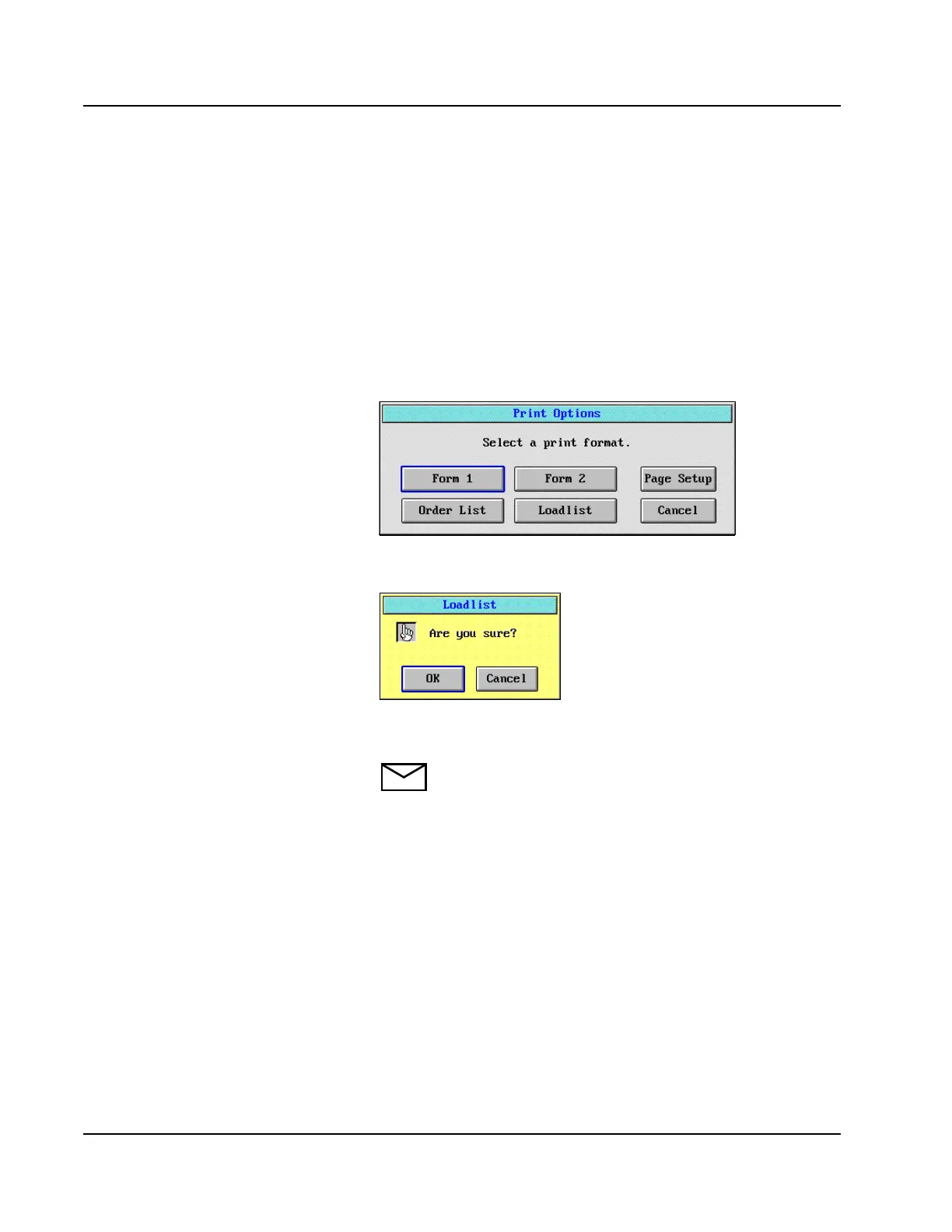
2. Select <Print> in the right-hand column of the DATABASE
screen. The Print Options dialog window displays.
Figure 2.9: Print Options Dialog Window
3. Select <Loadlist>. The print confirmation dialog box displays.
Figure 2.10: Loadlist Dialog Window
4. Select <OK>.
NOTE: In the Print Options dialog window, the Loadlist
option prints only the sample information and positions.
The Order List option prints the sample information,
positions, and the assays ordered.
Show how to:
• Select multiple samples (consecutive)
Shift + arrow down.
• Select multiple samples (not
consecutive) Ctrl + touch each sample
on screen.
• Select a block of samples
(consecutive), select first sample + shift
+ touch or arrow to the last sample in
block.
Print and show an example of the
Order List and Loadlist.



 To Next Page