ADPRO FastTrace by Xtralis Installation and User Manual
Doc 11168_12 107
Renaming a profile is disabled for the default All Cameras profile.
Copy and Paste an Existing Profile
• Select the Profile.
• Click the Copy Profile button.
• Any time later (as long as nothing was placed in the Clipboard) click the Paste Profile
button.
The copied entry will default to the name of the source profile and will need to be renamed
immediately.
Deleting an Existing Profile
• Select the Profile.
• Click Delete Profile button.
Warning messages will popup asking for confirmation. If profile deletion is confirmed, the profile
name will be removed from the list. The highlight will be moved to the profile name above.
Deletion will be disabled for ‘All Cameras’ profile.
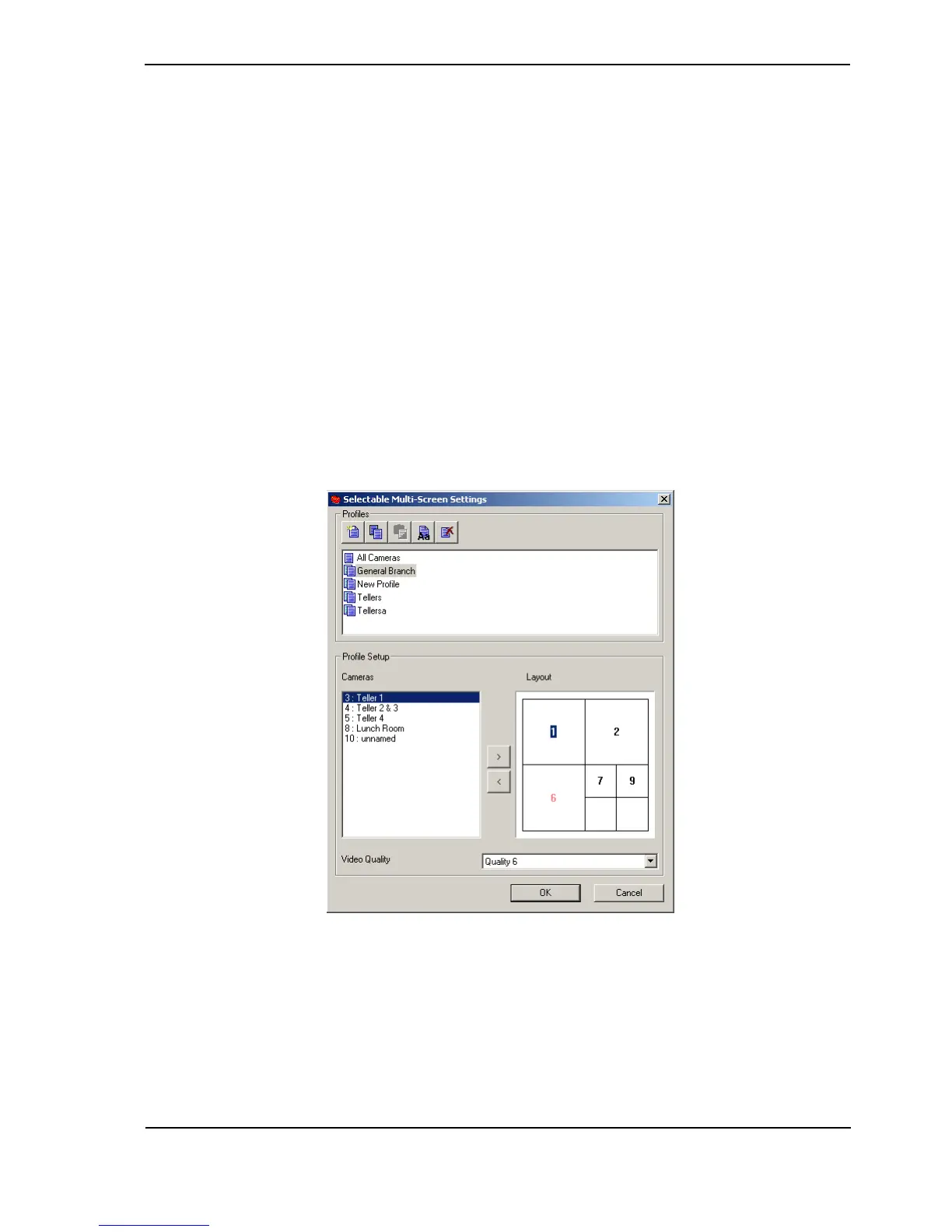
Adding a Camera from the Cameras Listbox to the Profile Layout Control
• Highlight the camera entry in the Cameras listbox.
• Click on the [>] button to add the selected camera to the layout.
Figure 106: Selectable Multi-Screen Settings
As a result of this:
• The selected camera will be removed from the Cameras listbox
• The selected camera will be added to the Profile Layout.
If there are vacant spaces in the Layout, the camera will be placed in the first available space.
Otherwise, the Layout Split Size will be changed to the next higher Split Size.
The order of cameras will be preserved.


 To Next Page