ADPRO FastTrace by Xtralis Installation and User Manual
Doc 11168_12 25
2.12 Notes and Troubleshooting Tips
• Ensure that matching details entered at the VideoCentral AND at the site equipment are
IDENTICAL.
• If using a serial port connection, check the port configuration in the PC is set for the correct
speed and data configuration to match the modem type used.
• If using a network connection, ensure the TCP/IP address and subnet mask are correct.
2.12.1 Setting the Date and Time
The ADPRO FastTrace uses a stable internal clock that is based on UTC (Coordinated Universal
Time). Date and time settings of the unit operate in a way that is similar to a PC and a 'Time
Zone' value is provided in the Date / Time Settings option of the Connection menu / Installer
Menu option (refer to Date/Time Settings on page 56).
To ensure correct operation, the Time Zone value should be configured prior to any date or time
changes being made.
2.12.2 Front Panel LED
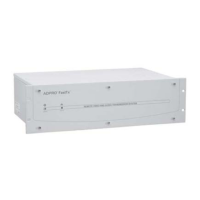
When power is first applied to the FastTrace unit, the red LED on the front of the unit will be on.
After approximately 60 seconds, the red LED should start switching on, then off, every two
seconds. This signifies that the unit has completed its internal checks and is now checking the
integrity of the database. Once the unit successfully completes the integrity check, the red LED
will switch off, and remain off.
If at any time during operation, the red LED switches on and stays on, this signifies a fault with
the unit and technical support is required.
2.13 FastTrace Connection Details Lost
If for any reason, the operational Site ID, password or network address for a FastTrace is lost,
use the following procedure to override the communication settings and restore this information.
1. Set the FastTrace's DIP Switch 7 (on the rear panel) to the 'ON' position.
2. Power cycle the unit. This will override to the following settings:
- Site ID: FASTRACE
- Password: FT2222
- Network Address: 192.168.1.1
- Subnet Mask: 255.255.255.0
3. Connect a crossover network cable or the null modem (serial) cable between the unit and a
PC running VideoCentral.
4. There should be a FastTrace Default Site in Database / Administration / Site Details with
details that match the Site Details as described in point 2 above.
5. Modify the VideoCentral settings (Database / Administration / Site Details) for the
connection type as follows:
- (NETWORK connection) - Set 'Connection Type' = Network and 'IP Address' =
192.168.1.1
OR
- (SERIAL connection) Set 'Connection Type' = PSTN and 'Phone' = 0
6. Connect to Site (FASTRACE) using the default Password (FT2222).


 To Next Page