Installation and User Manual ADPRO FastTrace by Xtralis
78 Doc 11168_12
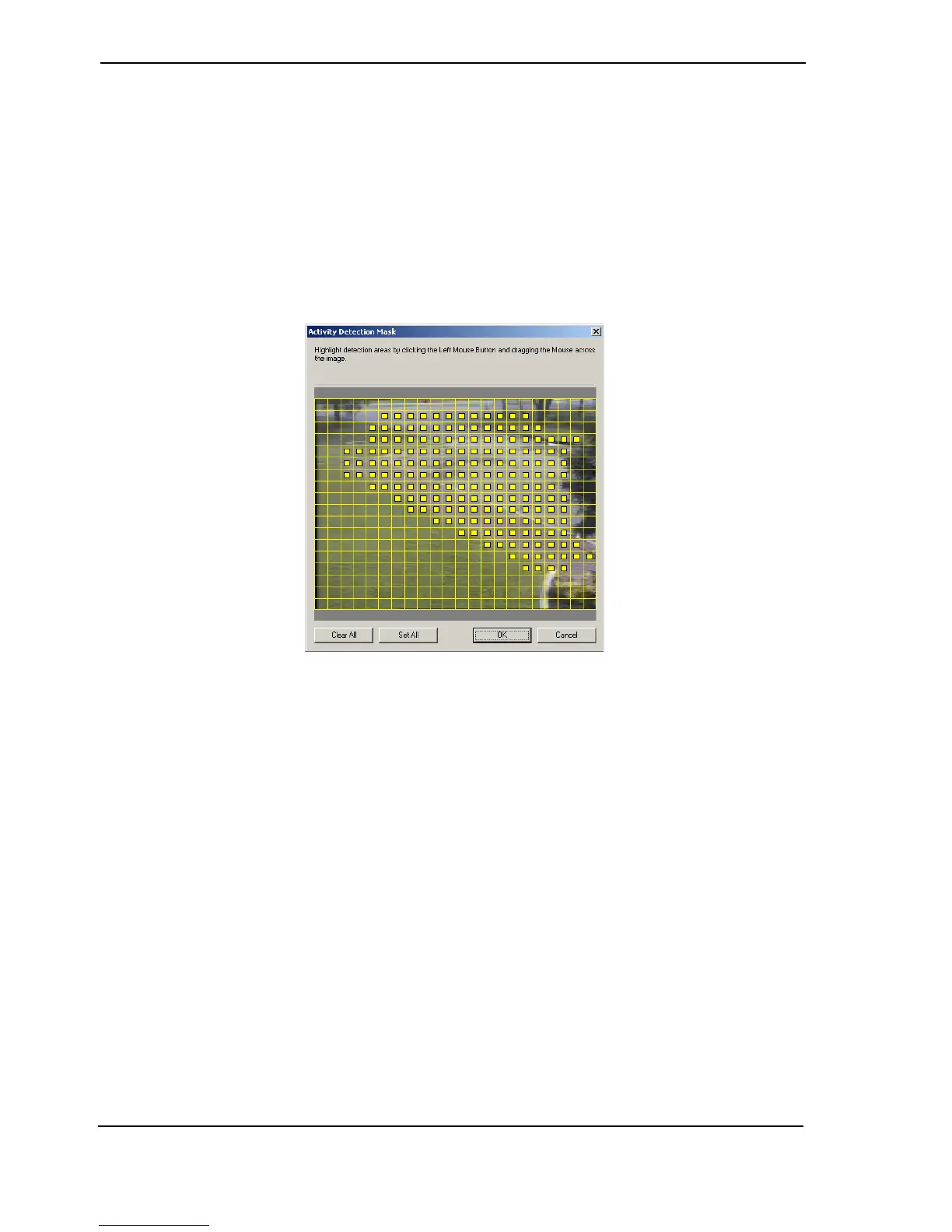
Toggle on or off the individual cells by moving the mouse pointer over the required cells and left-
click the mouse. Cells can also be toggled by holding the left mouse button and dragging the
mouse over the screen.
Cells are active (i.e. will be able to generate events) when they are highlighted and inactive when
the highlight is removed.
Options available are:
• Set All - Places the maximum number of detection zones over the video image. All zones
are active. The maximum number of zones for PAL systems is 396 zones (22 wide x 18
high), NTSC systems have 330 zones (22 wide by 15 high).
• Clear All - Removes all currently assigned zones. No zones are active.
• Cancel - Leave the currently assigned mask(s) and exit without changes.
Figure 76: Activity Detection Mask
Contrast Monitoring Tab
The Contrast Monitoring feature is provided as a check that the contrast of the camera image is
acceptable. The settings will allow detection of unusually low contrast levels.
The contrast monitoring in FastTrace monitors the contrast difference between the brightest part
of the camera image and the darkest part of the camera image. If the contrast difference drops
below the user defined threshold then an alarm can be generated.
A low contrast alarm will be generated for both the following situations:
• the camera is ‘bagged’ by placing an opaque material over the lens, causing the image to
go dark
• the camera has a very bright light shone into the lens, causing the image to flare and
‘whiteout’
If the camera contrast level falls below this limit, then a contrast alarm event is generated. This
event is setup via Operational Behaviour / Camera Behaviour / Event Response / Dial out
on invalid contrast.
Note: During the Preset on Alarm function, images could appear dark and/or blurry,
possibly causing FastTrace to interpret this as low contrast, and generate a low
contrast alarm.


 To Next Page