6-7 Measurement Menus VNA View Menus
6-46 PN: 10580-00289 Rev. K Vector Network Analyzer MG
Measure Menu
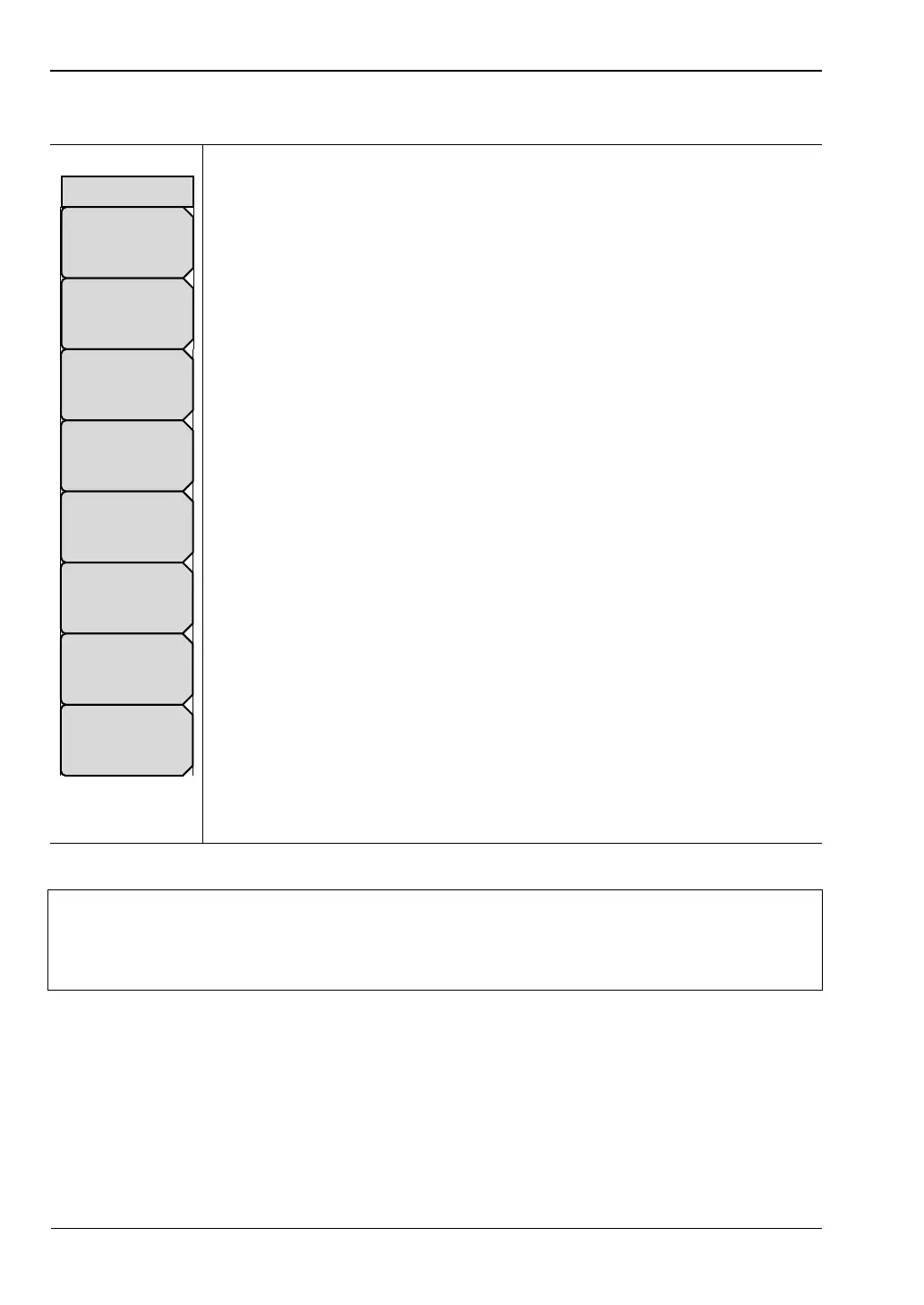
Active Trace: Press this soft key to open the “Active Trace Selector” List Box
and choose a trace. Use the arrow keys or the rotary knob to scroll through
the list. Press the rotary knob or the Enter key to select a trace. Press the Esc
key to close the list box and return to the “Measure Menu” without changing
the trace selection.
S-Parameter: Press this soft key to open the “S-Parameter List Box” or the
“S-Parameter Menu” and select a measurement type. Refer to Section
“S-Parameters” on page 3-2 for a description of the S-Parameter settings.
Graph Type: Press this soft key to open the “Graph Type Selector” List Box
and choose a graph (trace display) type. Examples of graph type
are: Log Mag, Real, Imaginary, and Smith Chart.
Domain Selection: Press this soft key to open the “Domain Menu” and
select Frequency, Time, or Distance as the measurement domain. Each trace
can use a different domain.
Number of Traces: Press this soft key to open the “Number of Traces Menu”
and select the number of traces (1, 2, 3, or 4) to be simultaneously displayed
in the sweep window.
Trace Format: Press this soft key to open the “Trace Format Menu” and
choose the screen format for trace display. The selected Trace Format is
shown on the soft key face.
Smoothing %: Press this soft key to add a smoothing percentage from
0 (zero) to 20%. Use the arrow keys, the rotary knob, or the number keypad
to input the value, and then press the rotary knob or the Enter key.
Maximize Active Trace: Press this soft key to toggle the display between the
active trace at full size in the sweep window and the minimized trace. The
Trace Format soft key continues to show the selected Trace Format on the
soft key face, and this soft key label changes between Maximize and
Minimize Active Trace.
Figure 6-44. Measure Menu
Note
If you apply smoothing when the sweep has more than 2000 points, the smoothing
may slow the sweep time of the trace and the responsiveness of the VNA Master.
This slowing can be significant, and it increases as the number of sweep points is
increased.
S Parameter
S##
Active Trace
Tr#
Domain Selection
Freq
Graph Type
Log Mag
Number of Traces
#
Smoothing %
#
Trace Format
Single
Maximize
Active
Trace
Measure










 To Next Page