VNA View Menus 6-3 Domain Setup Menus
Vector Network Analyzer MG PN: 10580-00289 Rev. K 6-17
Gate Shape Menu
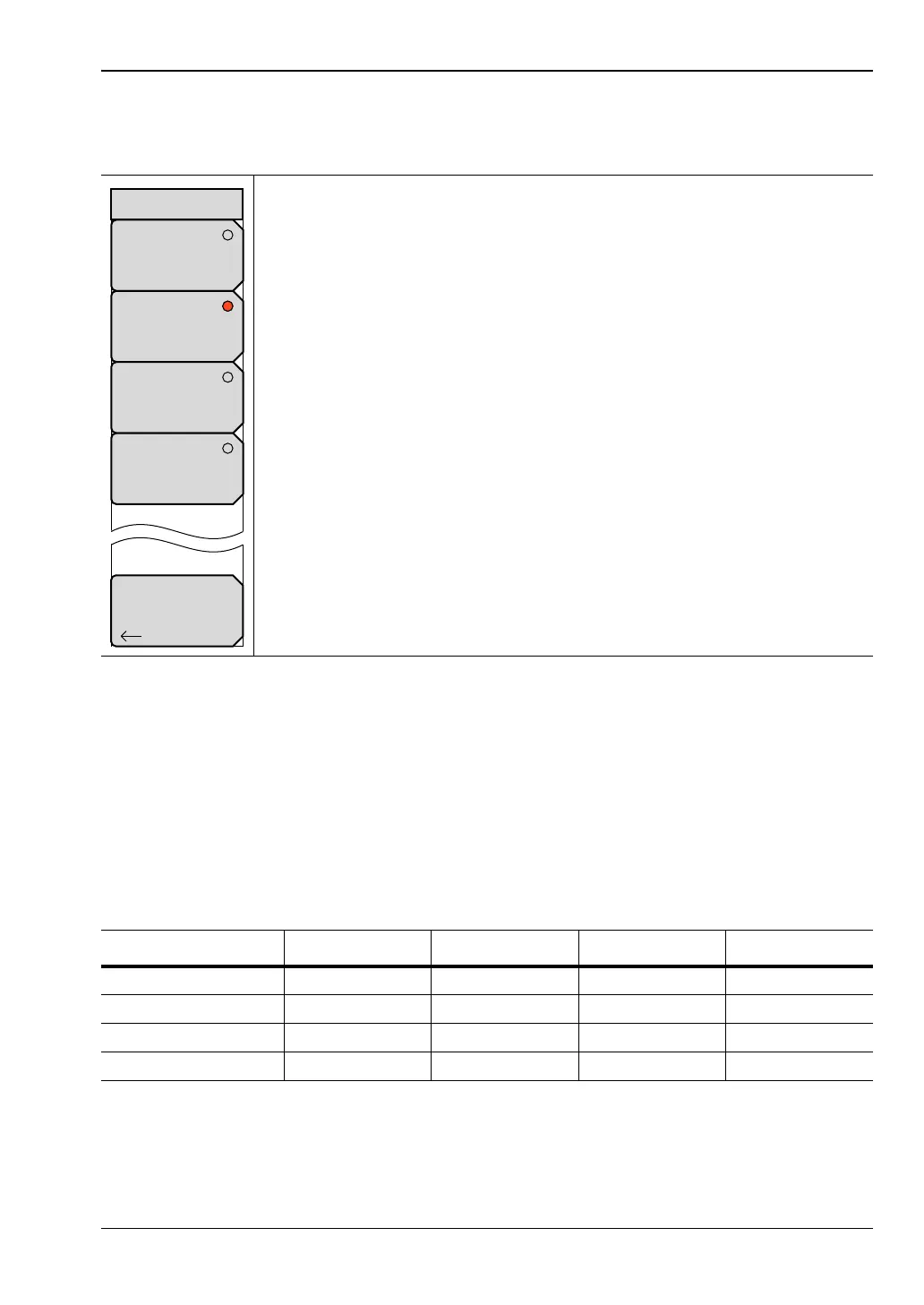
Key Sequence: Measure > Domain Selection > Gate > Gate Shape
Note that the gate shape is analogous to the window selection. If the data are truncated with
a sharp gate (minimum, related to rectangular window), then maximum resolution is used in
determining the gate, but ripple is introduced in the frequency domain. For more gradual
gates, the resolution decreases in separating defects, but the size of the artifacts that are
added to the frequency domain data also decreases.
The window and gate shapes cannot be selected entirely independently because they interact
through the transform. In particular, the use of a very sharp gate with a low side lobe window
can lead to large errors. The following table shows the recommended combinations.
Minimum: Press this soft key to set the gate shape value to Minimum.
Nominal: Press this soft key to set the gate shape value to Nominal. The
Nominal gate shape is the default value and most commonly used one.
Wide: Press this soft key to set the gate shape value to Wide.
Maximum: Press this soft key to set the gate shape value to Maximum.
Back: Press this soft key to return to the previous menu.
Figure 6-16. Gate Shape Menu
Table 6-1. Window Type and Gate Shape — Recommended Combinations
Window / Gate Minimum Nominal Wide Maximum
Rectangular OK OK OK OK
Nominal OKOKOKOK
Low side lobe OK OK OK
Minimum side lobe OK OK
Back
Minimum
Nominal
Wide
Maximum
Gate Shape










 To Next Page