VNA View Menus 6-3 Domain Setup Menus
Vector Network Analyzer MG PN: 10580-00289 Rev. K 6-9
Distance Setup Menu
Preliminary Key Sequence: Measure > Domain Selection > Distance
or
Preliminary Key Sequence: Freq/Time/Dist > Domain Setup > Setup Distance
Key Sequence: Freq/Time/Dist
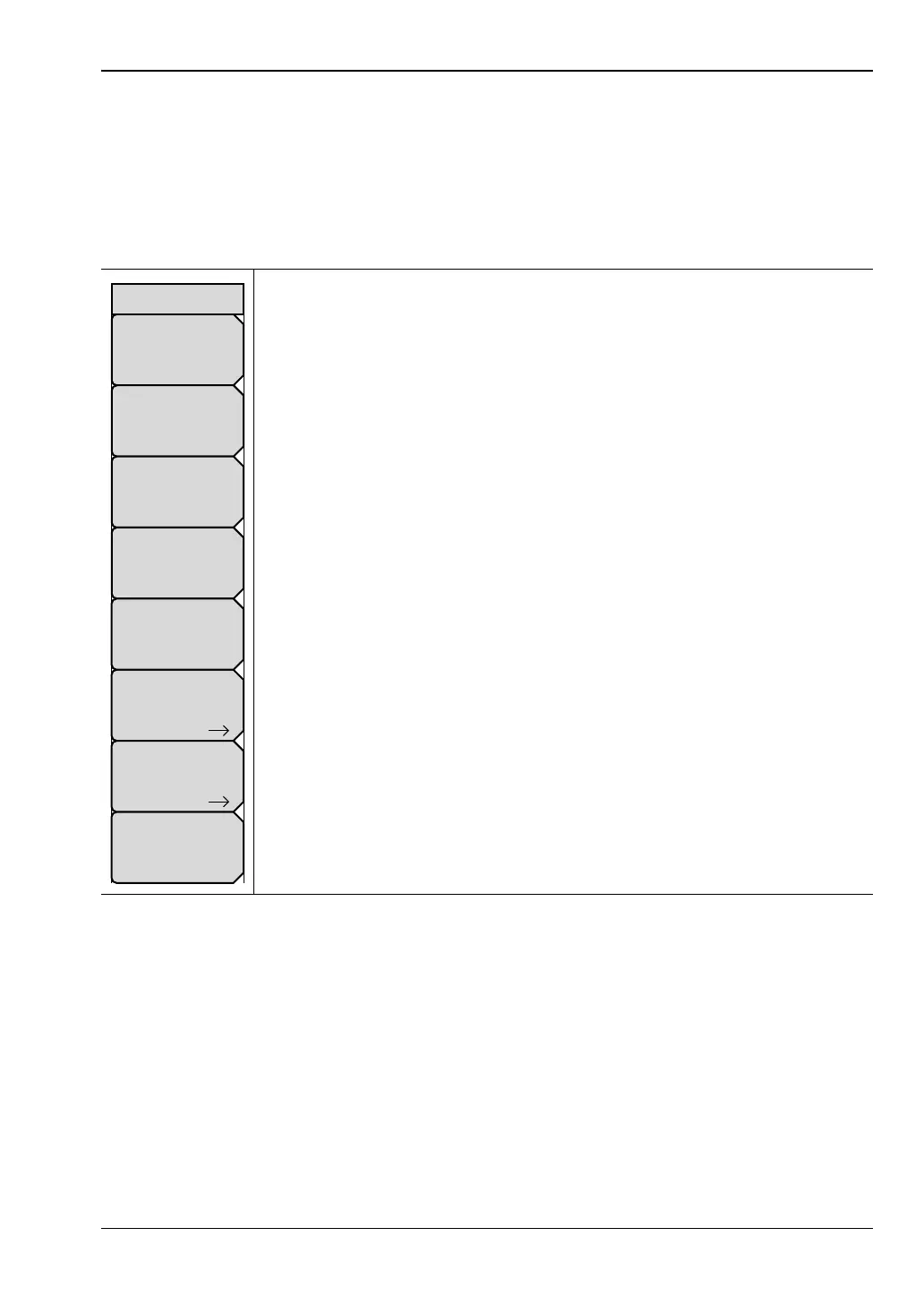
Start Dist: Press this soft key to set the start distance. Use the arrow keys,
the rotary knob, or the number keypad to set a distance value. When using
the number keypad, the menu displays soft keys with meters (m),
centimeters (cm), or millimeters (mm) as units. Pressing the Enter key has
the same effect as pressing the meter (m) soft key. If the Application Options
menu is used to set units in feet rather than meters, the distance settings are
in feet (ft) only, and pressing the Enter key sets the units to feet.
Stop Dist: Press this soft key to set the stop distance in meters (m),
centimeters (cm), or millimeters (mm). If the Application Options menu is
used to set units in feet rather than meters, the distance settings are in feet (ft)
only.
Start Freq: Press this soft key to set the start frequency in units of Hz, kHz,
MHz, or GHz.
Stop Freq: Press this soft key to set the stop frequency in units of Hz, kHz,
MHz, or GHz.
Windowing: Press this soft key to open the “Windowing Menu”. The window
shape value is displayed on the key face, and may be Rectangular, Nominal
Side Lobe (as in this example), Low Side Lobe, or Minimum Side Lobe.
Additional Dist Setup: Press this soft key to open the“Additional Dist Setup
Menu (Coax)” or the “Additional Dist Setup Menu (Waveguide)”.
Gate: Press this soft key to open the “Gate Menu”.
Domain Setup: Press this soft key to return to the “Setup Domain Menu”.
The message on the key face reflects the setup feature (Distance) that is in
use.
Figure 6-7. Distance Setup Menu
Additional Dist Setup
Stop Freq
# GHz
Start Freq
# kHz
Stop Dist
# m
Domain Setup
Distance
Windowing
Nominal Side Lobe
Start Dist
# mm
Distance Setup
Gate










 To Next Page