SERIAL LINKS 157
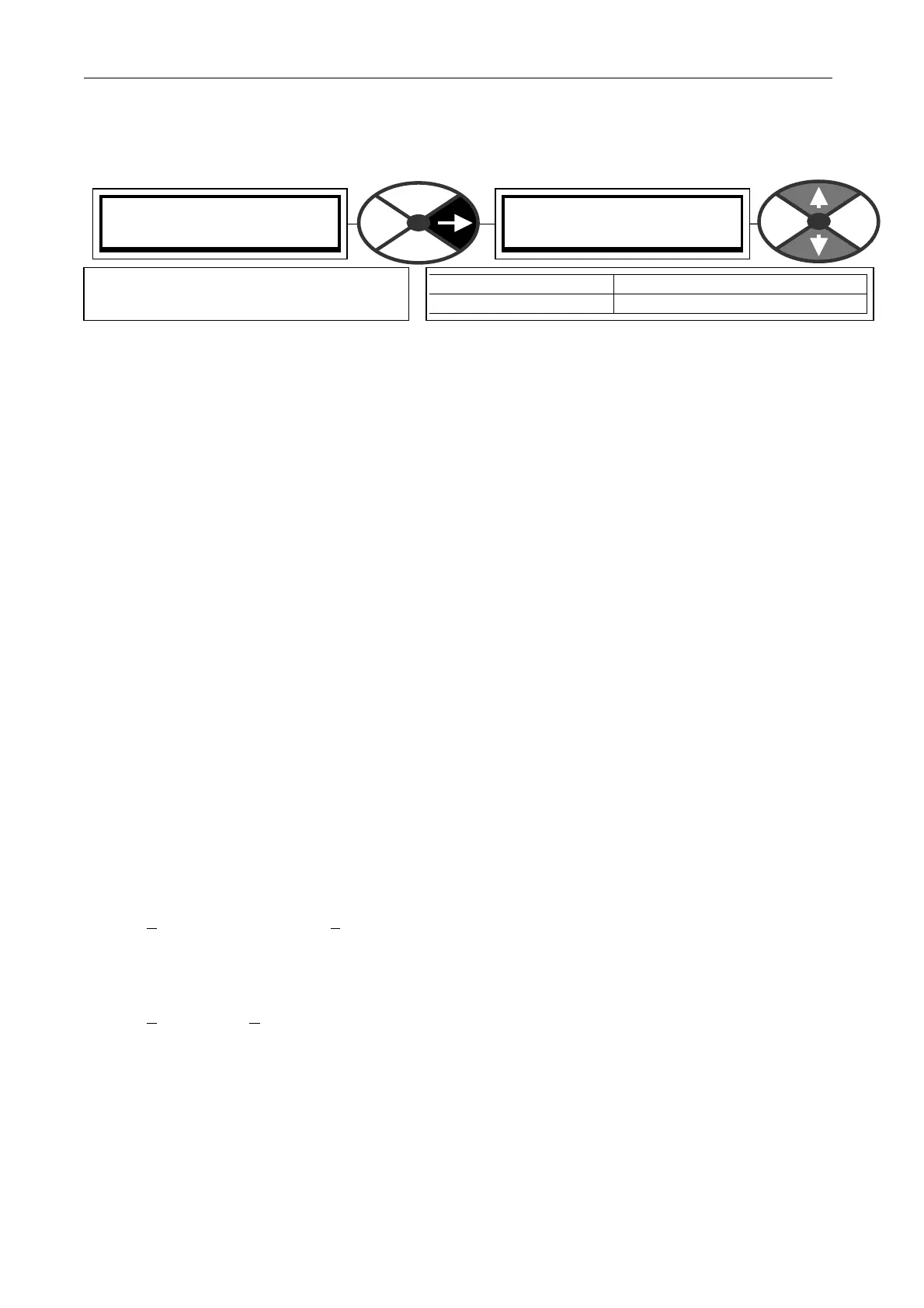
10.2.3 PARAMETER EX CH A NGE / menu list to host
This is the transfer of the menu list description including all values from the PL/X to a host computer or
printer. This information fully documents the PL/X 's working settings in a clear textual format.
Note. Any parameter that has been changed from the factory default will have a space follo wed by a
character at the end of the line. The character may be a £ or # or other, depending on the host. The listing is
of the drive's present working settings, which may or may not have been saved permanently using
PARA METER S A VE. The source of the settings depends on the power up reset type that occurred on the last
application of the control supply, and any changes that have been made prior to transmission. See 13.13.2
DRIVE PERSON ALITY / Recipe page PIN 677. Read only values show the level pertaining at the time.
1) Connect the PL/X to the host using the appropriate lead. See10.1.1 RS232 PORT1 / Connection pinouts.
2) Using a standard communications package prepare the host to receive an ASCII file. Remember to set up
the host's serial port first. See 10.2.1.2. Transmitting parameter data file to a PC. Windo ws 95 upwards.
3) Make sure that the PORT1 FUNCTION has been set to PARAM EX CH SELECT.
4) Get the host ready to receive a file, use the file extension PRN. (Suggest using PR2, PR3 for pages 2, 3).
5) Start transmitting on the PL/X by selecting MENU LIST TO H OST follo wed by the up key.
6) The file ends in a CTRL-Z. With some packages this automatically closes the file. If not, when the PL/X
says it has FINISHED and the host has stopped scrolling text or printing, close the file manually.
7) The file can now be treated like any normal text file.
Note. It is also possible to print a menu list from the tota l instrument drop down list within PL PILOT.
10.2.3.1 Transmitting a menu list to a PC. Windows 95 upwards.
On computers supplied with Windo ws ’95 upwards, this program is found in the folder “A ccessories”.
See also 5.3 Archiving PL/X recipes.
This description assumes you have created and are using a personalised Hyperterminal.
If you have not already created a personalised Hyperterminal please see 10.2.1.2. Transmitting parameter
data file to a PC. Windows 95 up w ards.
You now have a choice regarding what will happen once your personalised HyperTerminal receives data.
Click on T
ransfer then Capture to Printer if you w ant the file sent automatically to your default printer.
Note. The listing sent by the drive cannot be looked at whilst you are running HyperTerminal.
The personalised Hyperterminal is only used to handle the list, not to store it.
Click on T
ransfer then Ca pture text and you will be asked for a folder and file for the data to be captured.
Chose an appropriate destination and name, and use a file extension appropriate to the word processor you
intend using. The defaults .PRN or .PR2 or .PR3 can be used by most, another example is .DOC for Microsoft
Word etc. When you are finished click on Start.
HyperTerminal now returns to the main screen and is ready for reception. You will notice that the bottom
menu bar no w highlights “ Capture” and/or “Print echo” depending on which of the above you have selected.
Proceed to transmit data as outlined in PARAMETER EX CH ANGE. The source of the settings depends on the
power up re set type that occure d on the last application of the c ontr ol supply, and any changes that have
been made prior to transmission. See 13.13.2 DRIVE PERSONALITY / Recipe page PIN 677.
PARA METER EX CH A NGE 4
MENU LIST TO HOST 5
MENU LIST TO HOST 5
UP KEY TO C ONTINUE
PARA METER RANGE
MENU LIST TO HOST TRA NSMITTING then FINISHED
Starts the process of serial transmission
of the working menu listing to the host.



 To Next Page