Chapter 9: The Touchscreen program
9/14
Operators & Maintenance Manual GENIUS Compact Version UK 0.1 © BESTnv
BESTnv Industrial Research BV, Marinus van Meelweg 20, 5657 EN, EINDHOVEN, THE NETHERLANDS
General tel. +31 (40) 292 2622 - Service tel. +31 (40) 292 2620 - Fax. +31 (40) 292 2633 - Email: service.BESTnv@bestnv.com
2D (combined) fi lter display
The 2D fi lter display will usually look somewhat like the picture
to the left. In ideal circumstances it will be showing a black zone
encompassing the green good product, and a coloured zone
encompassing the red bad product.
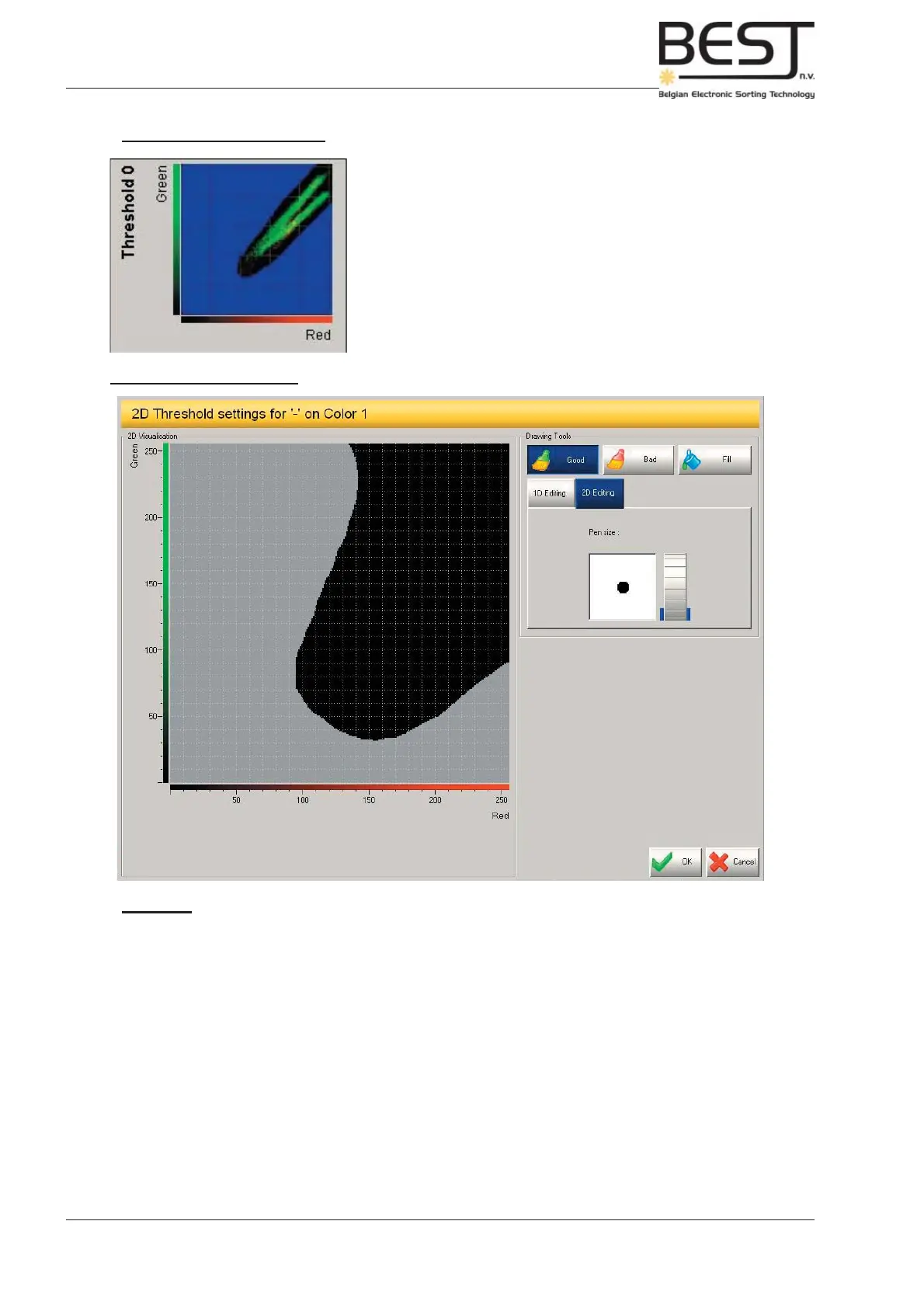
To change this fi lter you just have to press the image. A pop-
up screen: the 2D (combined) Filter menu (see picture below)
will appear, enabling you to adjust this threshold to your
satisfaction.
2D (combined) Filter Menu:
Features:
“Good” button: - Press this button to indicate the good product zone on the screen (black).
“Bad” button: - Press this button to indicate the bad product zone on the screen (coloured).
One of these 2 buttons (indicated in blue) is always activated.
“Fill” button: - Press this button to indicate the entire screen as Good or Bad (active button).
1D Editing: - In this editing mode only 1 threshold will be edited, so all adjustments will consist
of vertical or horizontal lines over the full length or width of the screen (depending on
the threshold that is selected).
- The accompanying little menu features 2 different thresholds that can be activated
(active threshold is preceded by green button).
2 D Editing: - In this editing mode, the combined threshold is edited in 2 dimensions. This way a
detailed fi gure can be produced to delineate good form bad product.
- The accompanying little menu features a dial that indicates the thickness of the
drawing point (i.e. the thickness of the point your fi nger will create on the screen).



 To Next Page