9/19
Chapter 9: The Touchscreen program
Operators & Maintenance Manual GENIUS Compact Version UK 0.1 © BESTnv
BESTnv Industrial Research BV, Marinus van Meelweg 20, 5657 EN, EINDHOVEN, THE NETHERLANDS
General tel. +31 (40) 292 2622 - Service tel. +31 (40) 292 2620 - Fax. +31 (40) 292 2633 - Email: service.BESTnv@bestnv.com
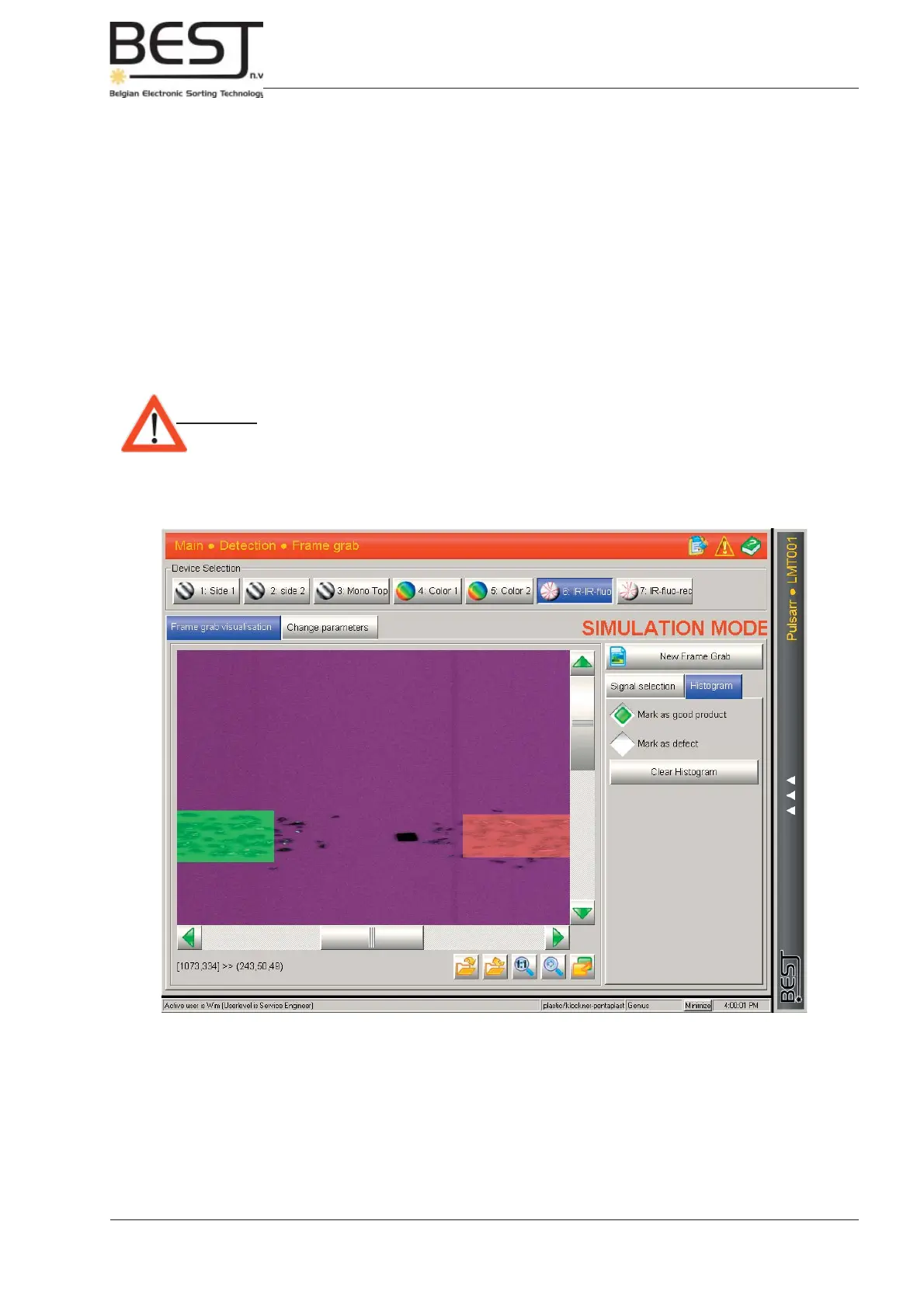
Histogram mode
In this mode the user can indicate which objects are to be considered defects and which objects are
good product.
The main screen features the frame grab image, possibly with green and red rectangles that indicate
good and bad objects indicated by the user.
The panel to the right of the main screen will feature 3 functions that can be activated:
- Mark as Good product: Activate this function to indicate a number of different objects that fall within
the good product range. Draw a green rectangle over or in the good objects.
- Mark as defect: Activate this function to indicate the different types of defect objects that can
be found in the frame grab image. Try to draw a rectangle in or over the
different defect objects.
Attention! - Please make sure no good products are included in the red defect
rectangles, and no defects are included in the green good product rectangles.
- Clear Histogram: If something has gone wrong while indicating good and bad product
rectangles on the frame grab image, just press this button and start over.



 To Next Page