Working with Volume Snapshots 8
CTERA C-Series User Guide 93
The appliance offers the following pre-defined retention policies:
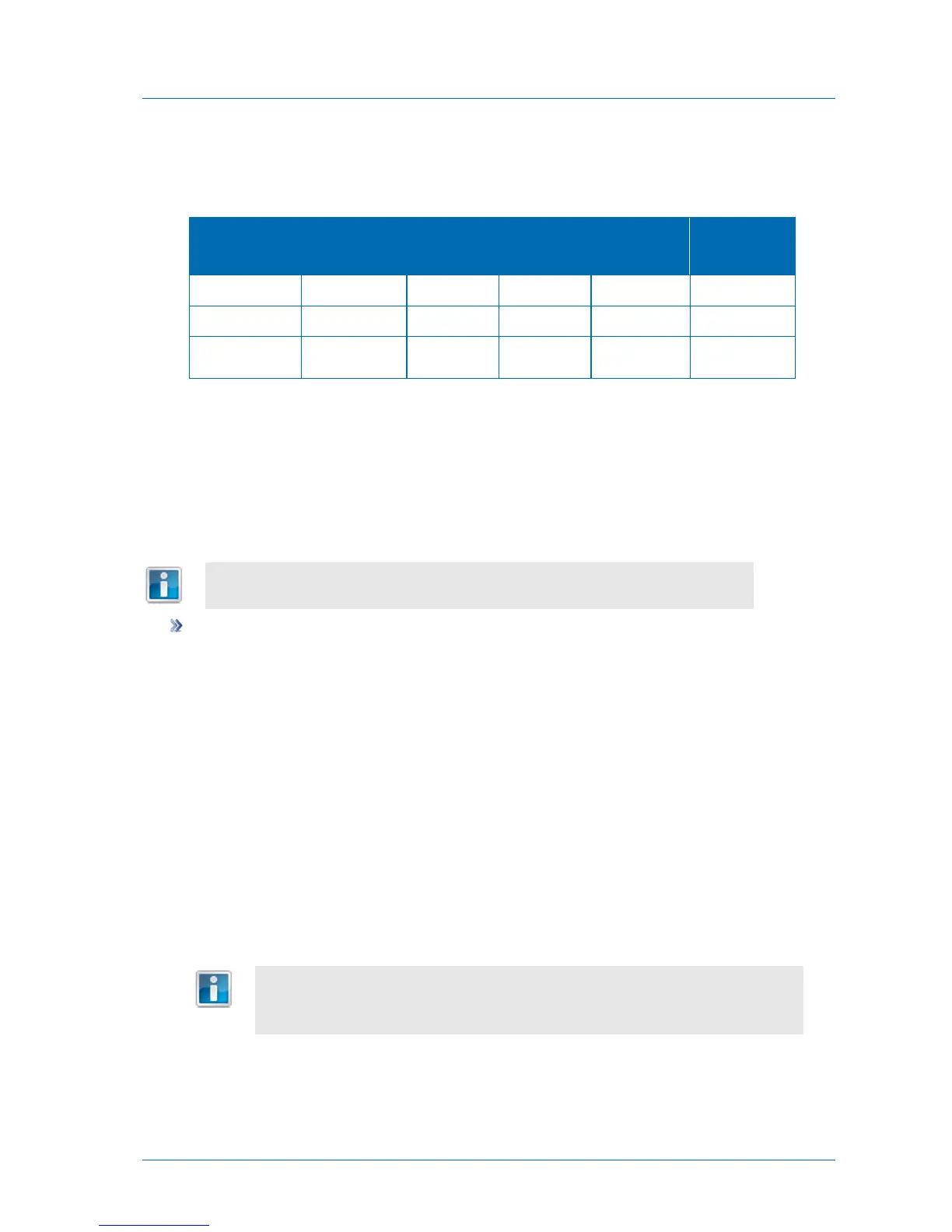
Table 22: Predefined Snapshot Retention Policies
Retains all
snapshots for
at least...
And yearly
snapshots
for...
If desired, you can configure a custom retention policy.
Manually Taking Snapshots
You can manually take a snapshot of an individual NEXT3-snapshot-enabled volume at any
time.
Manually taken snapshots are retained until manually deleted.
To manually take a snapshot
1 In the Configuration tab's navigation pane, click Storage > Snapshots.
The Storage > Snapshots page appears.
2 In the workspace's upper pane, select the desired NEXT3-snapshot-enabled volume.
3 Click Take Snapshot Now.
A progress bar appears, followed by a success message.
4 Click OK.
The snapshot appears in the lower pane.
The Date field displays the date and time at which the snapshot was created, and the Size
field displays the snapshot's current size.
A snapshot retains all of the data that has changed on the volume, since the
snapshot's creation. Therefore, the snapshot's size is zero upon creation, and its
size grows as changes are made to the files on the volume.



 To Next Page