Restoring Files and Folders from the Appliance to the Agent
To restore files and folders
1 View CTERA Agent backups.
See Viewing Agent Backups (on page 243).
2 Next to the desired backup, click Restore.
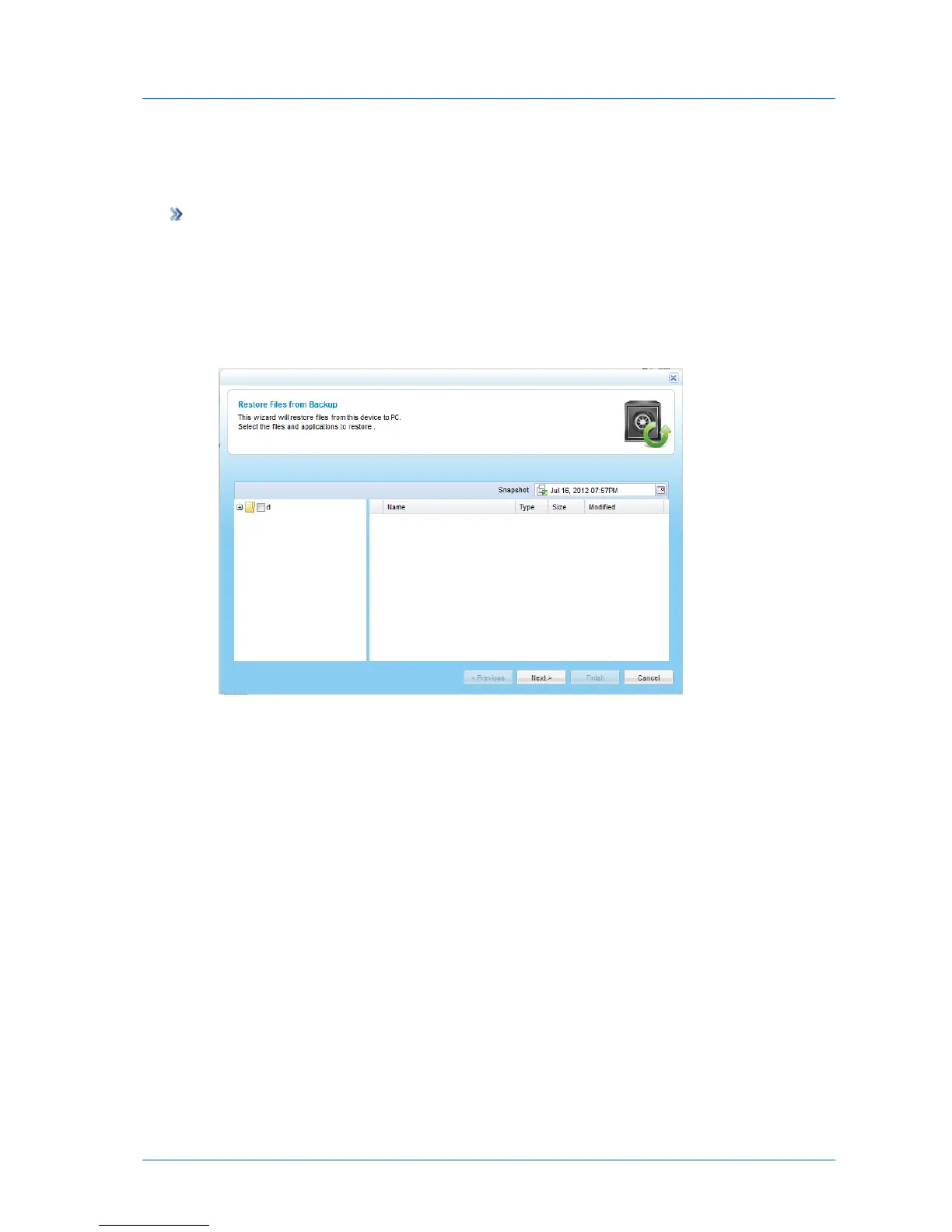
The Restore Files from Backup Wizard opens.
3 To view a folder's contents, select the folder in the left pane.
The selected folder's contents appear in the right pane.
4 In either pane, select the check boxes next to the files and folders you want to restore.
For an explanation of the icons and check boxes next to each folder, see Folder Icons
(page 156).
5 Click Next.



 To Next Page