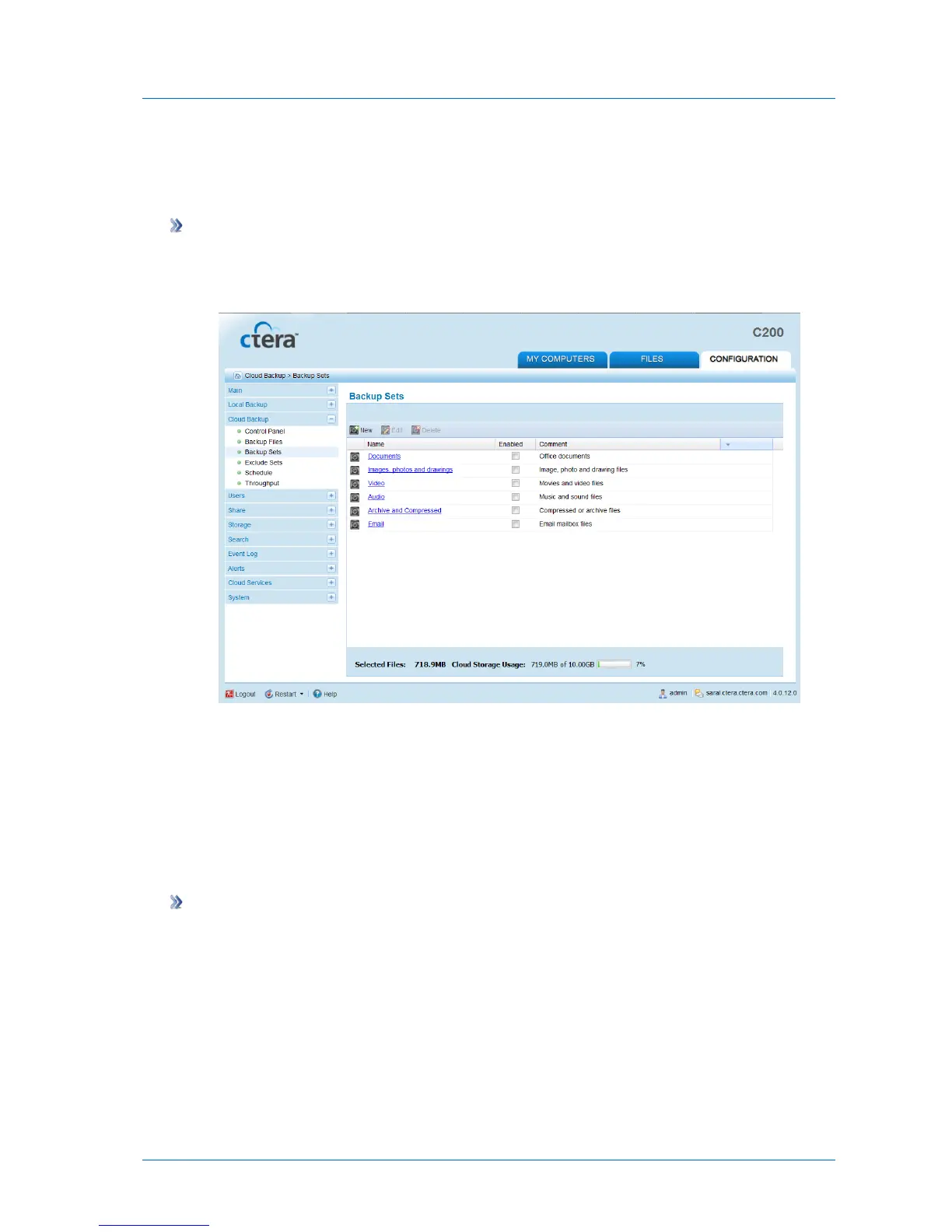
Enabling/Disabling Included Sets
In order for an included set to be used during backup operations, it must be enabled.
To enable an included set
1 In the Configuration tab's navigation pane, click Cloud Backup > Backup Sets.
The Cloud Backup > Backup Sets page appears.
2 Next to the desired included set, in the Enabled column, select the check box.
The included set is enabled.
At the bottom of the workspace, the Selected Files field indicates the size of the files
selected for backup. The Cloud Storage Usage field indicates the amount of used space in
your account after the next cloud backup operation (including backups from any other
CTERA appliances included in your account).
To disable an included set
1 In the Configuration tab's navigation pane, click Cloud Backup > Backup Sets.
The Cloud Backup > Backup Sets page appears.
2 Next to the desired included set, in the Enabled column, clear the check box.
The included set is disabled.



 To Next Page