CTERA C800 Specifications and Installation 4
CTERA C-Series User Guide 33
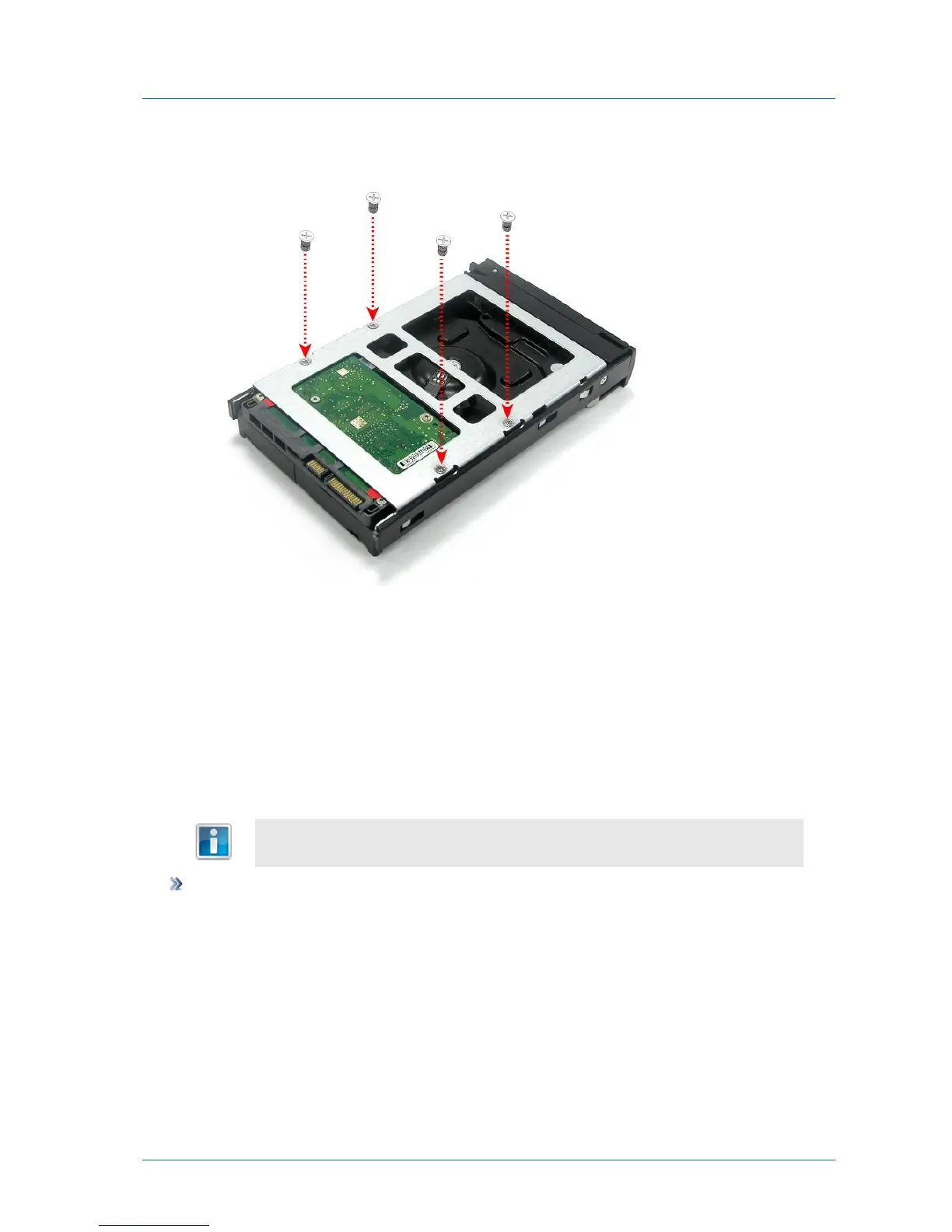
5 Flip over the disk tray, and use the supplied mounting screws to secure the hard drive in
the disk tray.
6 Slide the disk tray back into the C800.
7 Press the disk tray lever back into place, until you hear a click.
8 (Optional) If you would like to prevent the disk from being removed, lock the disk tray by
using one of the supplied disk tray keys to turn the button until the groove is horizontal.
Removing a SATA Hard Drive from the CTERA C800
If you want to remove a hard drive safely while the appliance is on, use the Safe
Removal procedure described in Safely Removing Hard Drives (on page 84).
To remove a SATA hard drive
1 If the desired disk tray's Tray Open Button indicates that the disk tray is locked (that is,
the groove is horizontal), then unlock the disk tray by using one of the supplied disk tray
keys to turn the groove until it is vertical.
2 Press the disk tray's Tray Open Button.
The disk tray lever pops out.
3 Pull the lever outwards to remove the disk tray from the C800.
4 Flip over the disk tray, and remove the mounting screws from the disk tray.



 To Next Page