Selecting Files and Folders for Cloud Backup
By default, all folders and files are selected for cloud backup. If desired, you can modify the
selection.
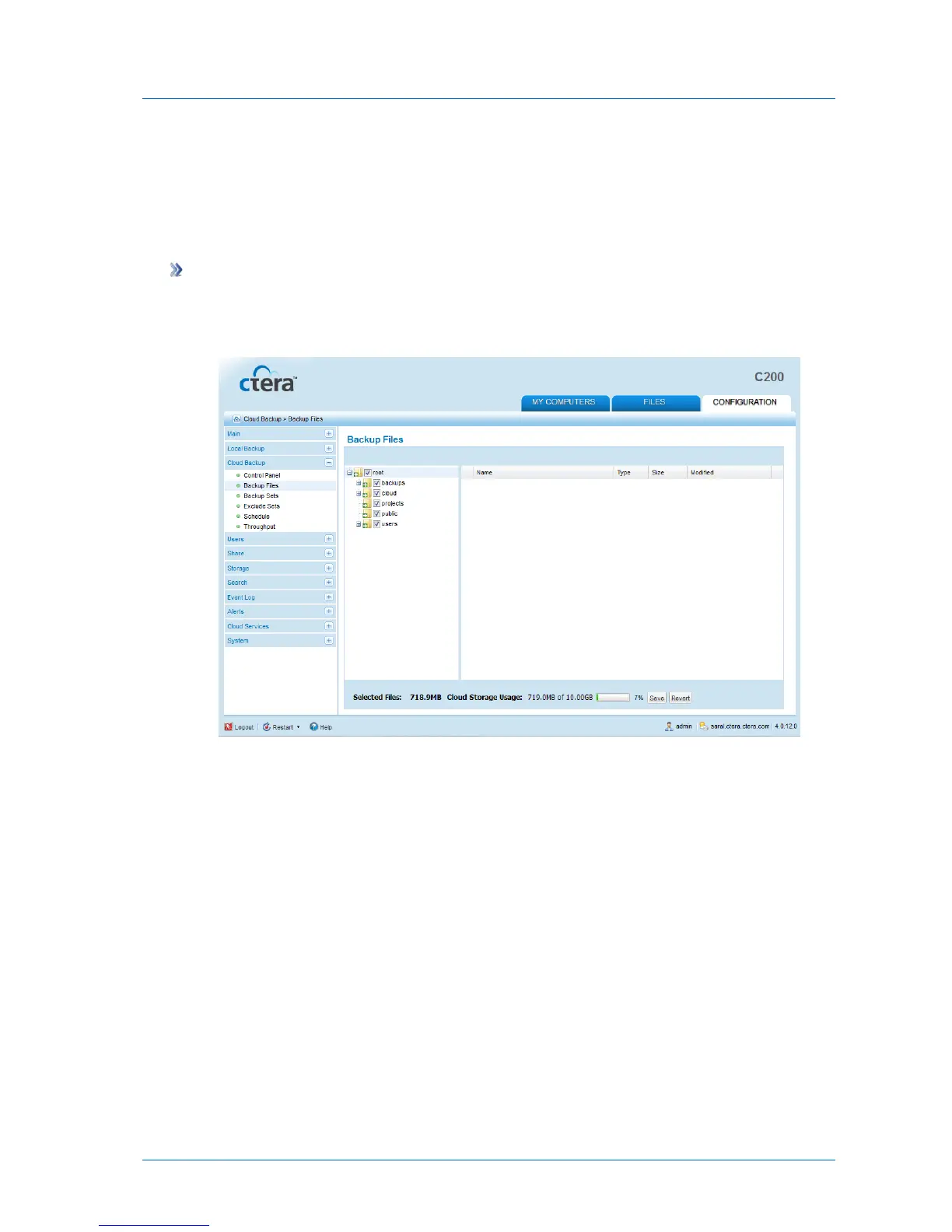
To select files and folders for cloud backup
1 In the Configuration tab's navigation pane, click Cloud Backup > Backup Files.
The Cloud Backup > Backup Files page appears.
2 Expand the tree nodes to reveal the folders.
For an explanation of the icons and check boxes next to each folder, see Folder Icons
(page 156).
The folder contents appear in the right pane.
3 Select the check boxes next to the files and folders you want to back up.
4 Click Save.
At the bottom of the workspace, the Selected Files field indicates the size of the files
selected for backup. The Cloud Storage Usage field indicates the amount of used space in
your account after the next cloud backup operation (including backups from any other
CTERA appliances included in your account).



 To Next Page