2 Click Unsuspend.
Cloud drive synchronization is no longer suspended, and you can now configure the
desired settings.
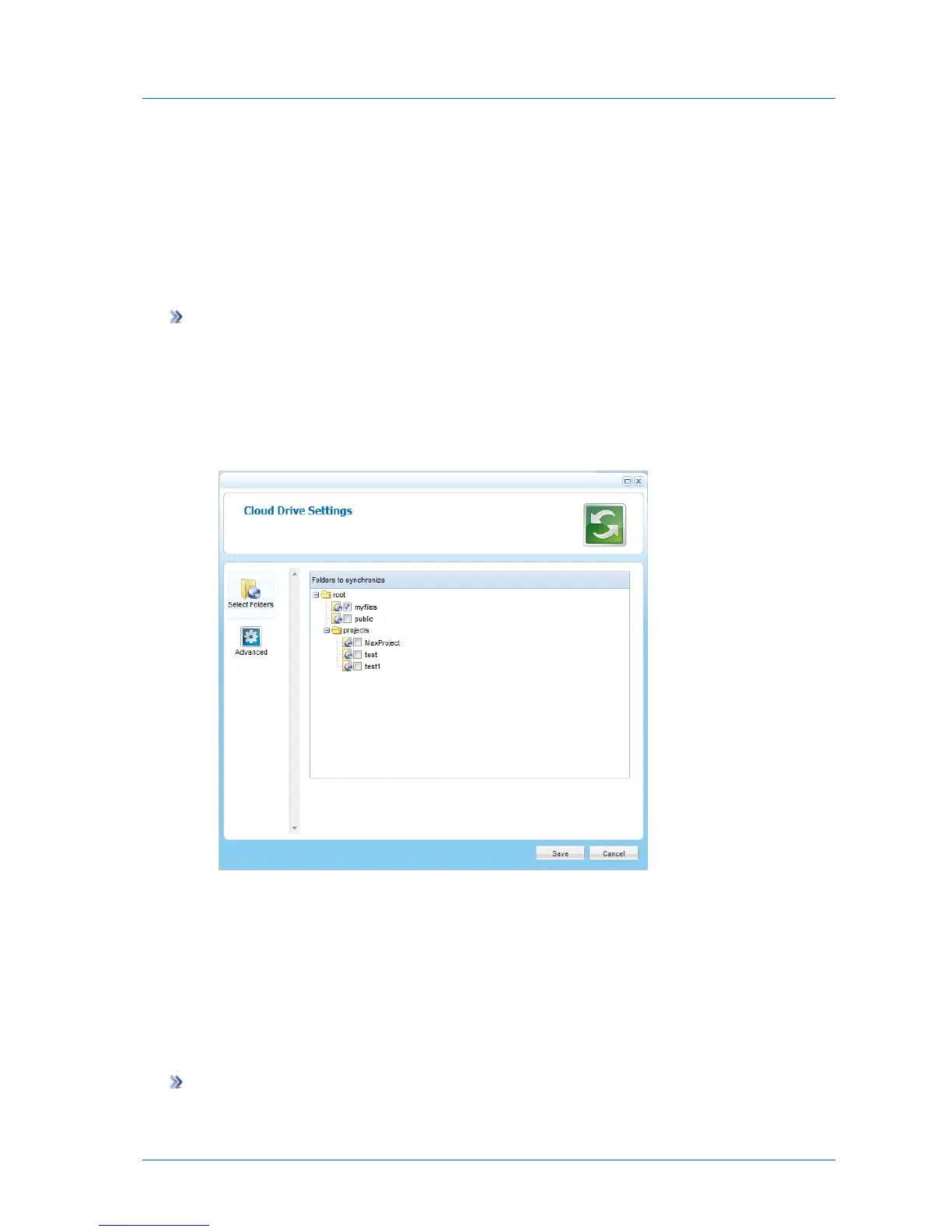
Selecting Cloud Folders for Synchronization
You can specify which of the portal cloud folders should be synchronized with the appliance.
To select portal cloud folders for synchronization
1 In the Configuration tab's navigation pane, click Cloud Services > Cloud Drive.
The Cloud Services > Cloud Drive page appears.
2 Click Settings.
The Cloud Drive Settings window opens displaying the Select Folders tab.
3 Expand the tree nodes and select the check box next to the portal cloud folder you want
to synchronize with the appliance.
4 Click Save.
Configuring Advanced Cloud Drive Synchronization Settings
You can specify which local folder should be synchronized with the cloud drive, as well as how
conflicts between file versions should be handled.
To configure advanced cloud drive synchronization settings
1 In the Configuration tab's navigation pane, click Cloud Services > Cloud Drive.



 To Next Page