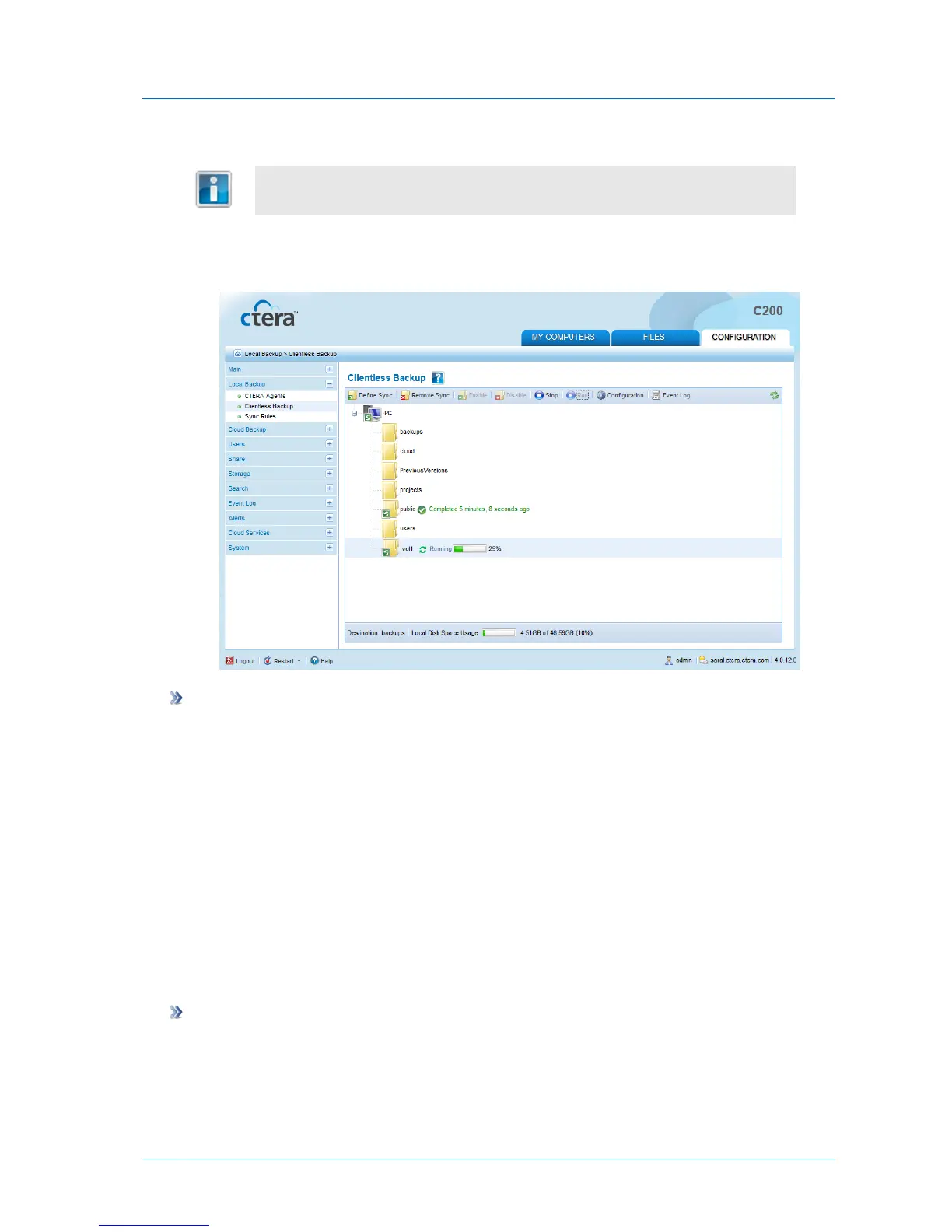
If a computer or share does not appear, then file sharing is not set up on the
computer. See Enabling File Sharing on a PC (on page 194).
2 Select the desired share, and click Run.
A progress bar appears, and the relevant share is backed up.
To stop a running Clientless Backup
1 In the Configuration tab's navigation pane, click Local Backup > Clientless Backup.
The Local Backup > Clientless Backup page appears, displaying all computers in the
network neighborhood.
2 Select the share for which Clientless Backup is running, and click Stop.
Backup stops.
Disabling/Enabling Clientless Backup
You can disable Clientless Backup for a network share. The current backup and all future
scheduled backups will be suspended for the share, until you enable Clientless Backup for the
share again.
To disable Clientless Backup
1 In the Configuration tab's navigation pane, click Local Backup > Clientless Backup.
The Local Backup > Clientless Backup page appears, displaying all computers in the
network neighborhood.



 To Next Page