A confirmation message appears.
3 Click Yes.
The guest invitation is deleted.
4 Click Close.
Collaborating on Projects
You can easily share files and folders with fellow workers, by defining collaboration projects.
When project collaboration is enabled, you can create a project and invite co-workers to join
the project as project members. Project members receive an email notification inviting them
to collaborate on the project. They can then view files in the project and/or add files and
folders to the project, depending on their permissions.
Enabling/Disabling Project Collaboration
To enable project collaboration
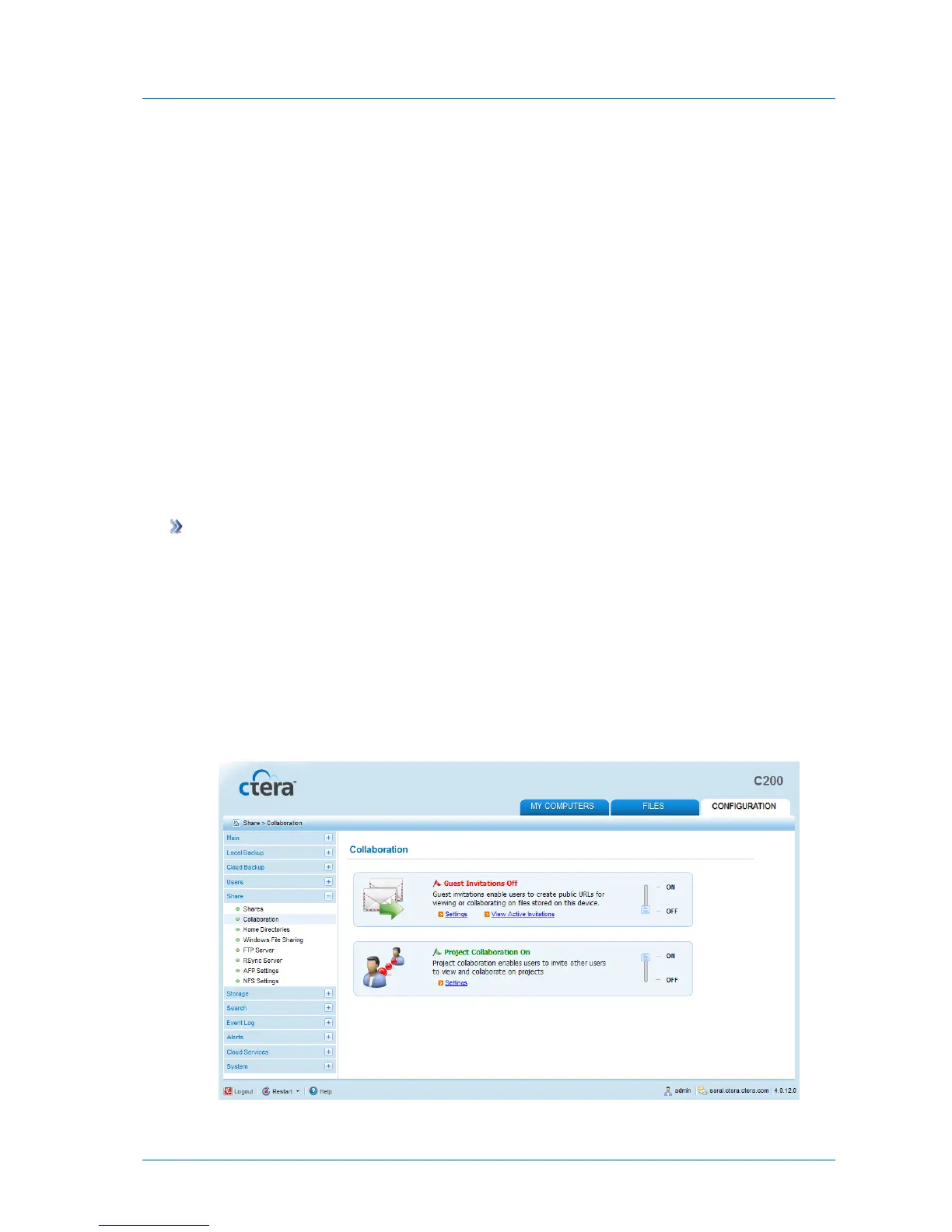
1 In the Configuration tab's navigation pane, click Share > Collaboration.
The Share > Collaboration page appears.
2 Slide the Project Collaboration lever to the ON position.
Project collaboration is enabled, and you can now configure the desired settings. See
Configuring Project Collaboration Settings (on page 141).
If this is the first time that project collaboration is enabled, the projects share is
created.



 To Next Page