Enabling File Sharing in Windows Vista
If your Windows Vista computer does not appear in the Clientless Backup page, or is
displayed as a grayed icon, perform the following steps to enable file sharing.
To enable file sharing in Windows Vista
1 Open the Network and Sharing Center, by clicking Start > Control Panel, clicking Network
and Internet, and then clicking Network and Sharing Center.
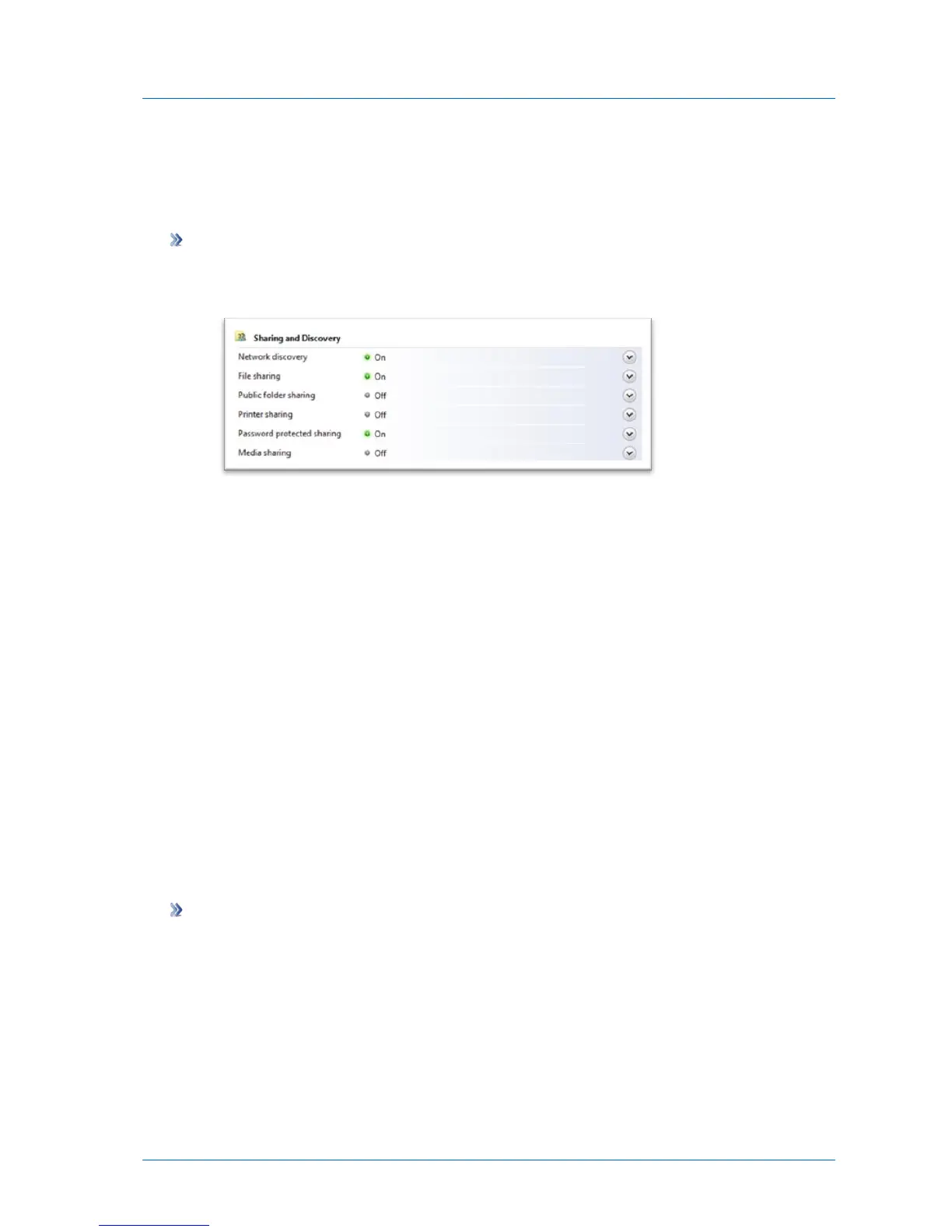
2 If network discovery is off, click the arrow button to expand the section, click Turn on
network discovery, and then click Apply.
3 If file sharing is off, click the arrow button to expand the section, click Turn on file
sharing, and then click Apply.
If you are still having trouble, make sure Windows Firewall is not blocking File and Printer
Sharing. Do the following:
1 Open Windows Firewall by clicking the Start > Control Panel, clicking Security, and then
clicking Windows Firewall.
2 Click Allow a program through Windows Firewall.
3 In the Program or port list, make sure the File and Printer Sharing check box is selected.
4 Click OK.
Enabling File Sharing in Windows 7
If your Windows 7 computer does not appear in the Clientless Backup page, or is displayed as
a grayed icon, perform the following steps to enable file sharing.
To enable file sharing in Windows 7
1 Open the Network and Sharing Center, by clicking Start > Control Panel, clicking Network
and Internet, and then clicking Network and Sharing Center.



 To Next Page