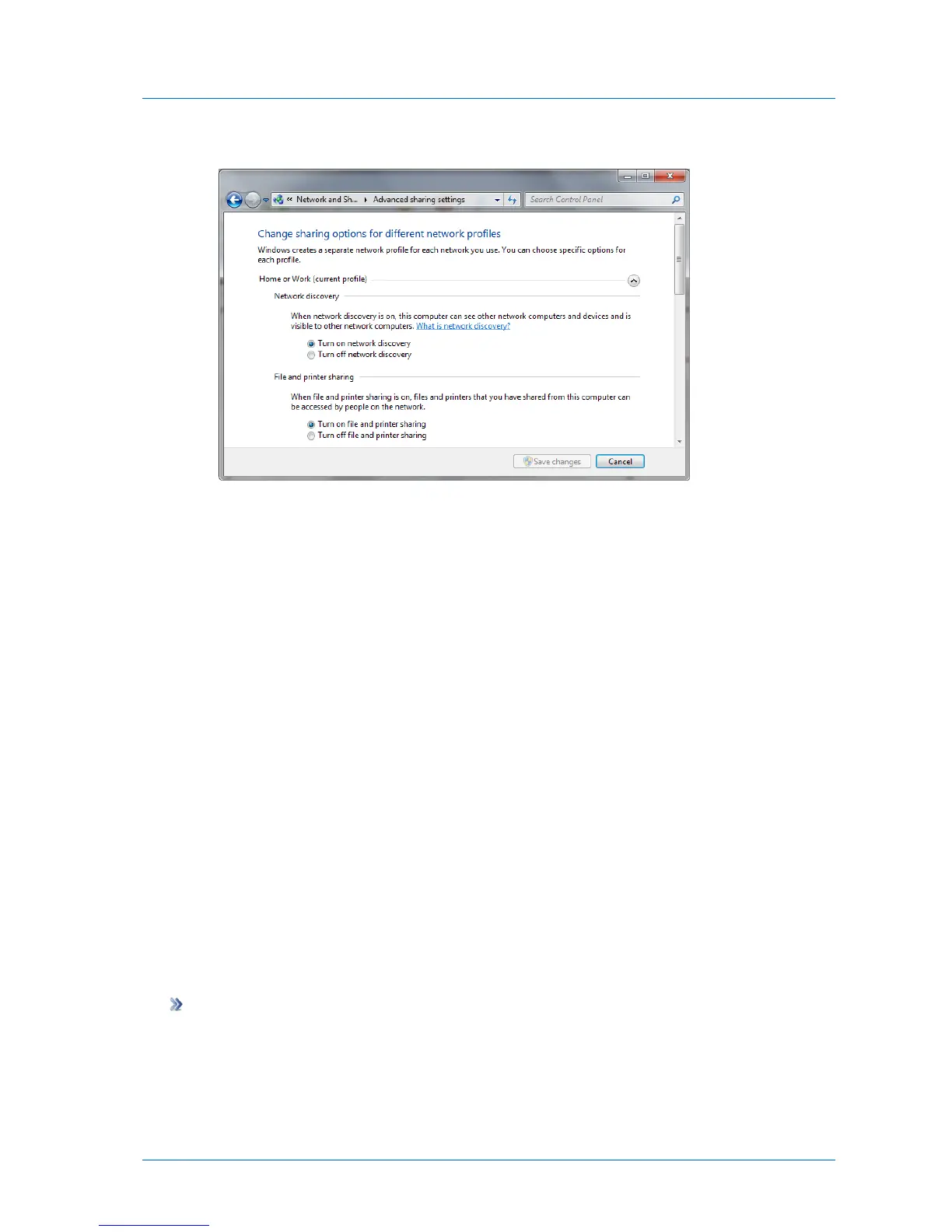
2 In the left pane, click Change advanced sharing settings.
3 Expand your current network profile, by clicking the arrow to the right of its name.
The current network profile is marked "(current profile)" and is usually called "Home or
Work".
4 If network discovery is off, click Turn on network discovery.
5 If file and printer sharing is off, click Turn on file and printer sharing.
6 Click Save changes.
If you are still having trouble, make sure Windows Firewall is not blocking File and Printer
Sharing. Do the following:
1 Open Windows Firewall by clicking the Start > Control Panel, clicking System and
Security, and then clicking Allow a program through Windows Firewall.
2 In the Allowed programs and features list, locate File and Printer Sharing, and make sure
that the check boxes in the Name column and the in column for your current network
profile (usually "Home or Work") are both selected.
3 Click OK.
Making Mac OS Computers Accessible to Clientless Backup
If your computer runs Mac OS, you must configure it to be accessible to Clientless Backup;
otherwise the computer will not appear in Clientless Backup.
To make a Mac OS computer accessible to Clientless Backup
1 Go to System Preferences > Sharing.
2 Click Options.



 To Next Page