Sending Guest Invitations
To send a guest invitation for a file or folder
1 In the Files tab's Show Shares tree pane view, navigate to the desired file/folder.
For information on changing the tree pane view, see Changing the Tree Pane View (on
page 278).
For information on navigating between folders, see Navigating Between Folders (on page
278).
2 In the right pane, click on the file/folder.
3 Click Invite Guest.
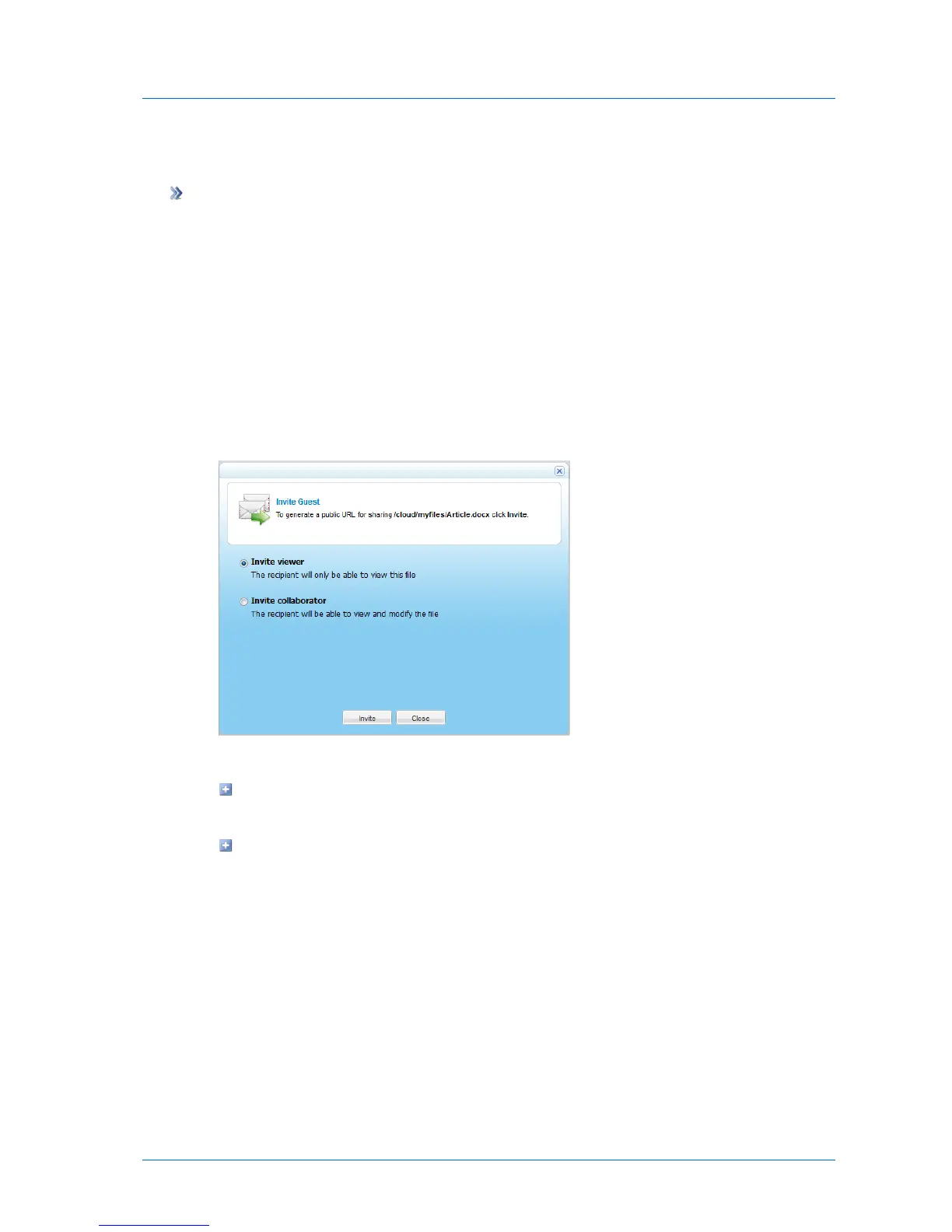
The Invite Guest dialog box opens.
4 Do one of the following:
To grant the invitation recipient read-only access to the file/folder, choose Invite
viewer.
To grant the invitation recipient read-write access to the file/folder, choose Invite
collaborator.
5 Click Invite.



 To Next Page