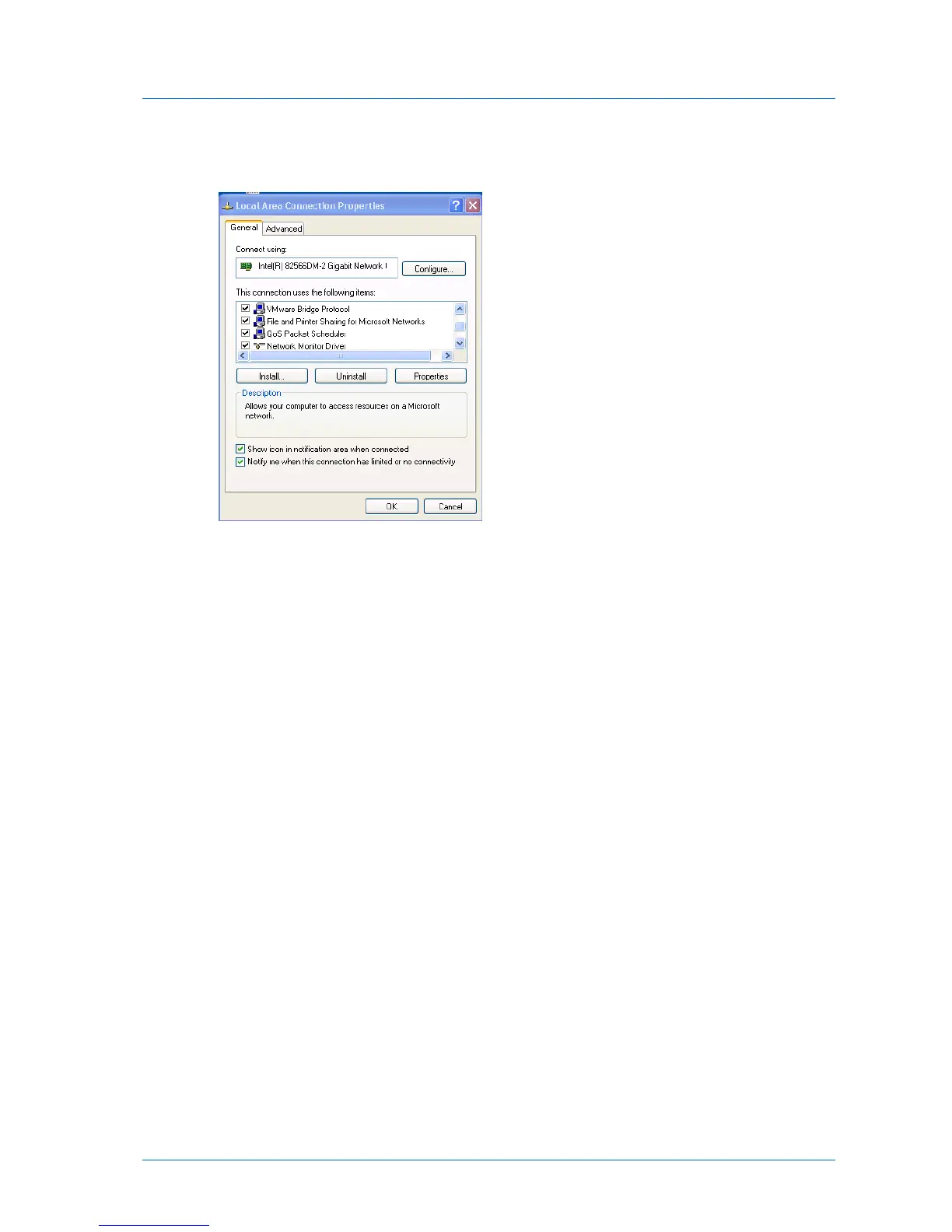
4 View the properties for this connection by right-clicking on the icon and choosing
Properties from the menu.
5 Make sure the File and Printer Sharing for Microsoft Windows check box is selected.
6 Click OK.
If you are still having trouble, make sure Windows Firewall is not blocking File and Printer
Sharing. Do the following:
1 Click Start > Control Panel.
2 Open the Windows Firewall Control Panel applet.
3 In the General tab, ensure that the Do not Allow Exceptions check box is not selected.
4 In the Exceptions tab, make sure the File and Printer Sharing check box is selected.
5 Click OK.



 To Next Page