D-Show Profile Guide154
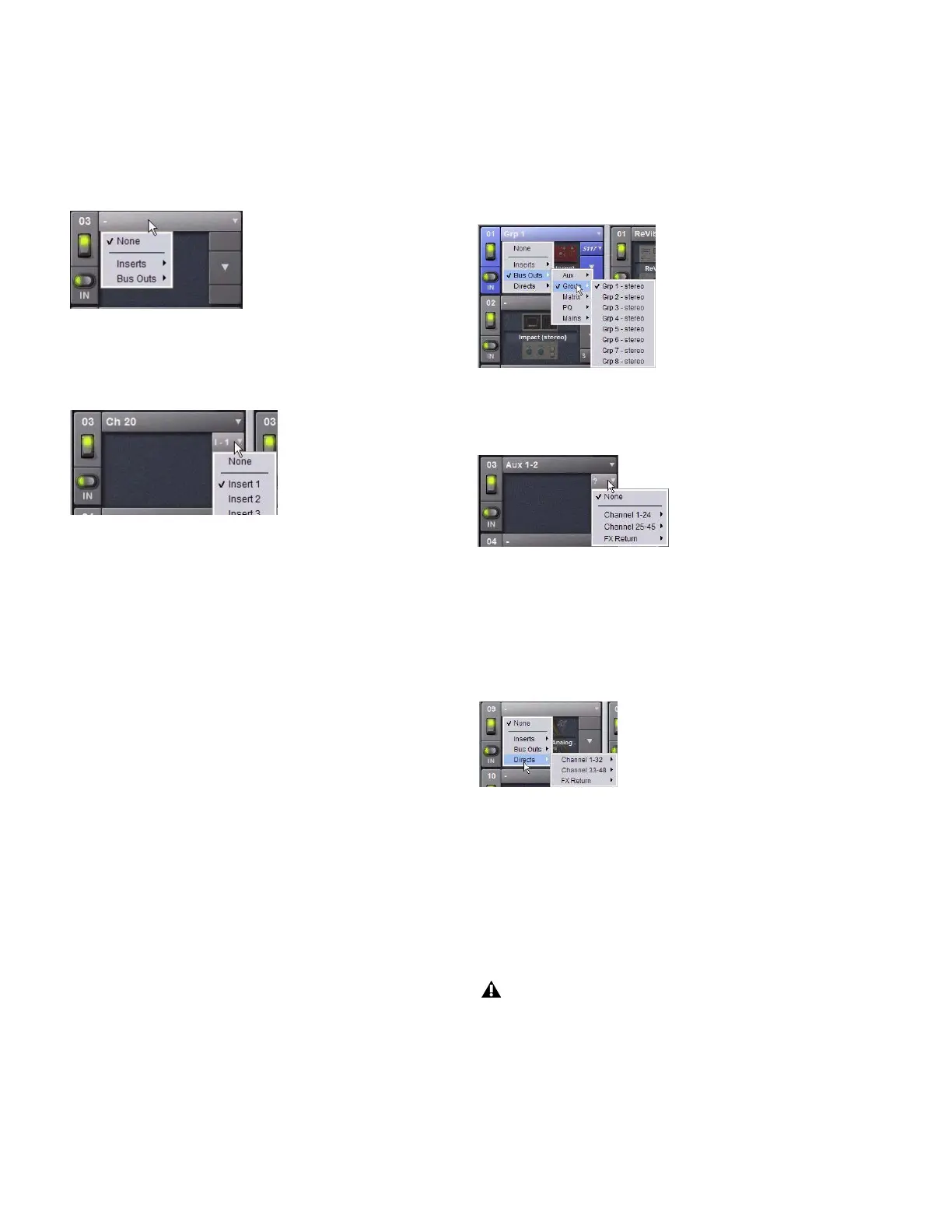
To insert a plug-in on a channel from the Plug-Ins page:
1 Make sure the plug-in is already assigned to a rack slot. (For
more information, see “Assigning and Routing Plug-Ins” on
page 152.)
2 Click the Input (source) selector in the rack slot and choose
a channel from its Inserts sub-menu.
The rack slot automatically identifies and connects to the first
available insert slot (1–4) on the selected channel. The Chan-
nel Insert selector shows the current insert position.
If no insert slots are available on the channel, the selector dis-
plays a question mark.
Using Plug-Ins as a Bus Processors
Plug-Ins can be used on busses for send-and-return processing
with effects such as reverb and delay. A plug-in is configured
for bus processing by assigning an Aux, Group, Matrix, PQ, or
Main bus (including Monitor output) as the plug-in input
source, then assigning the output of the plug-in to a D-Show
Input Channel or FX Return, or to a hardware output, as fol-
lows:
• Return bus-fed plug-ins to an input or FX Return to estab-
lish an effects send-and-return path.
• Route bus-fed plug-ins to a hardware output for special-
ized processing needs (such as feeding an external cross-
over).
Input channel Direct Outs can also be routed to bus-fed
plug-ins.
You assign plug-ins for bus processing from the Plug-Ins
screen.
To use a plug-in as a bus processor:
1 Go to the Plug-Ins screen.
2 Make sure the plug-in is installed and assigned to a rack slot.
3 Click the Plug-In Input selector at the top of the correspond-
ing rack slot, and choose an available D-Show bus from the In-
put sub-menus.
4 Click the Bus Output selector and choose an input, FX Re-
turn or hardware output.
Routing Channel Direct Outs to Plug-Ins
You can route the Input channel Direct Outs to plug-ins. This
lets you directly feed plug-ins from individual channels to pre-
serve Aux busses for other uses, with control over send level
using the channel Direct Out level control.
When a channel Direct Out is routed to a plug-in, it follows
the one global pickoff setting for that specific Direct Out (as
set in the Patchbay), and is applied in addition to any other as-
signment made for that Direct Out. This makes it possible to
use a channel’s Direct Out to route that channel to both a
Pro Tools recording option and to a plug-in. For more infor-
mation, see “Direct Outputs and Routing in the Patchbay” on
page 105.
Inserting a rack slot on a channel from the Plug-Ins page
Channel Insert selector for a plug-in rack
Assigning plug-in Input source to a Group bus
Assigning plug-in output to an FX Return
Routing a channel Direct Out to a plug-in in the Plug-Ins page
If you do use a Direct Out to feed both a hardware output
such as a Pro Tools recording option as well as a plug-in, be
aware that any adjustments to that Direct Out affect both
the output signal and the signal fed to the plug-in.



 To Next Page