User’s Manual
69
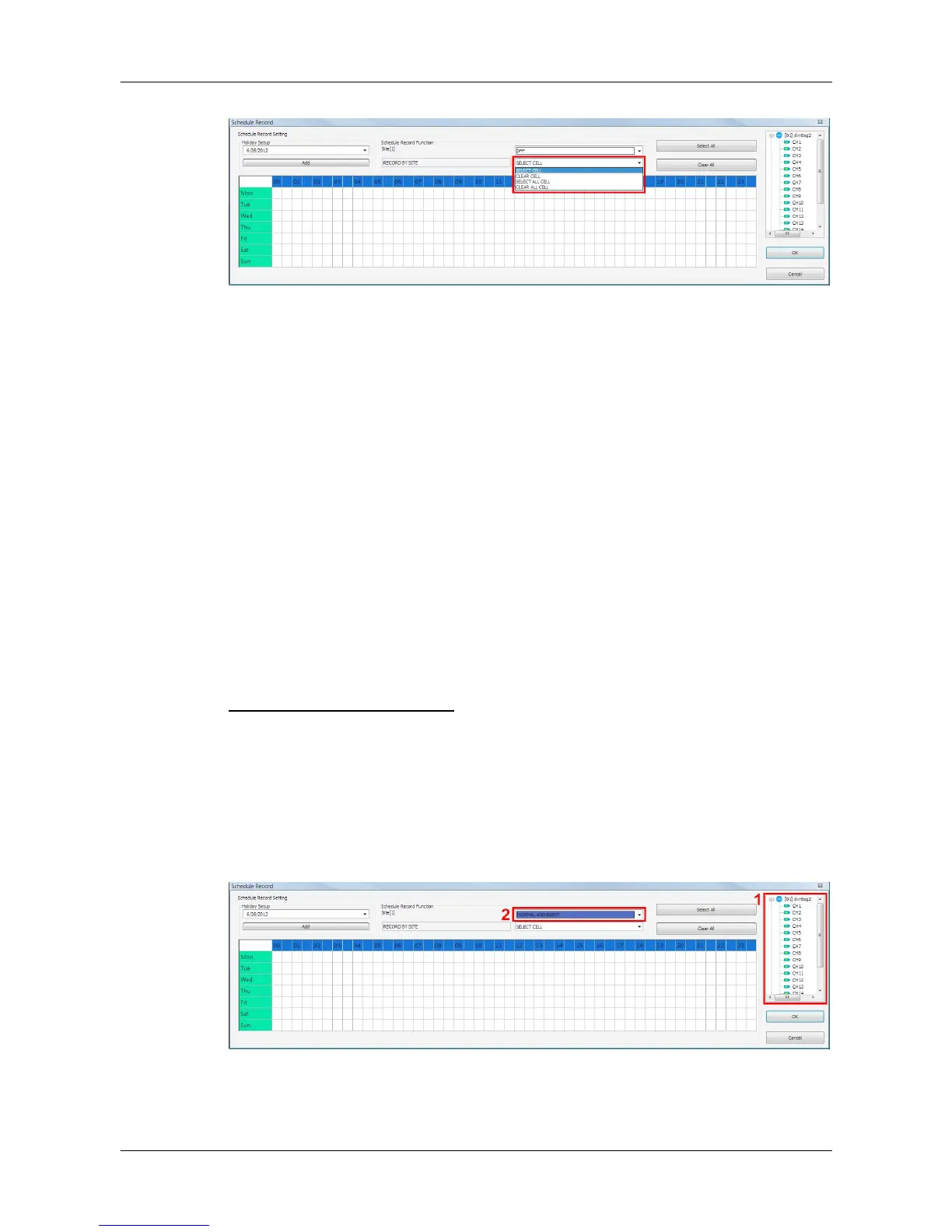
The scroll-down menu circled below shows the selecting options.
<SELECT CELL>
Choose this to select any cell from the table.
<CLEAR CELL>
Choose this to clear any cell from the table.
<SELECT ALL CELL>
Choose this to select all cells from the table.
<CLEAR ALL CELL>
Choose this to clear all cells from the table.
Follow steps below for an example of setting schedule record for CMS.
Schedule Recording Times
Step 1. Select a site or a channel from the box on the right by a single click.
When a site is selected, the same setting of schedule record will be
applied to all channels. Click on a channel to set unique schedule
record for the particular channel. In this example, schedule of a site
will be set. Select a site in box 1, and set the recording option to
<NORMAL AND EVENT> in box 2.



 To Next Page