User’s Manual
70
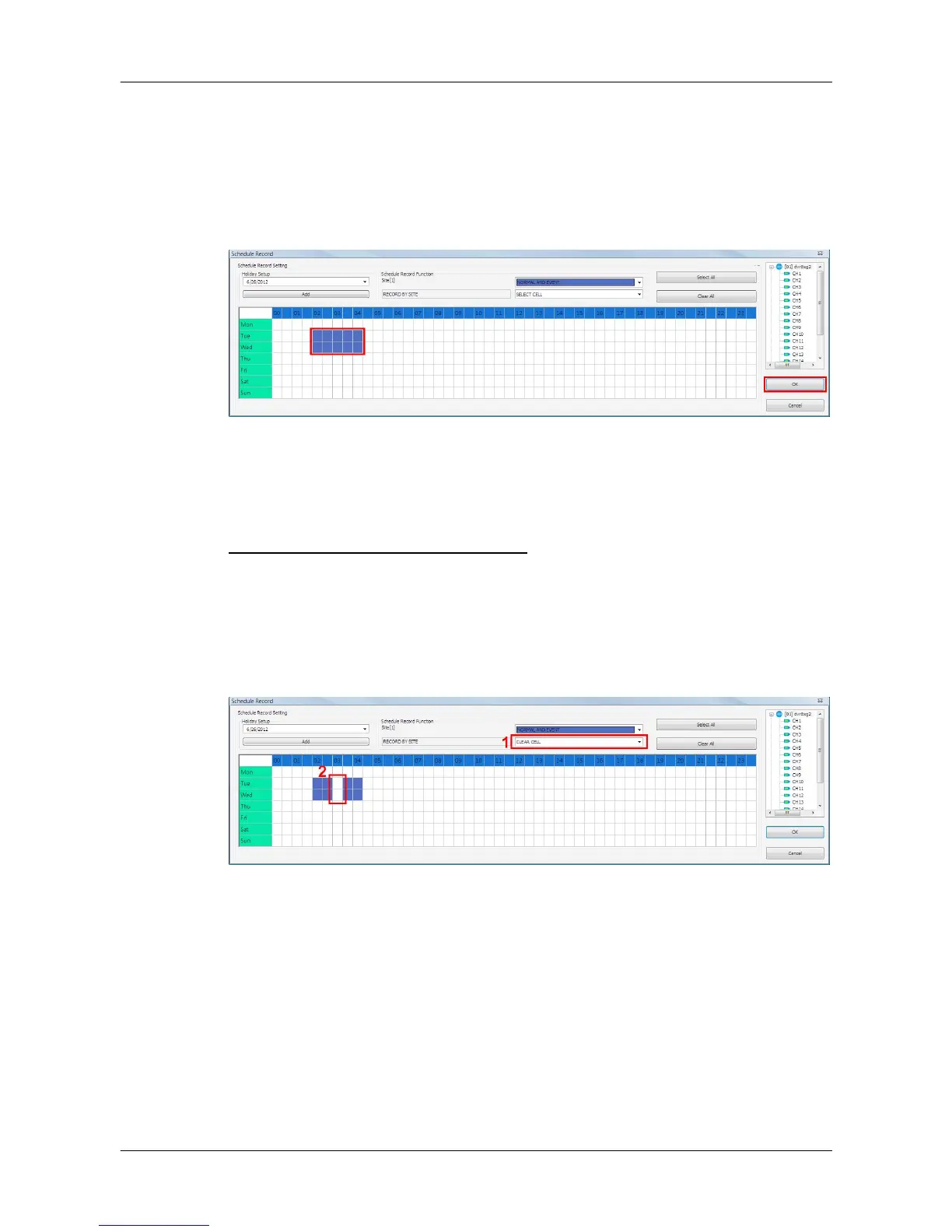
Step 2. Assuming that the site will be scheduled to start recording video from
2:00 to 4:30 on Tuesday and Wednesday. Since the duration of each
cell is 30 minutes, click on the cell under 02 for Tuesday and drag to
the cell under 04 for Wednesday; and the color of the cells will be
changed to purple indicating that both normal and event videos are
going to be recorded during the selected times.
Step 3. After the time frames are selected, click <OK> to save and exit the
Schedule Record window.
Cancel Scheduled Recording Times
If users want to cancel a time frame from selected schedule, for instance,
3:00~3:30, set the selecting option to <CLEAR CELL> in box 1. Click and
drag the cells under 03 from Tuesday to Wednesday. The cells will be blank
which indicates that CMS is not going to record anything. Click on <OK> to
save and exit the Schedule Record window.



 To Next Page