User’s Manual
71
Select/Clear All Cell
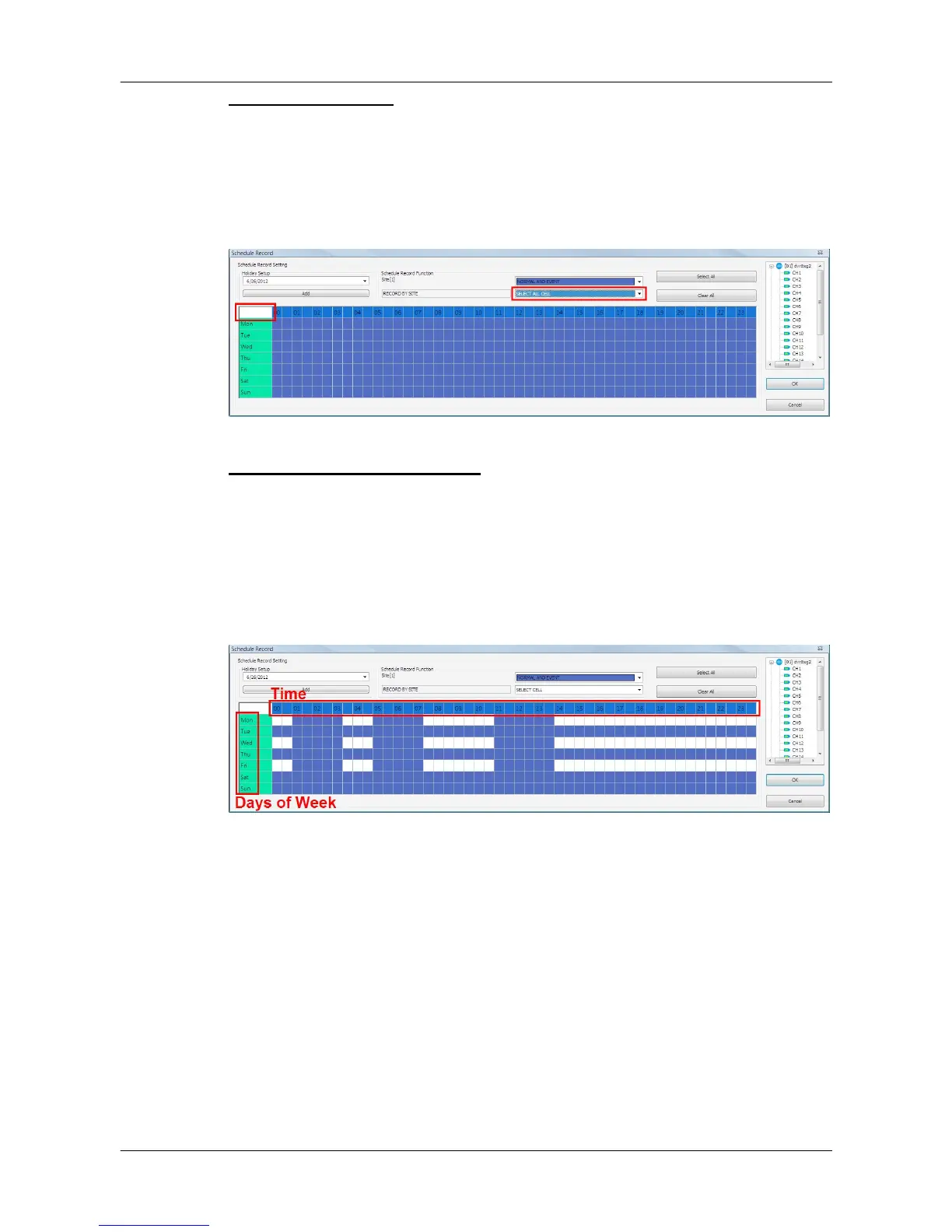
If users want to set the schedule to record at all times, click on the circled
blank cell located on top left corner of the table or set the selecting option to
<SELECT ALL CELL>. If users want to reset the schedule of the site, set the
selecting option to <CLEAR ALL CELL>. Click on <OK> to save and exit
Schedule Record window.
Select/Clear Cell by Date/Time
Another way to select or clear time frame is by clicking on the Day or Time
tabs. For example, when users click on <Tue> tab, the color of all Tuesday
cells will be changed and the site is scheduled to record normal and event
videos every Tuesday. When users click on 5:00~5:30 tab, color of all
5:00~5:30 from Monday to Sunday will be changed. Click on <OK> to save
and exit Schedule Record window.



 To Next Page