User’s Manual
16
Setting
Click on the <Setting> icon and users can configure <CMS Setting> and
<Device Setting>.
System information
Click on the <System information> icon and the pull-down menu includes:
<Device Health>, <PC system info.>, <About CMS>, <CMS operator log>
and <Device operator log>. Select any menu item to display the related
information.
Disconnection Log
Click on the <Disconnection Log> icon to see the log that listed all abnormally
disconnected sites. When abnormal disconnection occurred, the icon will
blink to capture users’ attention.
Alert Log
Click on the <Alert Log> icon to see a list of triggered alert events. When an
alert event is triggered, the icon will blink to remind users.
Site Tree
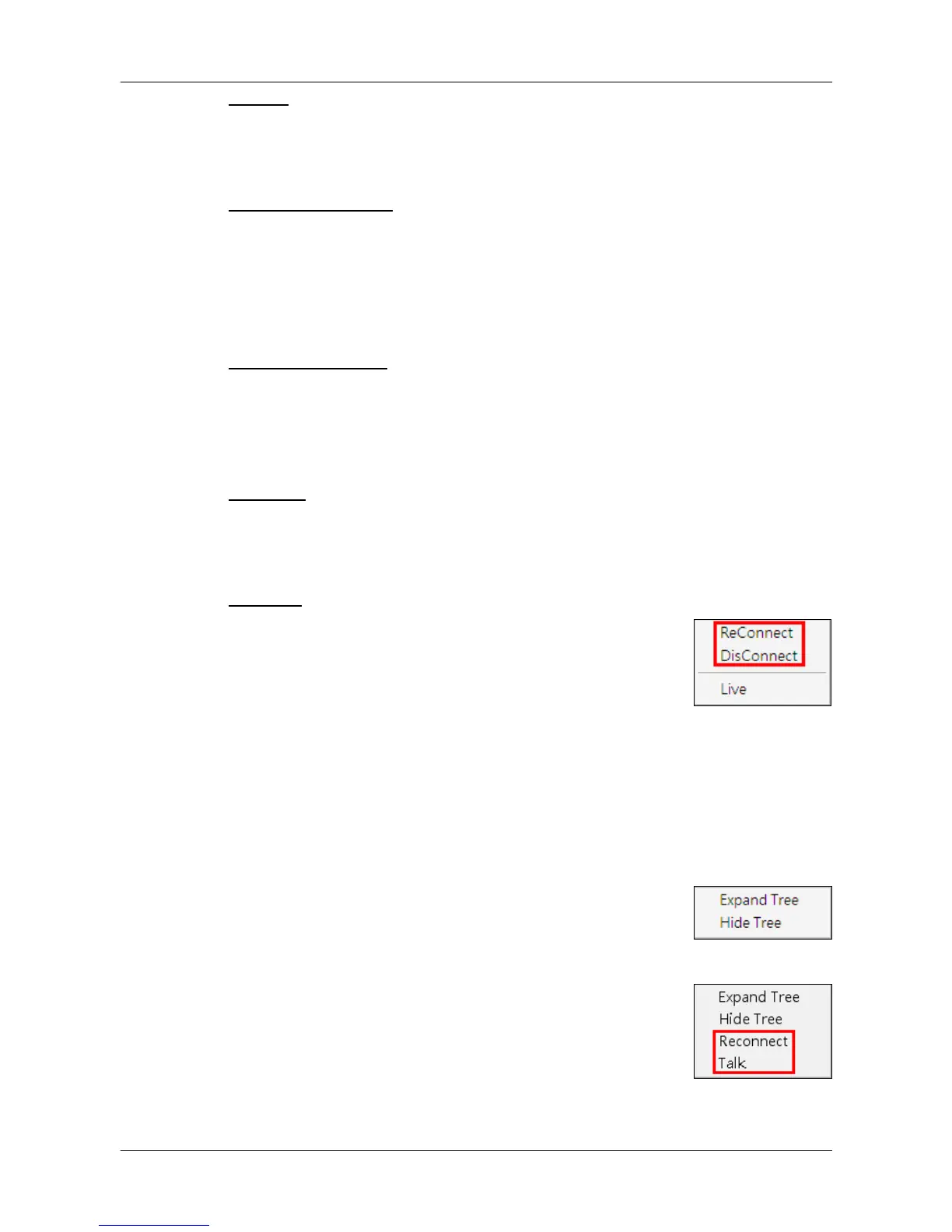
Site tree displays sites that are currently being viewed. If
the connection to a certain camera is failed, there will not
be image displayed on its assigned grid. Right click on the
“site” and click <ReConnect> to try to establish the
connection to the site. The <DisConnect> option allows
users to only disconnect a certain site.
Select <Live> after right click on a site and CMS will
retrieve Live monitoring image(s) of the site.
By right clicking on the group icon, the options shown as
on the right allows users to expand or hide the site tree at
once.
If the group is connecting to a VDS, the right click options
are as shown on the right. Select <Reconnect> to
re-establish the connection to VDS. Select <Talk> to
initiate two-way communication between CMS and VDS.



 To Next Page