3.8 Connecting multiple Power+ units in parallel
This procedure explains how to connect multiple POWER
+
UPSs in parallel.
1. Check the electricity cabinet and the battery cabinet, verify that their circuit breakers are installed
according to the connection schematic (Figure 8 on page 15).
2. On each UPS, verify that battery’s polarity and the connections inside of battery cabinet are
correct (see battery wiring diagram in Figure 9 on page 17).
3. In the electrical board(s) that feed(s) each UPS, turn off the circuit breaker for the line supplying
each UPS, so there is no UPS input.
4. On each UPS, turn off (pull down) the output circuit breakers on the back panel of the units.
5. Remove the rear covers from each of the three UPSs.
6. Connect each unit to mains power supply 3x400 V 50 Hz using 5 wires cable (3 phases+ Neutral +
Ground) as per the connection schematic (Figure 8 on page 15).
7. Connect each unit to its batteries and to the load distribution panel.
8. Connect the parallel connection cables between the units.
9. Verify that the units are grounded properly.
10. Verify that voltage between neutral and ground is less than 2 Vac.
11. Switch on (pull up) the ac rectifier input circuit breaker and the bypass ac input circuit breaker of
one of the units, which we will call “Unit 1”.
a. Verify that the unit starts successfully and after 2-3 minutes all UPS modules on that unit
are working properly (2 green LEDs are lit on the front panel).
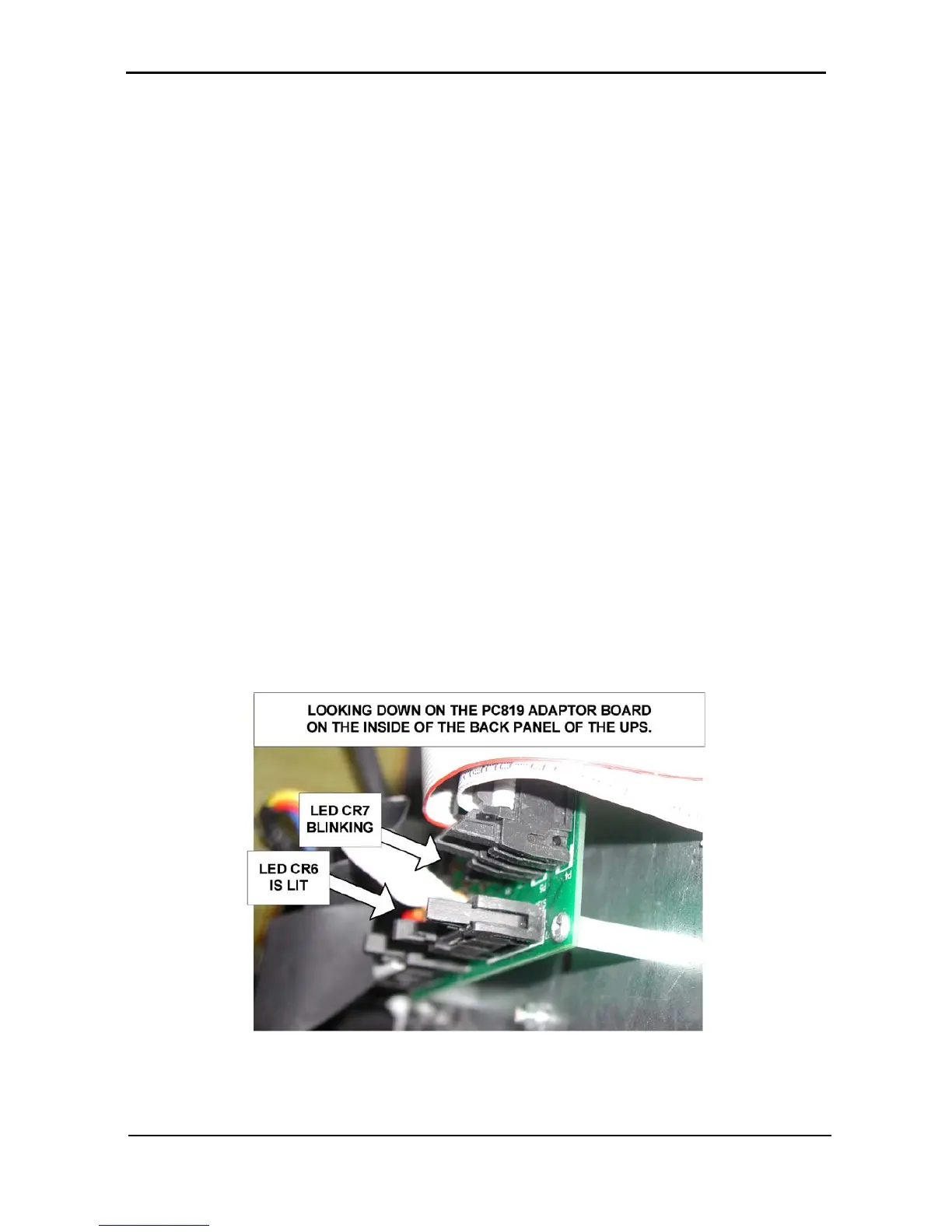
b. Verify that on PC819 adaptor board placed on back panel, the LED CR7 “Active” is blinking
and LED CR6 “Master” is lit.
Figure 22: LEDs on the PC819 board
12. Turn off the circuit breakers of Unit 1.



 To Next Page