No. Items Note
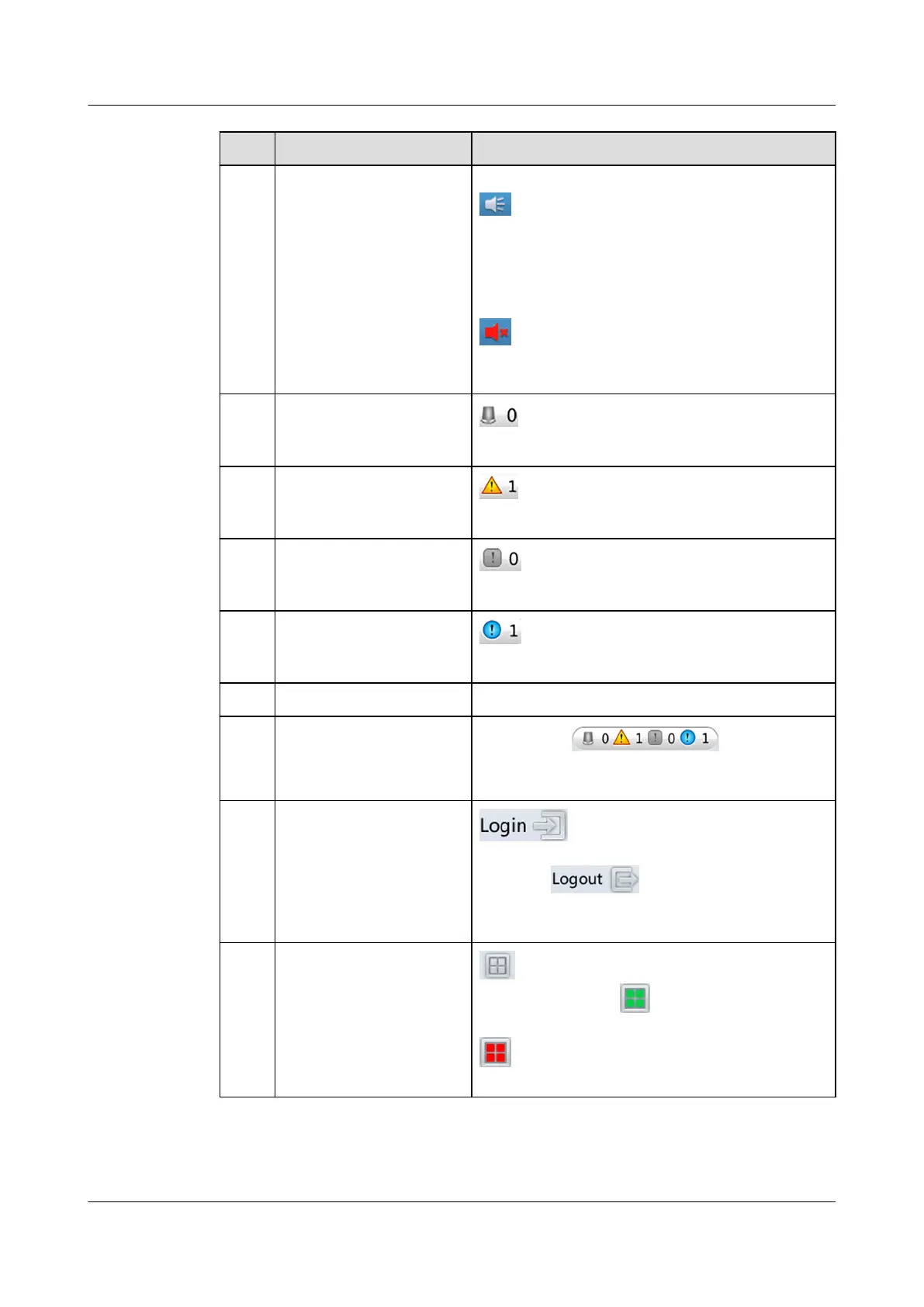
5 The buzzer status The buzzer status can be set to On or O. The
icon indicates that the buzzer is on. When
the buzzer is on, it buzzes when an alarm is
generated. When the buzzer is buzzing, you
can tap anywhere on the screen to mute the
buzzer. After the buzzer is muted, it still
buzzes when a new alarm is generated. The
icon indicates that the buzzer is o
(silenced). After the buzzer is silenced, it does
not buzz when an alarm is generated.
6 The current critical
alarm and their
quantity
refers to the current critical alarm and
their quantity.
7 The current major
alarm and their
quantity
refers to the current major alarm and
their quantity.
8 The current minor
alarm and their
quantity
refers to the current major alarm and
their quantity.
9 The current warning
alarm and their
quantity
refers to the current warning alarm and
their quantity.
10 The status bar N/A
11 The alarm bar
You can tap in the alarm
bar to enter the active alarm screen that
displays all active alarms.
12 Login button / Logout
button
indicates that you have not
logged in to the system, and can tap the icon
to log in. indicates that you have
logged in to the system as admin or operator
user, and can tap the icon to log out.
13 Teamwork control
button
indicates that there is no teamwork
control at present. indicates that there is
teamwork control without alarms at present.
indicates that there is teamwork control
with alarms at present.
NetCol5000-A025 In-row Air Cooled Smart Cooling
Product
User Manual (300 mm Width) 4 Power-On Commissioning
Issue 15 (2020-12-10) Copyright © Huawei Technologies Co., Ltd. 135



 To Next Page