10-2
10.
Bluetooth
®
OPERATION
Connecting to a Bluetooth
®
headset
You can connect an optional Bluetooth headset
to the transceiver.
Step 1� Selecting the pairing mode of the headset�
See the instruction manual of the headset to
select the pairing mode.
Step 2� Searching for the headset (Transceiver)
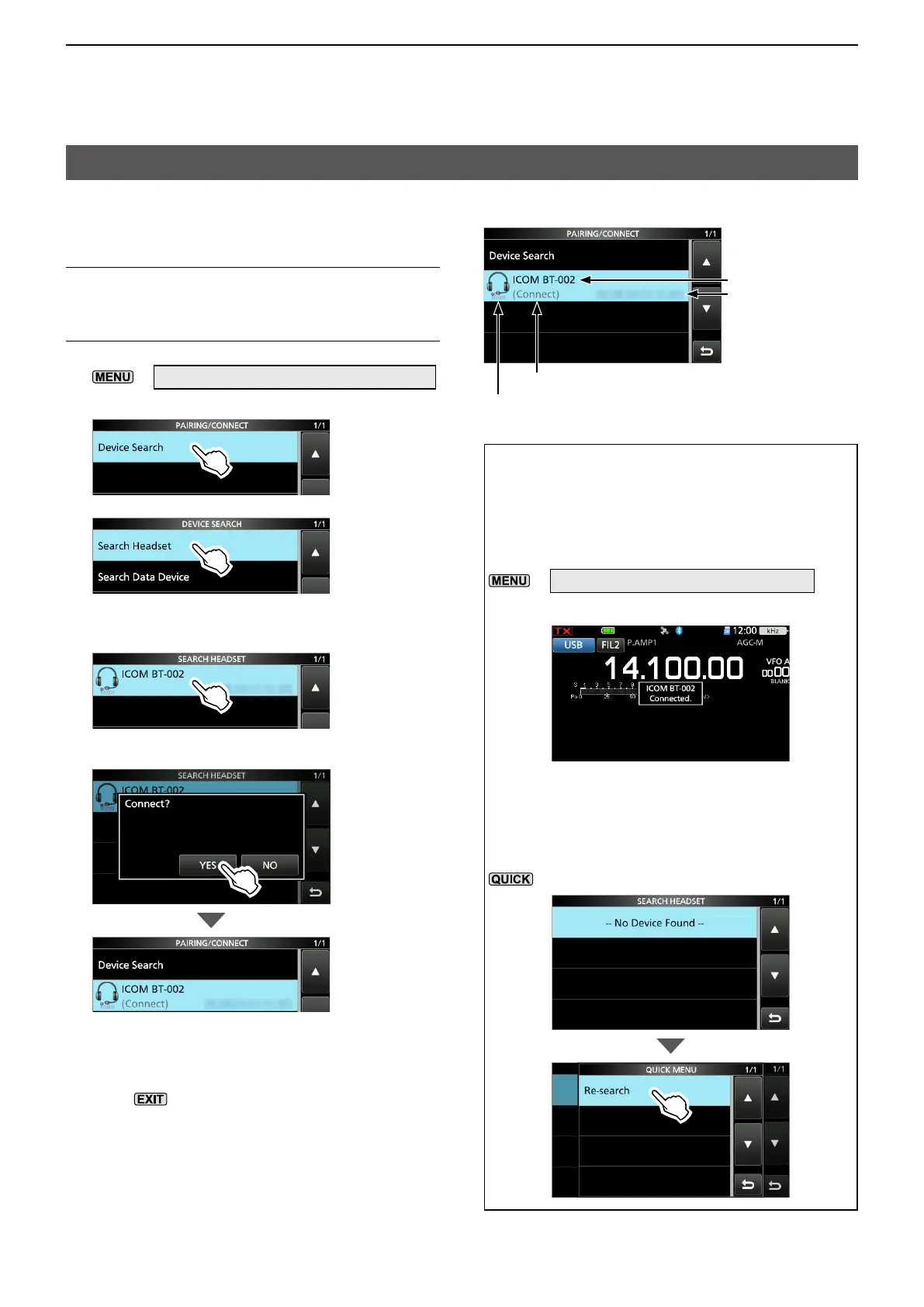
1. Open the PAIRING/CONNECT screen.
»
SET > Bluetooth Set > Pairing/Connect
2. Touch “Device Search.”
3. Touch “Search Headset.”
• Displays the usable headsets in the pairing list.
4. Touch the device name that you want to
connect to. (Example: ICOM BT-002)
• The confirmation dialog “Connect?” is displayed.
5. Touch [YES].
• Connects the headset.
• After connecting, “(Connect)” is displayed in the
pairing list.
6. To close the PAIRING/CONNECT screen,
push
several times.
LWhile connected to a Bluetooth device, the
Bluetooth icon is displayed.
LWhen “AF Output” is set to “Headset Only”
and the Bluetooth connection is accidentally
disconnected, a dialog is displayed to select
whether or not to output the audio from the
transceiver’s speaker. (p. 10-3)
Pairing List
Displayed while connected
Bluetooth address
Device name
Headset icon (“ICOM” indicates the Icom headset.)
TIP:
How to automatically connect to the paired device
When you turn ON the transceiver with
“Auto Connect” set to “ON,” the transceiver
automatically connects to the last paired device.
(Default: ON)
»
SET > Bluetooth Set > Auto Connect
• After connecting, the following dialog is displayed.
How to search again for a headset
When the transceiver cannot find a connectable
headset, “No Device Found” is displayed on the
screen. To search again for a headset, push
, and then touch “Re-search.”




 To Next Page