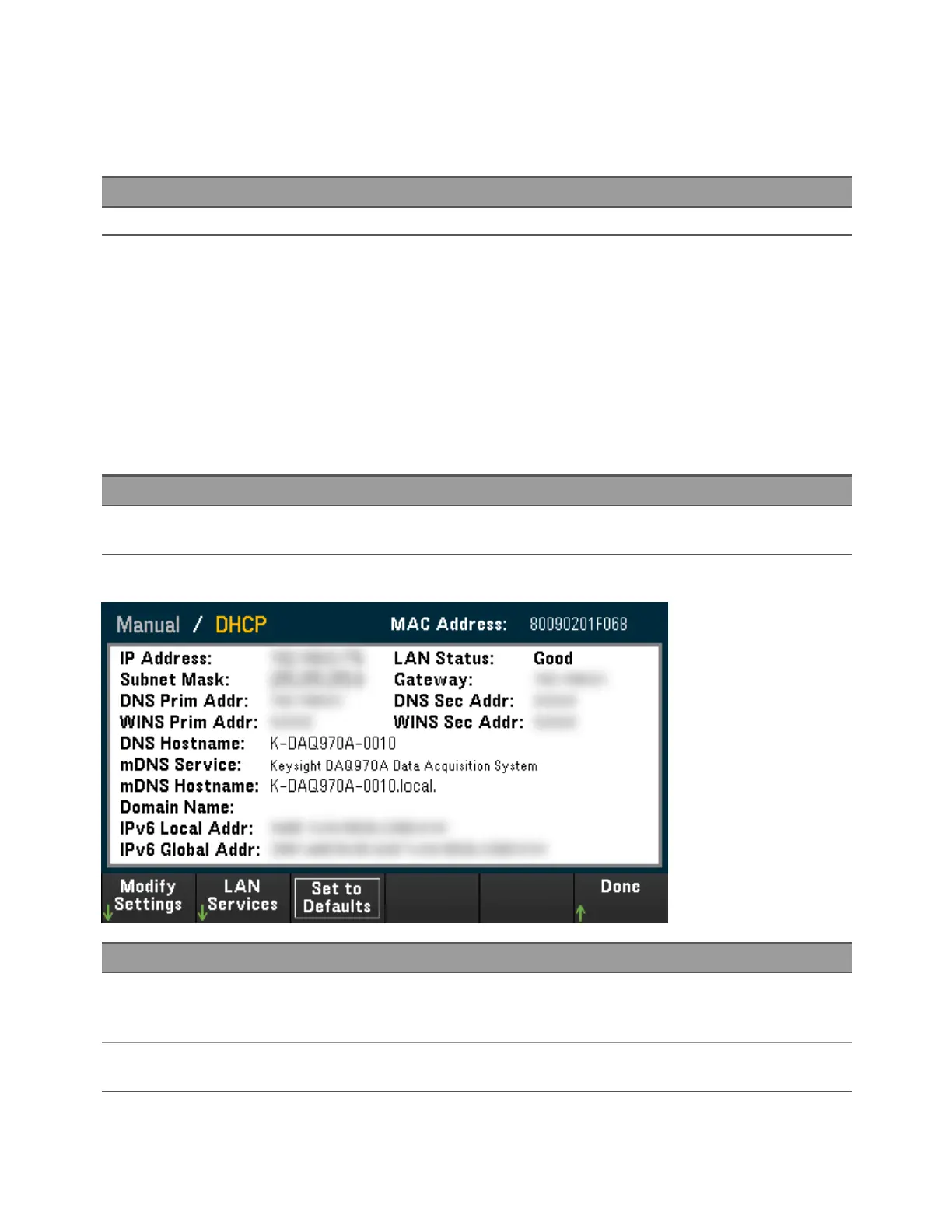
configuration menu settings, which depends on the network configuration. If the settings are different, it is
because the network has automatically assigned its own settings. If the instrument goes into remote, all
LAN changes will be disabled and the display will go into a different screen. Re-selecting with LAN Settings
page will display the new settings if a LAN restart took place.
Front panel Remote interface
Press [Home] > User Settings > I/O > LAN Settings (none)
Modify Settings
As shipped from the factory, the instrument pre-configured settings should work in most LAN envir-
onments. To configure the LAN settings manually:
Manual/DHCP
The DHCP can automatically assign a dynamic IP address to a LAN device. This is typically the easiest way to
configure the instrument for LAN. This setting is non-volatile, it will not be changed by cycling power, fact-
ory reset (*RST command), or instrument present (SYSTem:PRESet command). Enabling the DHCP will dis-
able the Manual setting, and vice versa.
Front panel Remote interface
Press [Home] > User Settings > I/O > LANSettings > Modify Set-
tings.
SYSTem:COMMunicate:LAN:DHCP {OFF|ON}
To enable DHCP:
Step Front panel Remote interface
1 Press [Home] > User Settings > I/O > LANSettings > Modify
Settings.
Set the first softkey to DHCP.
SYSTem:COMMunicate:LAN:DHCP ON
2 If you change this parameter, you must press [Done] > [Apply
Changes] for the change to take effect.
SYSTem:COMMunicate:LAN:UPDate
To disable DHCP:
1 Introduction to the Instrument
24 Keysight DAQ970A User's Guide



 To Next Page