6: Context sensitive help
137
comes back between intervals (when the receiver is supposed to be off), the receiver will boot and
stay on until the end of the next interval.
• If a power loss occurs between intervals (when the receiver is off) and power comes back after the
configured boot time, the receiver will stay on and power down at the end of the interval.
• During a wake-up session all data streams and logging sessions that had been configured and
activated before the start of the wake-up session will automatically resume streaming and logging.
Additional data streams and logging sessions can be configured during the intervals.
• The receiver starts booting 2 minutes before the configured time to ensure that the software is fully
started by the configured start time.
• The receiver powers down 1-30 seconds after the configured time. Logging files may not be
finalised before the receiver is powered down. These files will be finalized when the receiver boots
the next time.
• After the last interval of a wake-up session has ended, the receiver is powered down and stays off.
Remote access is not possible after the power down.
Setting Descriptions
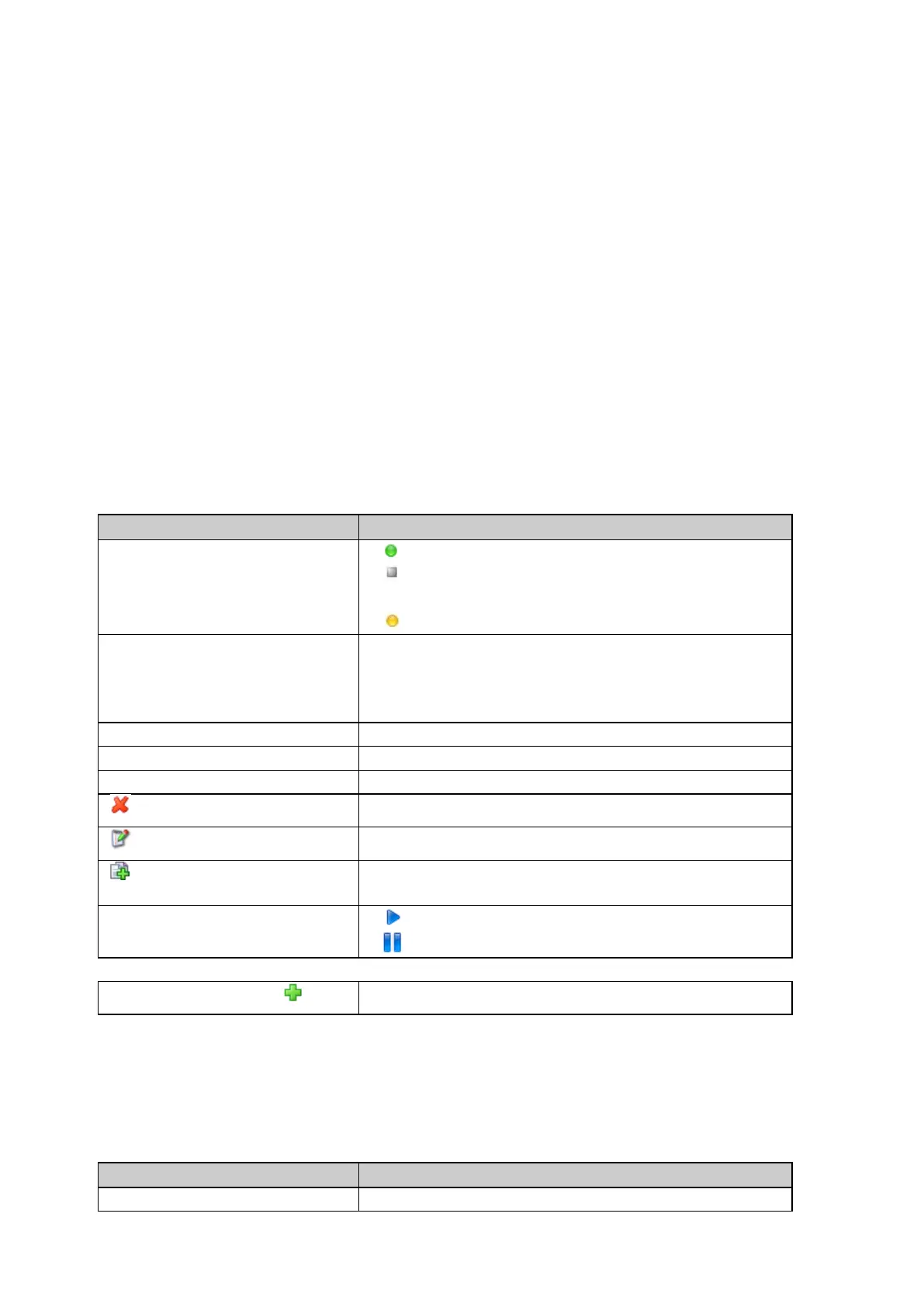
The table below describes the fields in the Wake-up sessions page.
Wake-up session is active and running.
Wake-up session is inactive or the last wake-up
interval has ended.
Wake-up session is active but is currently not running.
The configured name of the wake-up session.
If a wake-up session was configured when creating a logging session, the
name shown will be the logging session name.
The time the receiver is configured to wake up next.
The time the receiver is configured to power down next.
Number of remaining repetitions of the wake-up session.
Delete
Press delete to permanently delete the corresponding wake-up session.
Edit wake-up session
Press to edit the wake-up session.
Create new wake-up session (copy)
Press to create a new wake-up session based on the existing wake-up
session.
The wake-up session is deactivated. Press to activate.
The wake-up session is activated. Press to deactivate.
Create new wake-up session
Press to create a new wake-up session.
Wake-up session properties
The table below describes the content of the Wake-up session properties pop up box. Press on the underlined Wake-up session name
to open the pop-up box.
The configured name of the wake-up session.


 To Next Page