5: Getting started
49
Confirm the change by clicking on Yes when asked to allow the change.
Restart the computer for all changes to take effect. (Not needed if UAC is already disabled.)
Insert the Leica digital storage device.
Run the installer executable depending on your CPU and operating system to install the drivers necessary
for your GR/GM receiver.
• 32 bit CPU: SetupViva&GR_USB_32bit.exe
• 64 bit CPU: SetupViva&GR_USB_64bit.exe
• Itanium 64 bit CPU: SetupViva&GR_USB_64bit_itanium.exe
Wait until the Mobile Device Center Driver Update is finished.
The Welcome to the InstallShield Wizard for Leica Viva & GR/GM USB drivers window appears.
The Ready to Install the Program window appears.
Click Install. The drivers will be installed on your computer.
Click Continue Anyway every time a window pops up saying that the software has not passed the Windows
Logo testing.
The InstallShield Wizard Completed window appears.
Read the instructions and check the box, I have read the instructions. These instructions are listed in detail
in the following steps.
Click Finish to exit the wizard.
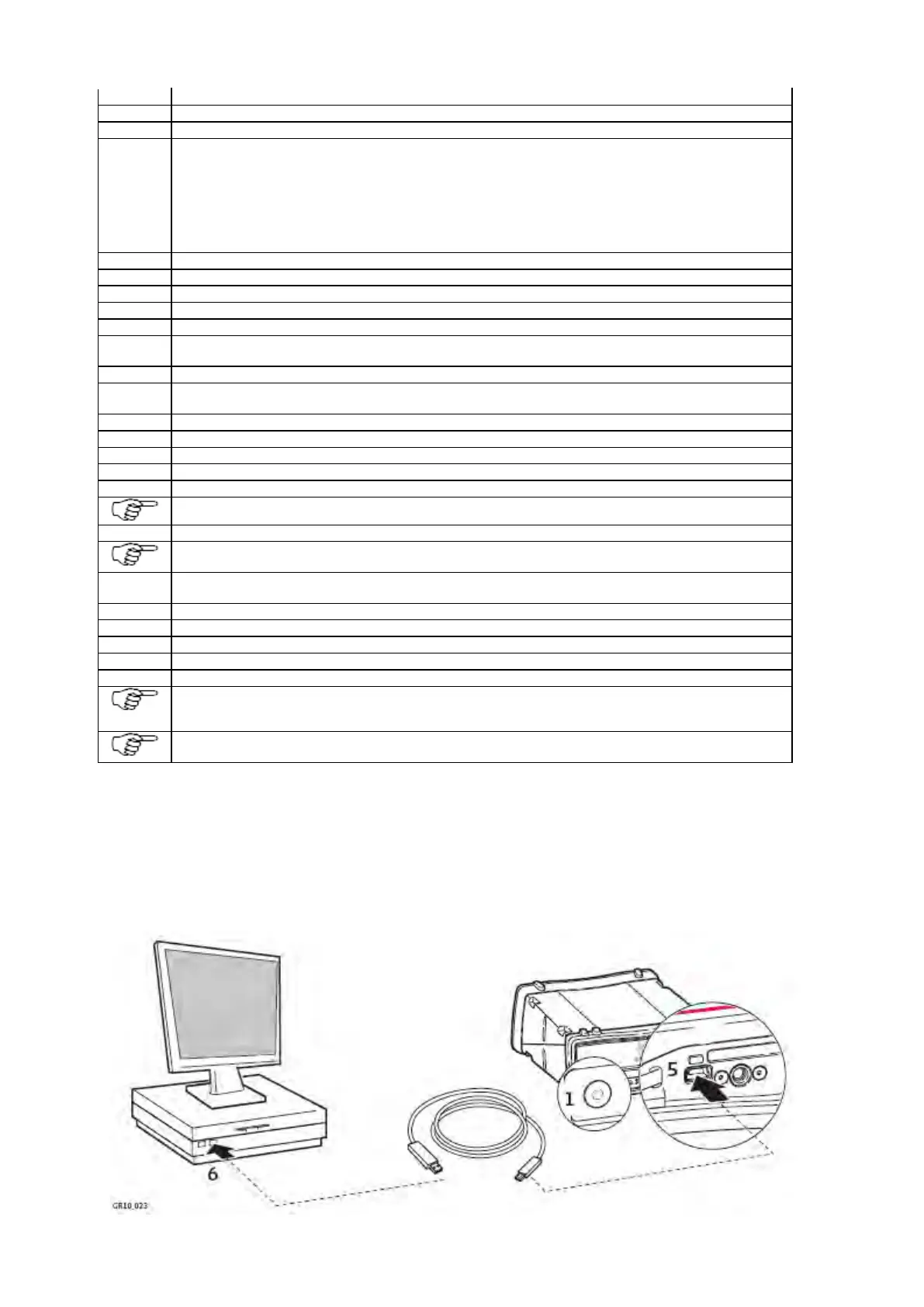
Loosen the screw on the SD card/USB port cover.
Open the SD card/USB port cover.
Plug the USB cable into the USB port on the instrument.
Plug the USB cable into the USB port of the computer.
Windows will show searching for IP address. Ignore this and go to the next step.
Run shortcut Configure GR/GM connection which has been created on the Windows desktop.
There are two more shortcuts created for the GS and CS. These shortcuts can be ignored, unless these
devices will be used on this computer. Refer to the GS/CS User Manual for further information.
A DOS window is opened and a batch file is started to configure the IP settings for the RNDIS network
adapter.
Press any key to close the DOS window.
Disconnect and reconnect the USB cable.
Open a browser and type in the IP address: 192.168.254.2 to access the Web interface.
Configure the instrument for all required settings.
Use the default User name (Admin) and Password (12345678).
After logging in the first time you must create a new user account, including a new user name and password.
The default user account can then be deleted. Go to Access the web interface for the first time and change
the default user for a step-by-step guide.
Please make sure that JavaScript is allowed to be executed. Check the browser settings if you should have
problems using the web interface.
Troubleshooting
Troubleshooting: Installing USB drivers
Setup via Web Interface over USB


 To Next Page