5: Getting started
51
Use the arrow buttons, go to Configuration, Network Config. Scroll down to the Bluetooth field and use the
left button to enable Bluetooth.
Activate bluetooth on your computer and search for Bluetooth devices. The instruments hostname will be
listed.
Pair the Bluetooth connection of your computer with the instrument.
The default pairing code is 0000. The pairing code can be changed later in the web interface.
Once the pairing is finished, right click on the GR25/50 device listed in your Bluetooth devices panel and
select Connect.
Go to the Network connections panel of your computer and select the Bluetooth network connection
connected to the receiver. Right click and open the properties.
Highlight the TCP/IP connection and click on the Properties button.
Enter the IP address 192.168.253.x and subnet mask 255.255.255.0.
Open a browser and type in the IP address: 192.168.253.2 to access the Web interface.
Use the default User name (Admin) and Password (12345678).
After logging in the first time you must create a new user account, including a new user name and password.
The
default user account can then be deleted. Refer to the GR/GM Operational Manual (Online Help) for a step-
by-step
Configure the instrument for all required settings.
Setup via Web interface over WLAN (GR25/50)
Only available for GR25/50 with WLAN radio installed.
Please note that this page describes a wireless ad-hoc connection to the default profile. For user defined ad-
hoc setups, please edit the described settings accordingly.
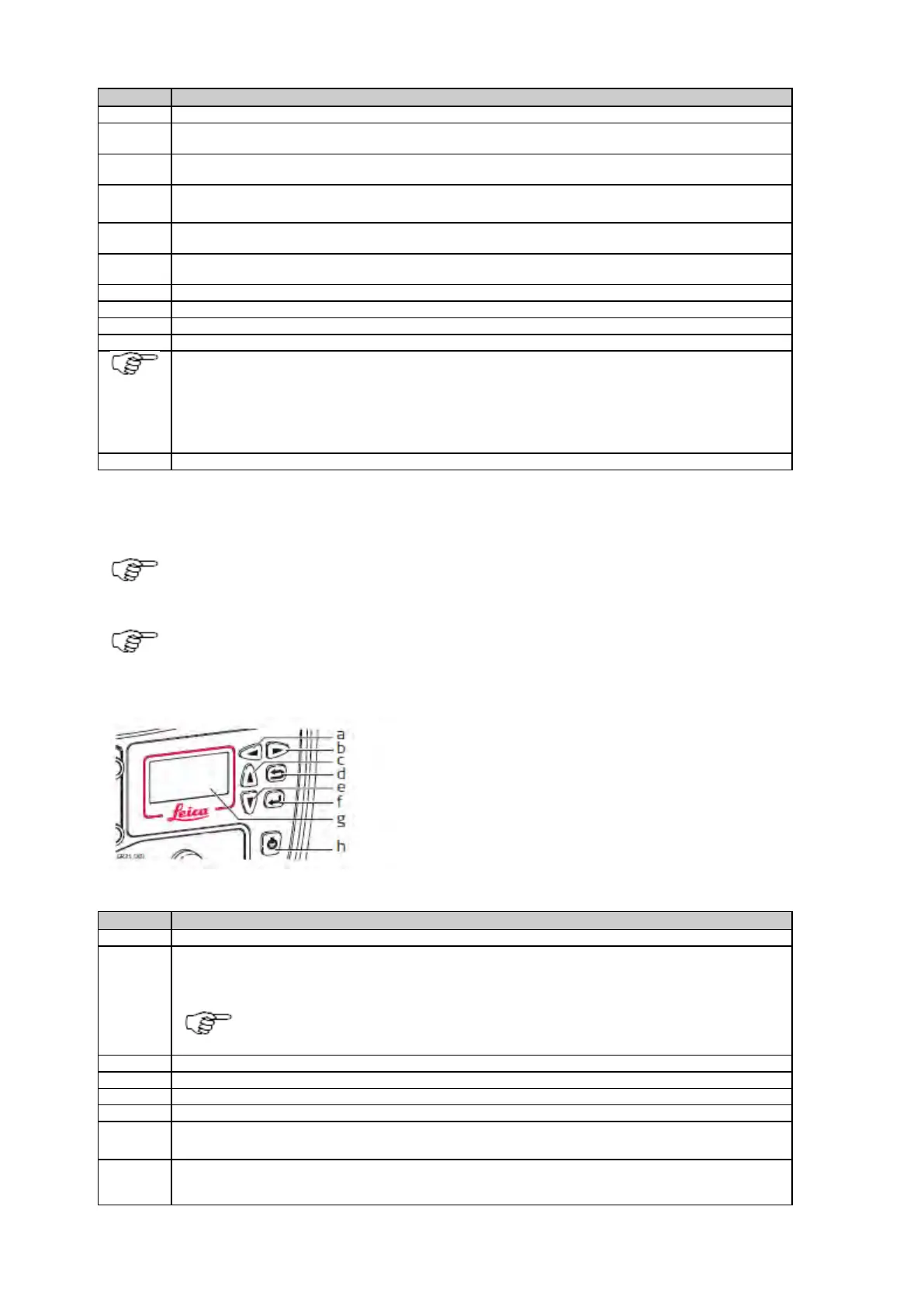
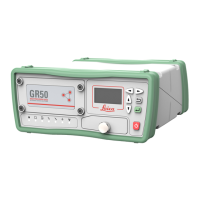
b. Right button
c. Up button
d. Cancel button
e. Down button
f. Enter button
g. Screen
h. ON/OFF button
Use the arrow buttons, go to Configuration / Network Config / WLAN and use the left button to enable the
WLAN radio.
A WLAN default profile is pre-configured on all GR25/50 with the WLAN hardware installed and the
GRL120 WLAN option installed.
Activate WLAN on your computer. It may be necessary to use a hardware or software switch.
On your computer, go to Start > Control panel > Network and Sharing Center.
Select to set up a new network.
Create a new wireless ad hoc (computer-to-computer) network.
Choose the security type to be “No authentication (Open)” and leave the security key field blank.
Enter the receiver's serial number for the network name.
Edit the network settings of your computers WLAN adapter:
IP address: 192.168.252.x


 To Next Page