6: Context sensitive help
149
The names as configured for the listed wireless profiles.
The Service set IDs of the listed wireless profiles.
The type of wireless security applied to the network the listed profiles are
connecting to.
Shown for all currently detected networks. The signal strength the wireless
signal is received with at the WLAN antenna. The displayed signal strength is
an interpretation (No signal, verly low, low, good, very good, excellent) of the
RSSI (receiver signal strength indication) value for each network. The RSSI
values are mapped as follows:
• RSSI < -90 or WLAN network not seen at all => "No signal"
• RSSI >= -90 and < -81 => "Very low"
• RSSI >= -81 and < -71 => "Low"
• RSSI >= -71 and < -67 => "Good"
• RSSI >= -67 and < -57 => "Very good"
• RSSI >= -57 => "Excellent"
For ad hoc connections an RSSI value cannot be
provided. Thus "Available" will be shown if connected.
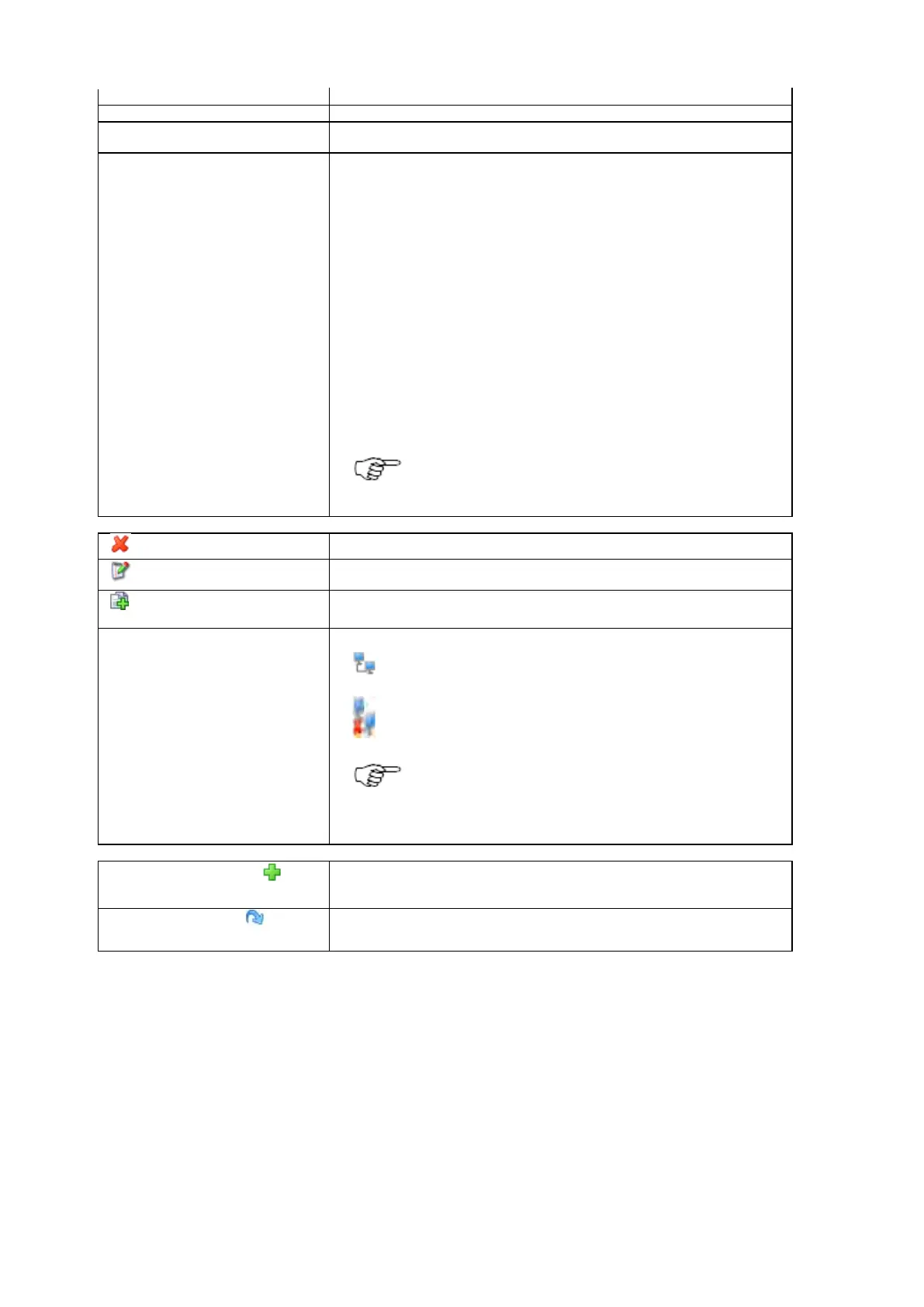
Press delete to permanently delete the WLAN profile.
Edit WLAN profile
Press to edit the WLAN profile settings. The Edit WLAN profile page will open.
The profile name cannot be edited.
Create new WLAN profile
Press to create a new WLAN profile based on the settings of an existing profile.
Connect/Disconnect
Receiver is disconnected from WLAN profile. Press to
connect.
Receiver is connected to WLAN profile. Press to
disconnect.
The receiver can connect to one WLAN profile at a
time. Connecting a WLAN profile will disconnect the
receiver from a current connection if existing.
Create new WLAN profile
Press to open the New WLAN profile page.
Restore default values
Press to restore the default WLAN profile. This will also delete all existing
WLAN profiles and turn off the wireless LAN radio.
Related topics
Status: Network connections
Network connections: New / Edit WLAN profile
Background Information
Enter the necessary settings to define a wireless LAN profile, allowing a one-to-one connection with another network device (ad hoc) or
connecting to a network of devices (infrastructure).


 To Next Page